Apache | Apache Installation | Starting Apache (Console Startup and Service Registration)
This page explains how to start Apache. In a Windows environment, there are two main ways to start it: manually by using the console application, or automatically by registering and configuring Apache as a Windows service.
Start Apache simply
First, start Apache from Explorer. The executable file, httpd.exe, is located at “(Apache installation directory)\Apache24\bin\httpd.exe”.
To start it, run “httpd.exe” in the “(Apache installation directory)\Apache24\bin" folder as administrator. Apache will start.
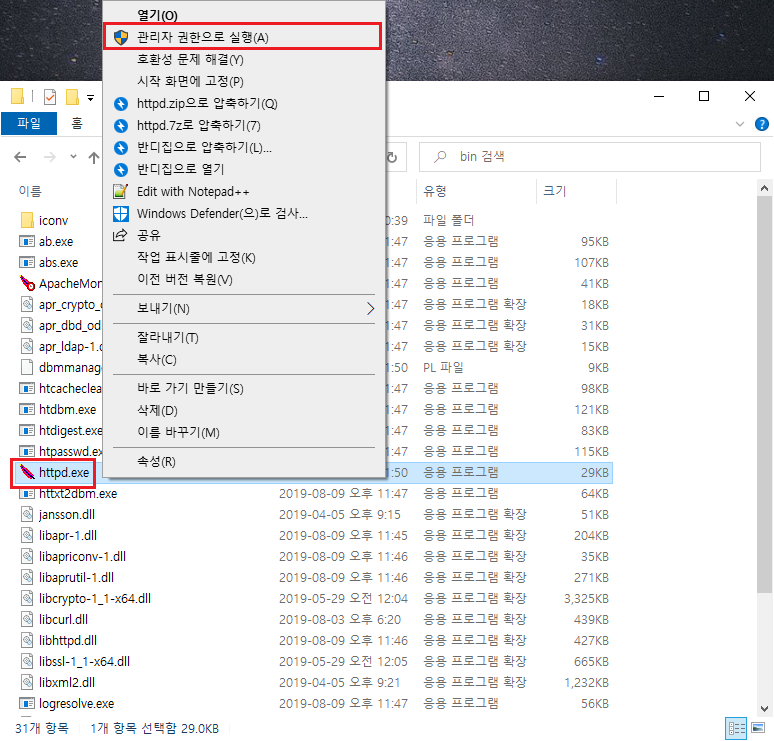
When Apache starts, a console application appears and remains in the following state while it is running.

Now check whether Apache is running. Start a browser and enter “http://localhost/”. If the following page is displayed, Apache has started successfully.

If an error page appears saying that the browser cannot connect, Apache failed to start.
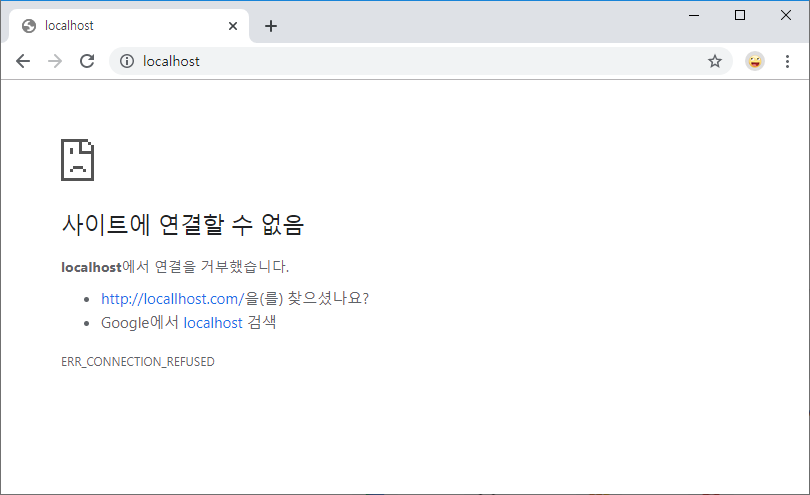
If an error occurs, run httpd.exe from the command prompt. It will display the cause of the error clearly.
The following occurs when ServerRoot is not set correctly.
C:\apache\Apache24\bin>httpd.exe
httpd.exe: Syntax error on line 39 of C:/Apache24/conf/httpd.conf: ServerRoot must be a valid directory
The following occurs when ServerName is not set correctly.
C:\apache\Apache24\bin>httpd.exe
AH00558: httpd.exe: Could not reliably determine the server's fully qualified domain name, using fe80::3179:bb2:de42:8a63. Set the 'ServerName' directive globally to suppress this message
To stop the running Apache process, close the console application. If you started it from the command prompt, press “Ctrl + c”. When the following is displayed, Apache has stopped.
C:\apache\Apache24\bin>httpd.exe

C:\apache\Apache24\bin>
Register Apache as a service
Next, start Apache as a service. First, register it as a service. If Apache is running, stop it. Start Command Prompt as administrator, move to the “(Apache installation directory)\Apache24\bin" directory, and run the command “httpd -k install”.
C:\>cd apache\Apache24\bin

C:\apache\Apache24\bin>httpd -k install
Installing the 'Apache2.4' service
The 'Apache2.4' service is successfully installed.
Testing httpd.conf....
Errors reported here must be corrected before the service can be started.

C:\apache\Apache24\bin>
If the output appears as above, registration as a service is complete.
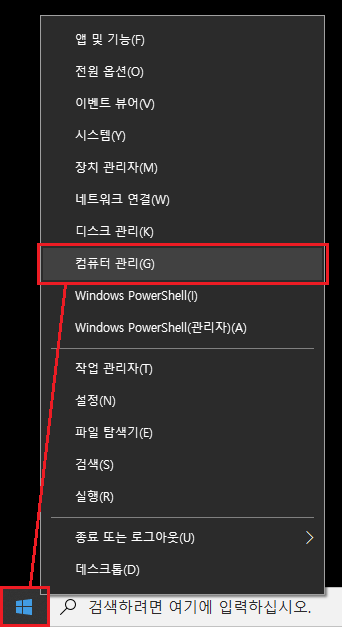
To confirm that it was registered, open the Services screen in Windows 10. Right-click the Start menu at the bottom-left of the desktop and click “Computer Management” in the menu that appears.
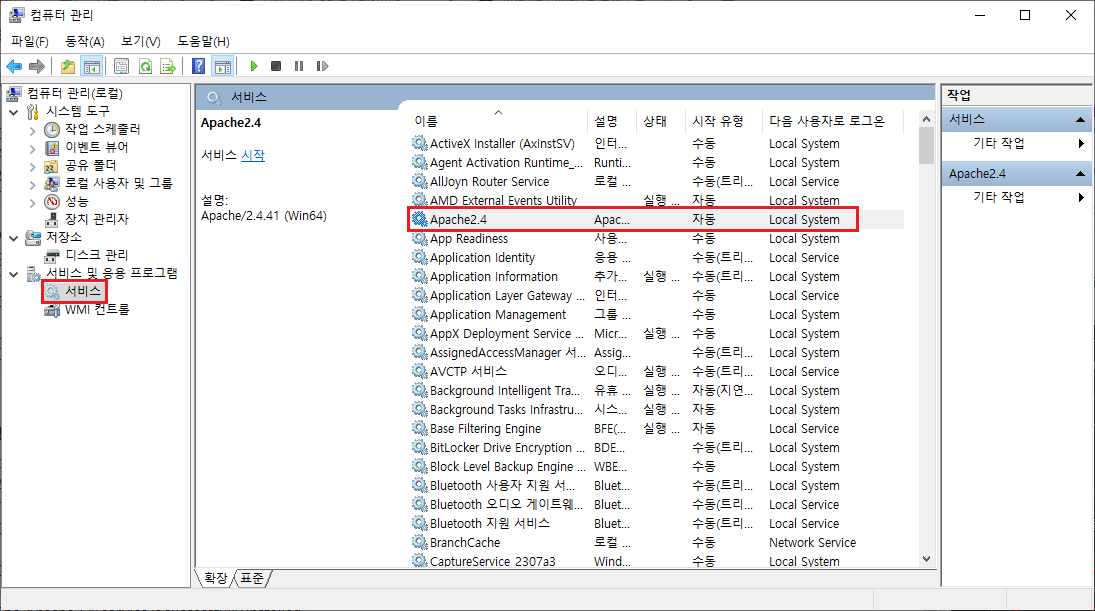
When the “Computer Management” screen appears, click “Services” under “Services and Applications” in the left menu. The list of registered services appears on the right side of the screen, and you can confirm that Apache2.4 is included.
Start Apache
Next, start Apache. Run “httpd -k start” from the command prompt.
C:\apache\Apache24\bin>httpd -k start

C:\apache\Apache24\bin>
If you check the Services screen, the status of the Apache2.4 service is “Running”.
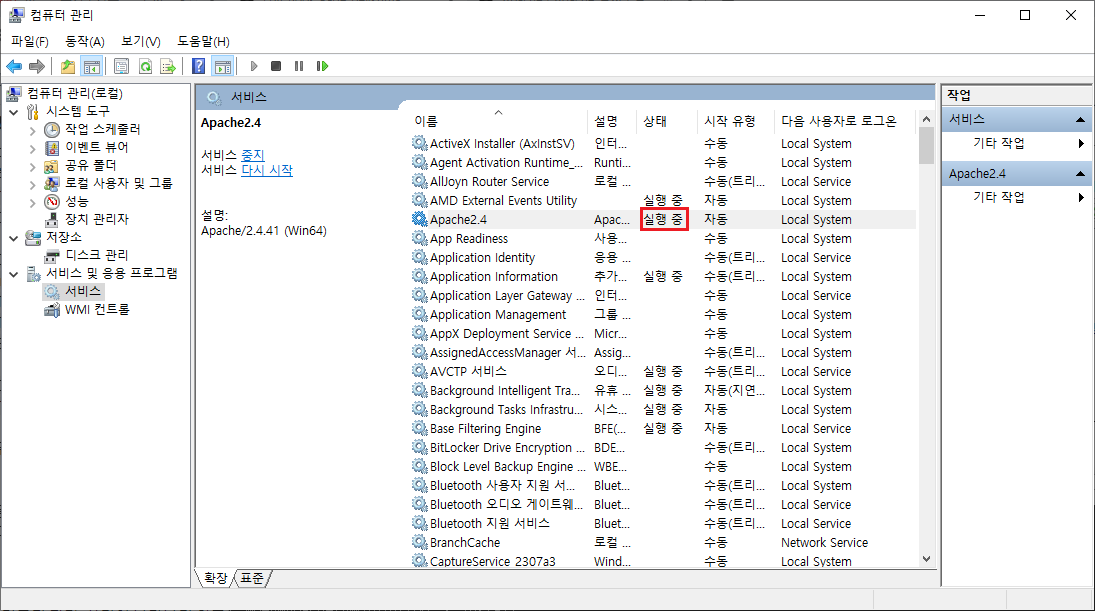
To confirm, enter “http://localhost/” in a browser. If the following page is displayed, Apache has started successfully.
Stop Apache
To stop Apache running as a service from the command prompt, run “httpd -k stop” or “httpd -k shutdown”.
C:\apache\Apache24\bin>httpd -k stop
The 'Apache2.4' service is stopping.
The 'Apache2.4' service has stopped.

C:\apache\Apache24\bin>
Restart Apache
To restart Apache while it is running, run “httpd -k restart”.
C:\apache\Apache24\bin>httpd -k restart

C:\apache\Apache24\bin>
Remove Apache from services
To remove Apache registered as a service, run “httpd -k uninstall”.
C:\apache\Apache24\bin>httpd -k uninstall
Removing the 'Apache2.4' service
The 'Apache2.4' service has been removed successfully.

C:\apache\Apache24\bin>
Configure how Apache starts as a service
If Apache is registered as a service, you can use Windows service management to start Apache or configure it to start automatically when the PC boots. Double-click Apache2.4 on the Services screen.
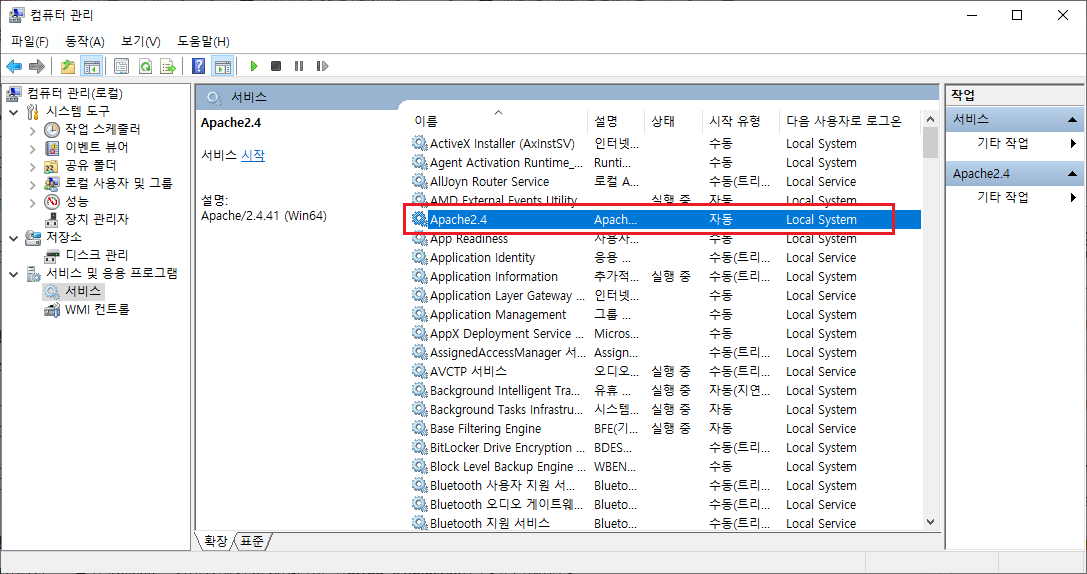
The properties for the Apache2.4 service are displayed.
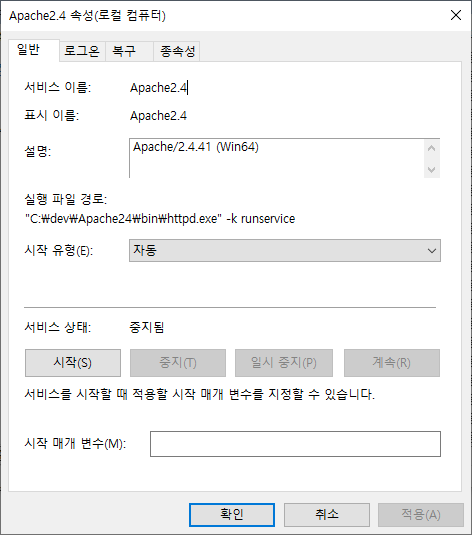
“Startup type” is currently set to “Automatic”, so Apache also starts automatically when Windows starts. To start Apache manually instead, change “Startup type” to “Manual”.
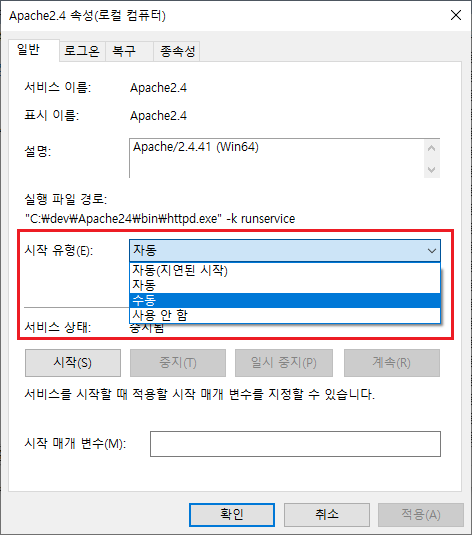
Earlier, Apache was started and stopped from the command prompt, but you can also start or stop Apache by clicking the “Start”, “Stop”, “Pause”, and “Restart” buttons on this screen.
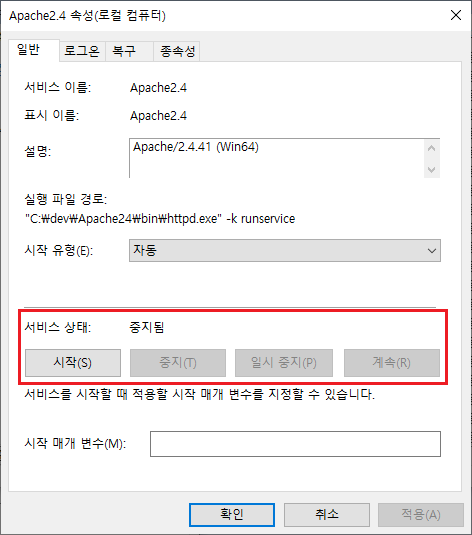
In this way, Apache startup and shutdown can also be controlled from the service management screen.