Apache | Apache Installation | Accessing the Web with a Port Number Other Than 80
Apache and many other web servers usually use port number 80. If an application already using port 80 is running on the same server, you must configure the web server to use another port number. This page explains how to access a web server from a browser by using a port number other than 80.
Change the port number used by Apache
As explained in “Initial Settings for the Configuration File (http.conf) > Configure the port number”, the port number used by Apache is specified in the http.conf file. By default, the Listen directive specifies port 80 as follows.
#
# Listen: Allows you to bind Apache to specific IP addresses and/or
# ports, instead of the default. See also the <VirtualHost>
# directive.
#
# Change this to Listen on specific IP addresses as shown below to
# prevent Apache from glomming onto all bound IP addresses.
#
#Listen 12.34.56.78:80
Listen 80
If another web server is running on the same server and port 80 is already in use, specify another port number, such as 8080. You cannot choose just any number; you must specify a number that is not used by another application running on the same server, such as a mail server or DNS server. In this article, 8080 is used as an example.
#
# Listen: Allows you to bind Apache to specific IP addresses and/or
# ports, instead of the default. See also the <VirtualHost>
# directive.
#
# Change this to Listen on specific IP addresses as shown below to
# prevent Apache from glomming onto all bound IP addresses.
#
#Listen 12.34.56.78:80
Listen 8080
To apply the setting, save the http.conf file and restart Apache.
Access Apache from a browser by specifying the port number
When accessing a web server such as Apache from a browser, use the following format.
http://(web server host name):(port number used by the web server)/...
For example, to access a website configured to use port 8080, use a URL such as “http://www.devkuam.com:8080/".
When port 80 is used, there is an exception: if you omit the port number, it is treated as port 80. Therefore, instead of accessing “http://www.devkuam.com:80”, you can omit the port number and access “http://www.devkuam.com”.
When the port number is 80, it can be omitted, so the following two URLs are equivalent.
http://www.example.com/
http://www.example.com:80/
This Apache server uses port 8080, so to access it, you must specify the port number as in http://localhost:8080 rather than http://localhost/. Open a browser and try connecting.
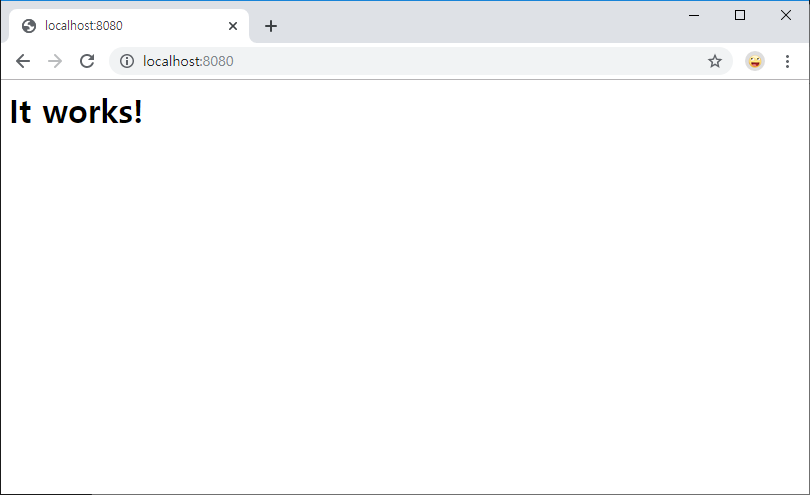
The connection succeeded. When using a port number other than 80, remember that you must specify the port number when accessing the web server.