Apache | Apache Installation | Downloading and Installing Apache
This page explains how to download and install Apache. As of November 2019, the latest version is Apache 2.4.41. The installation environment used here is Windows 10 (64-bit).
Download Apache
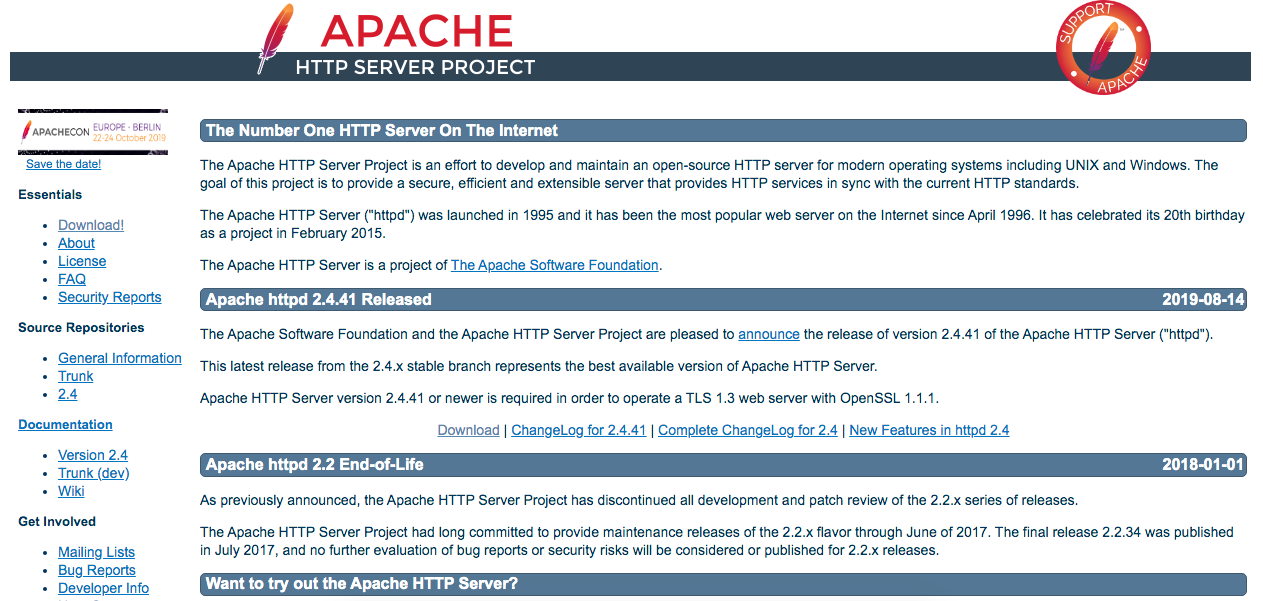
Download Apache from the official Apache website.
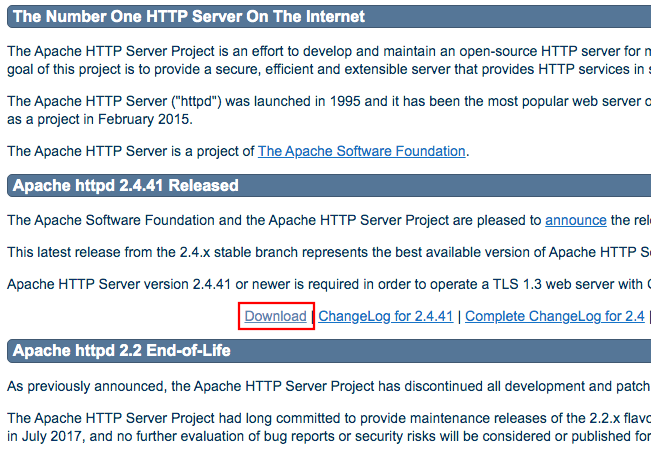
Click “Download” in the “Apache httpd 2.4.41 Released 2019-08-14” block, which is the latest version used in this article.
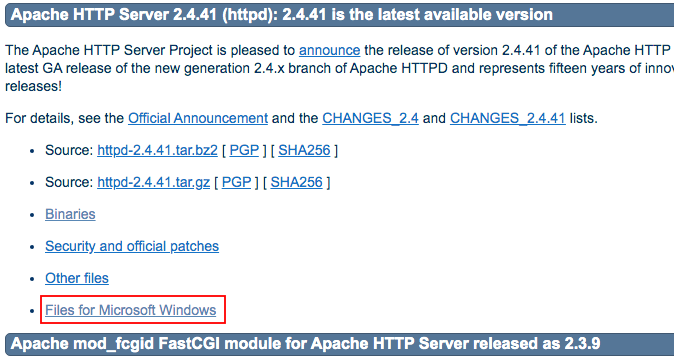
Because this article installs Apache on Windows 10 (64-bit), click the link labeled “Files for Microsoft Windows”.
http://httpd.apache.org/download.cgi#apache24
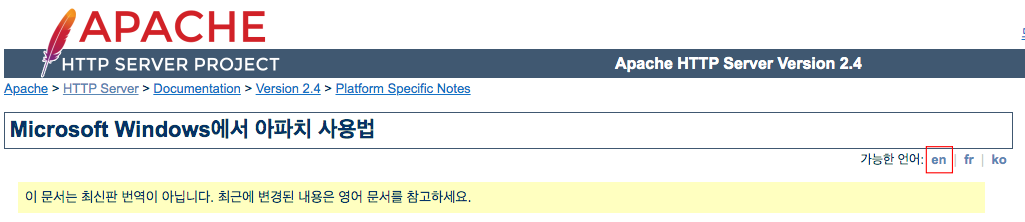
If Korean text appears after clicking Files for Microsoft Windows, scroll to the top. You will see a warning that says this document is not the latest translation and that recent changes should be checked in the English document. In that case, click “en” to display the English version.
http://httpd.apache.org/docs/current/ko/platform/windows.html
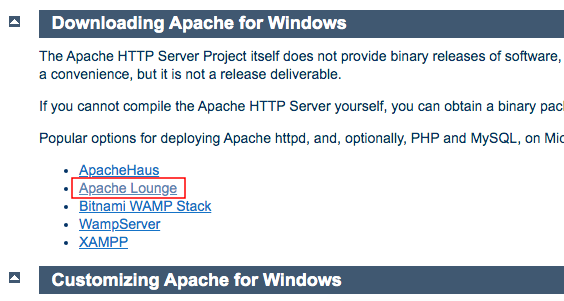
The official Apache site explains that it provides only source code and does not provide Windows binaries. Instead, it introduces several sites that distribute binaries. In this article, click “Apache Lounge”.
http://httpd.apache.org/docs/current/en/platform/windows.html
The Apache Lounge site is displayed.
https://www.apachelounge.com/download/
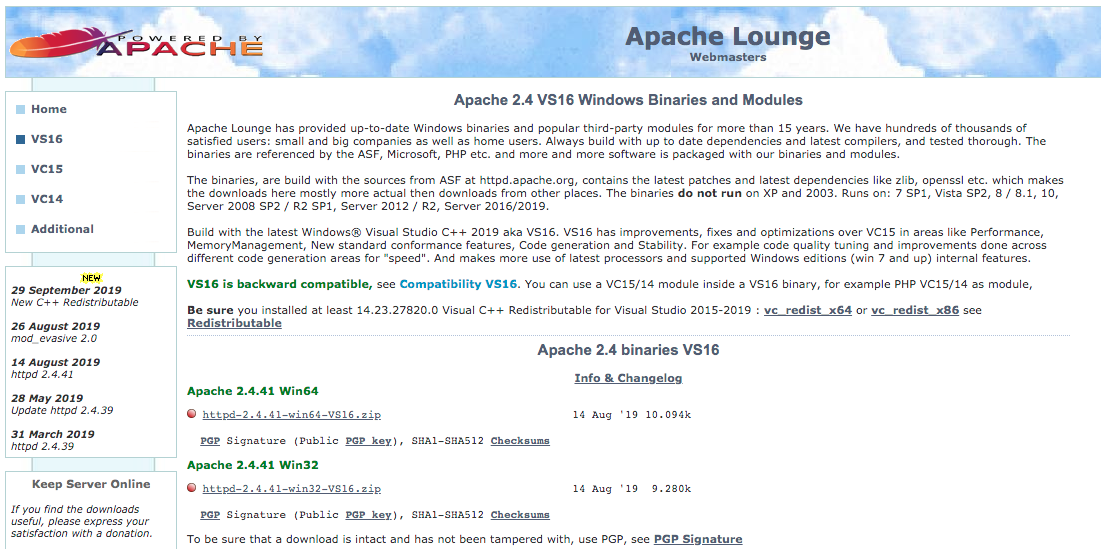
Both 32-bit and 64-bit versions are available. Since this article installs Apache in a 64-bit environment, click “httpd-2.4.41-win64-VC16.zip” under “Apache 2.4.41 Win64”.
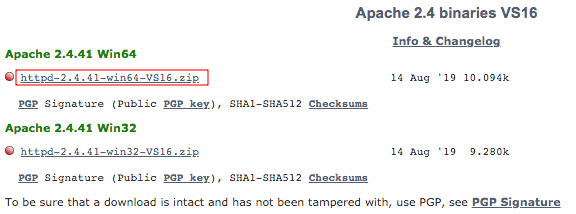
When the download finishes, save the file in any location. The Apache download is now complete.
Install the Visual C++ Redistributable Package
When running Visual C++ applications built with Visual Studio, the required runtime components must be installed. The Windows Apache binary is also built with Visual Studio, so it requires the runtime.
The runtime is often already installed for other applications. If it is not installed, an error such as “The code execution cannot proceed because VCRUNTIME140.dll was not found. Reinstalling the program may fix this problem.” appears.
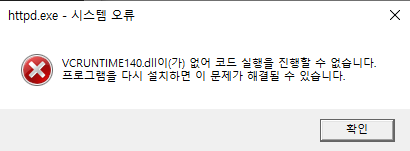
Go to the page above and install the Visual C++ runtime. In this article, the runtime for Visual Studio 2019 is required.
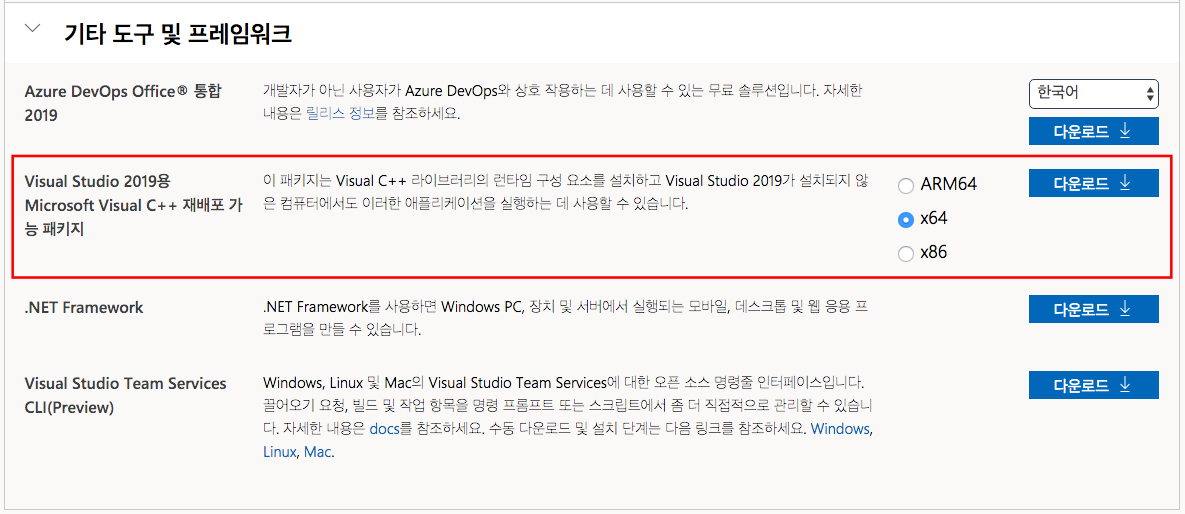
The preparation is complete. Next, Apache installation is explained.
Install Apache
To install Apache, extract the downloaded archive file, “httpd-2.4.41-win64-VC16.zip”, into an appropriate folder.
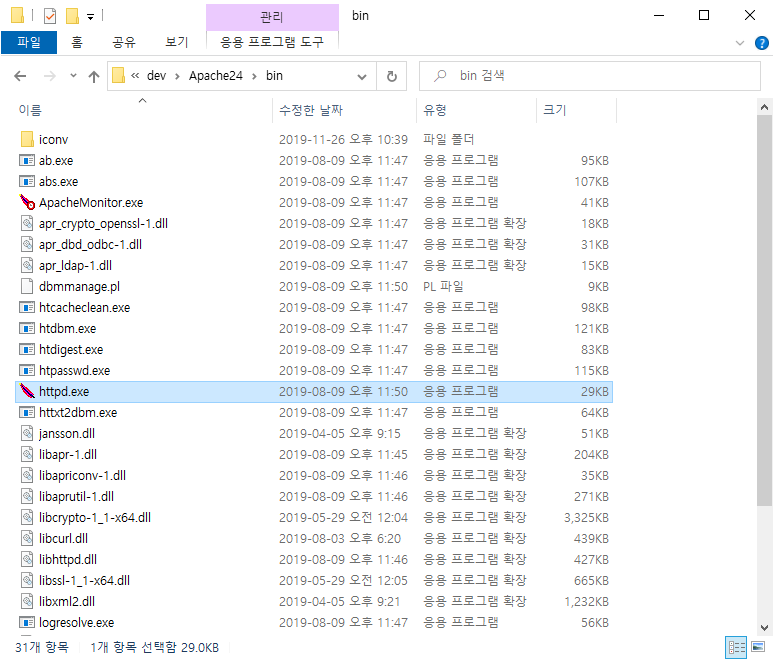
In this article, it is saved in “C:\dev\Apache24”.