SyntaxHighlighter | Customization | Changing option settings
SyntaxHighlighter can change several settings, such as whether line numbers are displayed and whether specific lines are highlighted. This page explains how to configure those options.
How to set options
To change settings, assign values to the items you want to modify before running SyntaxHighlighter.all(). When configured this way, the settings apply to every source code block on the same page.
<script type="text/javascript">
  SyntaxHighlighter.defaults['item1'] = value1;
  SyntaxHighlighter.defaults['item2'] = value2;
  ...
  SyntaxHighlighter.all();
</script>
To change settings only for a specific source code block, add the setting items to the class of the pre element or script element, along with the required brush:language-name item.
<pre class="brush:java;item1:value1;item2:value2">
...
</pre>
Use the appropriate method depending on your purpose.
Hide line numbers (gutter)
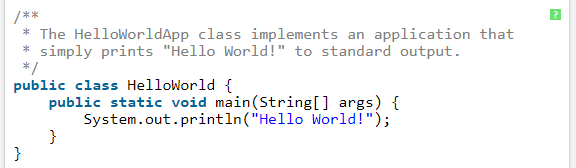
Line numbers are displayed by default. To hide them, set the gutter item to false. Use one of the following methods.
<script type="text/javascript">
  SyntaxHighlighter.defaults['gutter'] = false;
  SyntaxHighlighter.all();
</script>
<pre class="brush:java;gutter:false">
...
</pre>
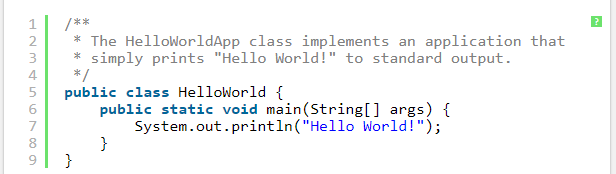
When line numbers are hidden, the display changes as follows.
- Before
- After
<!DOCTYPE html>
<html>
<head>
  <link rel="stylesheet" href="https://cdnjs.cloudflare.com/ajax/libs/SyntaxHighlighter/3.0.83/styles/shCoreDefault.min.css">
  <script src="https://cdnjs.cloudflare.com/ajax/libs/SyntaxHighlighter/3.0.83/scripts/shCore.min.js"></script>
  <script src="https://cdnjs.cloudflare.com/ajax/libs/SyntaxHighlighter/3.0.83/scripts/shBrushJava.min.js"></script>
  <script type="text/javascript">
    //SyntaxHighlighter.defaults['gutter'] = false;
    SyntaxHighlighter.all();
  </script>
</head>
<body>
  <h1>SyntaxHighlighter</h1>

<pre class="brush:java;gutter:false">
/**
 * The HelloWorldApp class implements an application that
 * simply prints "Hello World!" to standard output.
 */
public class HelloWorld {
    public static void main(String[] args) {
        System.out.println("Hello World!");
    }
}
</pre>

</body>
</html>
Set the starting line number (first-line)
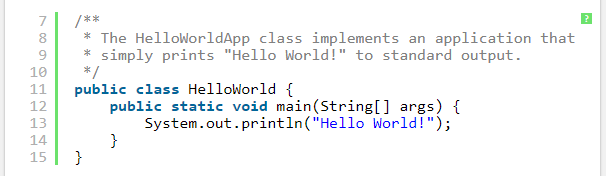
When line numbers are displayed, the first line starts at 1 by default. To start from any number, set the starting line number in the first-line item. Use one of the following methods. In this example, line numbers start from 7.
<script type="text/javascript">
  SyntaxHighlighter.defaults['first-line'] = 7;
  SyntaxHighlighter.all();
</script>
<pre class="brush:java;first-line:7">
...
</pre>
When the starting line number is specified, the display changes as follows.
- Before
- After
Highlight specified line numbers (highlight)
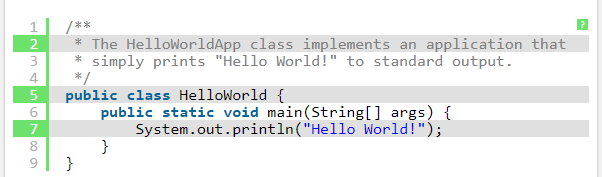
To emphasize specific lines, highlight the specified lines. To specify multiple lines, list each line number. Set the highlight item to a line number or an array of line numbers. Use one of the following methods.
<script type="text/javascript">
  SyntaxHighlighter.defaults['highlight'] = 4;
  SyntaxHighlighter.all();
</script>
<script type="text/javascript">
  SyntaxHighlighter.defaults['highlight'] = [2,5,7];
  SyntaxHighlighter.all();
</script>
<pre class="brush:java;highlight:4">
...
</pre>
<pre class="brush:java;highlight:[2,5,7]">
...
</pre>
- Before
- After
Do not automatically link URLs (auto-links)
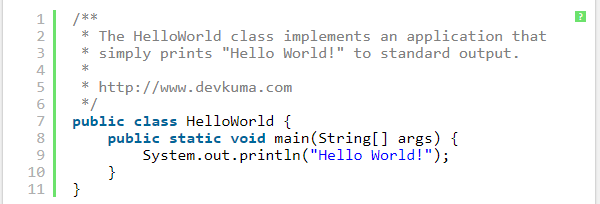
When a URL is included in source code, SyntaxHighlighter may automatically turn it into a link by default. To prevent automatic linking, set auto-links to false. Use one of the following methods.
<script type="text/javascript">
  SyntaxHighlighter.defaults['auto-links'] = false;
  SyntaxHighlighter.all();
</script>
<pre class="brush:java ; auto-links:false">
...
</pre>
- Before
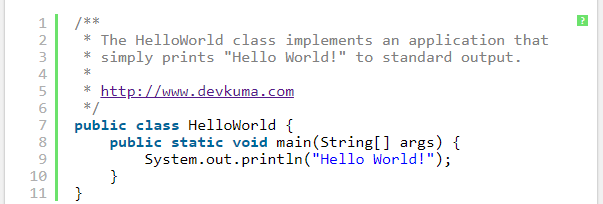
- After
Hide the toolbar (toolbar)
When SyntaxHighlighter displays source code, the toolbar appears in the upper-right corner by default. This refers to the green question mark icon in the upper-right corner.
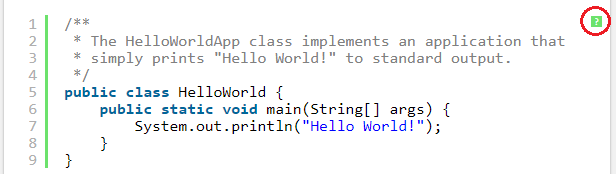
To hide the toolbar, set toolbar to false. Use one of the following methods.
<script type="text/javascript">
  SyntaxHighlighter.defaults['toolbar'] = false;
  SyntaxHighlighter.all();
</script>
<pre class="brush:java ; toolbar:false">
...
</pre>
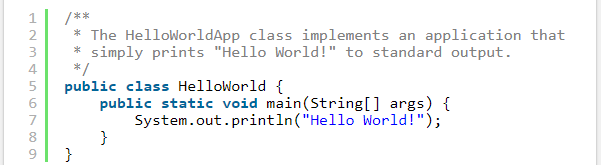
When the toolbar is hidden, the display changes as follows.
- Before
- After
Display source code collapsed (collapse)
You can initially hide the source code and show it only after the user clicks a message such as expand source. To enable collapsed display, set collapse to true. Use one of the following methods.
<script type="text/javascript">
  SyntaxHighlighter.defaults['collapse'] = true;
  SyntaxHighlighter.all();
</script>
<pre class="brush:java;collapse:true">
...
</pre>
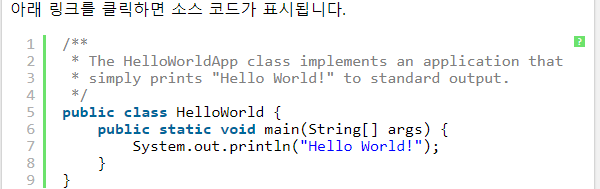
When collapsed display is enabled, the source code is not shown immediately. Instead, an expand source link appears.

Clicking expand source displays the source code.
–
You can also change the text displayed for the collapsed source code, such as expand source. Configure it as follows:
<script type="text/javascript">
  SyntaxHighlighter.config.strings.expandSource = "msg";
  SyntaxHighlighter.all();
</script>
For example, if you configure it as follows:
<script type = "text / javascript">
   SyntaxHighlighter.config.strings.expandSource = "Show source code";
   SyntaxHighlighter.all ();
</script>
It is displayed as follows.
