D3.js SVG usage - rect, circle, line, text
Overview
D3.js can display content using HTML elements, but using SVG allows you to create sites that respond faster without being affected by differences between browsers and devices.
SVG (Scalable Vector Graphics)
- Vector graphics for the web. They can be included directly in or inserted into an HTML document.
- Supported by all browsers except Internet Explorer 8 and earlier.
- Images can be edited through code.
- They can be scaled up or down without quality loss.
Basic SVG usage
This section explains basic SVG usage.
To display SVG, first create an area where SVG elements will be drawn.
<!DOCTYPE html>
<html>
  <head>
    <meta charset="utf-8">
    <title>D3 Test</title>
    <script src="https://d3js.org/d3.v7.min.js"></script>
  </head>
  <body>
    <svg width="500" height="50">
    </svg>
    <script>
      // Write code here.
    </script>
  </body>
</html>
You can also write it with D3 as follows:
d3.select("body").append("svg").attr("width", 500).attr("height", 50);
Here, setting the width and height is important. If they are not set, the area is made as large as possible.
SVG shapes
Now look at common shapes that can be set inside an SVG element. There are many options, such as rect, circle, ellipse, line, text, and path.
The upper-left corner of the screen is the origin (0, 0). The x coordinate increases as you move to the right, and the y coordinate increases as you move downward.
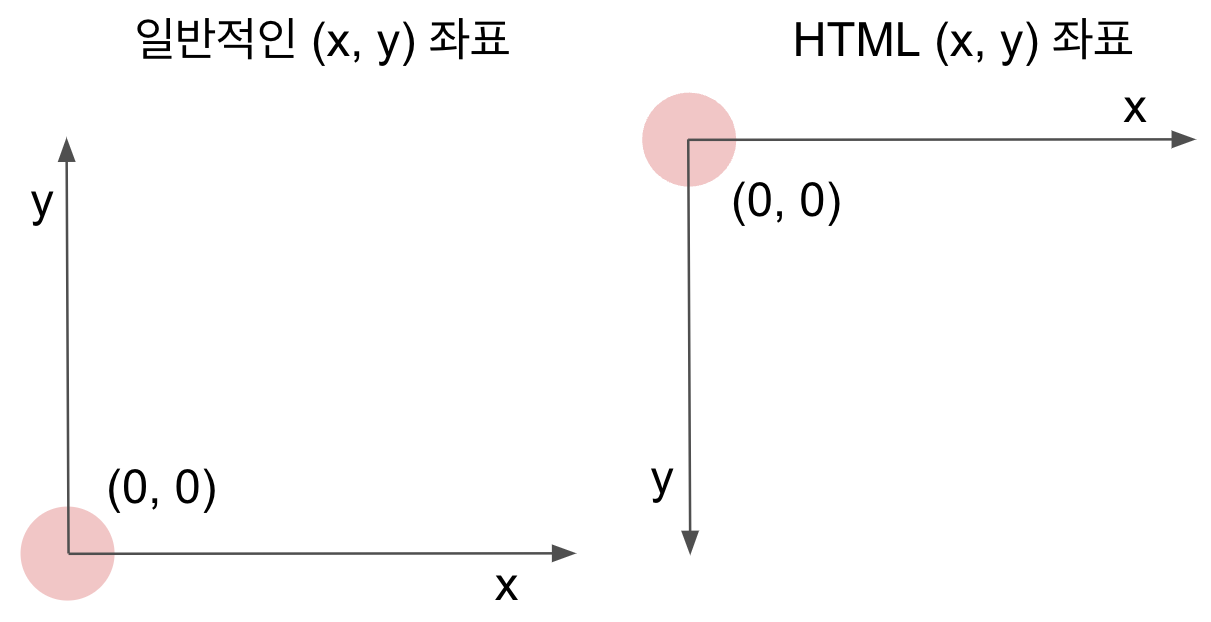
<svg width="500" height="70">
width: horizontal lengthheight: vertical length
It is also important to close the end of the tag with />.
<rect></rect>
You can write it as above, but SVG elements other than text are often used alone, so the closing tag can be omitted as follows:
<rect/>
rect
rect is an element that draws a rectangle. Set the x and y coordinates, width, and height.
<rect x="10" y="10" width="500" height="50" rx="10" ry="10"/>
x: horizontal starting point of the rectangley: vertical starting point of the rectanglewidth: horizontal lengthheight: vertical lengthrx: horizontal roundnessry: vertical roundness
circle
circle is an element that draws a circle. Set the x and y coordinates and the radius.
<circle cx="250" cy="25" r="25"/>
line
line is an element that draws a line. Set the start-point coordinates, end-point coordinates, and color. If you do not set a color, it becomes transparent.
<line x1="0" y1="0" x2="500" y2="50" stroke="black"/>
text
text is an element that draws a string. Set the coordinates and place the text to display inside the tag.
<text x="250" y="25">Text</text>
Arrows
The following example expresses an arrow line by attaching a shape to the end of a line.
<svg>
  <defs>
    <marker id="Triangle" viewBox="0 0 10 10" refX="1" refY="5"
        markerWidth="6" markerHeight="6" orient="auto">
      <path d="M 0 0 L 10 5 L 0 10 z" />
    </marker>
  </defs>
  <polyline points="10,10 200,50" fill="none" stroke="black" stroke-width="2" marker-end="url(#Triangle)" />
</svg>
Looking at the code, it uses the marker definition feature of SVG. This is a way to define a shape in advance and reuse it.
By setting the marker’s orient to auto, it can rotate automatically according to the slope of the line, and refX and refY are used to specify the origin for rotation.
SVG element styles
The representative styles, or attributes, that can be set with SVG are as follows.
| Attribute | Description |
|---|---|
fill |
Fill color value. As with CSS, it can be specified in the following four ways.
|
stroke |
Border color value |
stroke-width |
Border thickness. A number. |
opacity |
Transparency. A value from 0.0 to 1.0. |
font-family |
Text only. Font. |
font-size |
Text only. Font size. |
You can decorate elements with these styles as follows:
<circle cx="25" cy="25" r="22" fill="yellow" stroke="orange" stroke-width="5"/>
Drawing order
SVG does not have a concept like CSS z-index; items defined later are displayed over earlier items.
For example, if you draw overlapping SVG elements like the following, they appear as shown below.
<rect x="0" y="0" width="30" height="30" fill="purple"/>
<rect x="20" y="5" width="30" height="30" fill="blue"/>
<rect x="40" y="10" width="30" height="30" fill="green"/>
<rect x="60" y="15" width="30" height="30" fill="yellow"/>
<rect x="80" y="20" width="30" height="30" fill="red"/>
The important point is that elements written later appear on top.
Transparency
To display all overlapping elements, you can set transparency. Use opacity when you want to set the transparency of the whole element. Use rgba when you want to set separate transparency values for the border and fill.
The following example expresses several levels of transparency.
<circle cx="25" cy="25" r="20" fill="rgba(128, 0, 128, 1.0)"/>
<circle cx="50" cy="25" r="20" fill="rgba(0, 0, 255, 0.75)"/>
<circle cx="75" cy="25" r="20" fill="rgba(0, 255, 0, 0.5)"/>
<circle cx="100" cy="25" r="20" fill="rgba(255, 255, 0, 0.25)"/>
<circle cx="125" cy="25" r="20" fill="rgba(255, 0, 0, 0.1)"/>
Drawing SVG with D3
To add SVG elements using D3, write it as follows:
<!DOCTYPE html>
<html>
  <head>
    <meta charset="utf-8">
    <title>D3 Test</title>
    <script src="https://d3js.org/d3.v7.min.js"></script>
  </head>
  <body>
    <script>
      // Write code here.
      var svg = d3.select("body").append("svg").attr("width", 500).attr("height", 100);
      var dataset = [1, 2, 3, 4, 5];
      var circles = svg.selectAll("circle")
        .data(dataset)
        .enter()
        .append("circle");
      circles.attr("cx", function(d, i) {
        return (i * 50) + 25;
      })
      .attr("cy", 50)
      .attr("r", function(d) {
        return 5*d;
      })
      .attr("fill", "yellow")
      .attr("stroke", "orange")
      .attr("stroke-width", function(d) {
        return d;
      });
    </script>
  </body>
</html>
Attributes must be specified one by one with attr. Up to v3, they could be set with an object, but this is no longer possible from v4 onward.