Angular2 | Angular Setup
AngularJS and Angular2
Angular is a JavaScript framework developed mainly by Google. It was originally developed under the name AngularJS. Later, its contents were revised extensively and it reappeared as the new Angular2. At that time, the name was changed to “Angular” with the number 2 attached.
What kind of framework is this new Angular? If its characteristics were summarized in one phrase, it would be “component-oriented.”
The previous AngularJS was designed with the so-called MVC architecture in mind. It used a style where processing was prepared in controllers and display was prepared in views.
However, this approach is not necessarily optimal for JavaScript, which is central to creating frontend displays. There should be an architecture better suited to JavaScript. The Angular team arrived at the idea of components.
Each element that makes up the web is reorganized as an independent component. Rather than separating views and controllers, a component contains everything from display to processing, and once the component is placed, that is enough. This style is much more suitable for building the web. For that reason, Angular completely changed its contents and was reborn as a new framework.
Angular is currently available at the following address.
The previous AngularJS still exists as well. Its address is below.
Installing with Angular CLI
There are several ways to use Angular. The first method many people might think of is “download the files and copy them into the project.” Unfortunately, that is not currently provided. Angular files are not downloaded from the Angular site.
The next idea is to use npm. If you move to the web application directory in Command Prompt or Terminal and run the following command, it will install.
$ npm install angular2
The following is an example result.
npm WARN deprecated angular2@2.0.0-beta.21: This version of Angular has been
... omitted ...
npm WARN Angular2 No license field.

+ angular2@2.0.0-beta.21
added 1 package in 6.706s
However, as of December 2017, what is installed by npm install angular2 is a beta version, and later RC versions do not seem to be provided. Some people may wonder about npm install angular, but that installs the older 1.x version.
So what is the best approach? Probably the best method is to use Angular CLI. This is a dedicated tool for using Angular and is available at the following URL.
However, you do not download files from this site. It provides documentation such as usage instructions. Installation uses npm. Start Command Prompt or Terminal and run the following command.
$ npm install -g @angular/cli
This installs Angular CLI.
If a permission-related problem occurs during installation, refer to the following link.
https://docs.npmjs.com/getting-started/fixing-npm-permissions
Installing Angular
Angular CLI is a tool that runs from the command line. To use Angular, first start Command Prompt or a similar terminal, then use the cd command to move to the location where you want to create the project. (cd {directory name})
Then run the following command.
$ ng new project-name
This creates a project that uses Angular. For example, if you want to create one named myapp, run ng new myapp, and a myapp folder will be created with the required files inside.
$ ng new myapp
Running the Application
You can also run the application with Angular CLI. Move to the project directory with the cd command and run ng serve.
$ ng serve
This starts the built-in server, and you can access the application at the following address. At first, startup takes a little time because it needs to build.
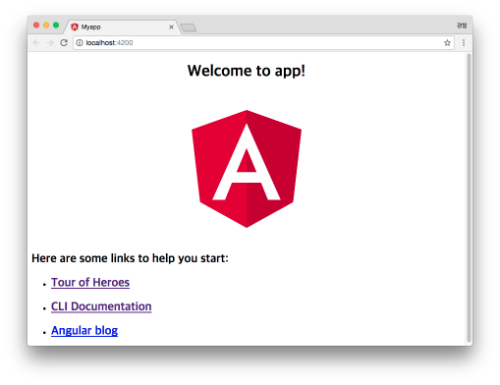
If the logo appears with the phrase “Welcome to app!”, the application is running correctly. The following screen is the web page of the Angular application generated in this example.
Angular Application Structure
The generated Angular application contains many files and folders. This is because Angular CLI basically installs packages through npm, so many Node.js-related packages are included.
Most of the files in the application are JSON files. These files describe configuration information for various tools, and you will rarely edit them directly. The basic roles of the folders are as follows.
- .git folder: Contains Git-related files.
- node_modules folder: Contains Node-related module files.
- e2e folder: Contains end-to-end test-related files.
- src folder: Contains files related to web pages.
Contents of the src Folder
The web page files displayed by the application are organized in the src folder. This part can be considered the actual center of the Angular application. The following files are prepared in this src folder.
- app folder: Contains Angular components.
- favicon.ico: The icon file.
- index.html: The web page displayed by default.
- main.ts: The script executed at startup.
- tsconfig.json: The TypeScript configuration file.
- typings.d.ts: A configuration file for Typings, the TypeScript definition manager.
You will notice files with the .ts extension. These are TypeScript script files. Angular can use not only JavaScript but also TypeScript. Projects generated by Angular CLI use TypeScript by default.
app Folder and Components
Inside the src folder is the app folder. This is the central part of Angular.
It contains files related to Angular components. Creating these components is the foundation of Angular.
A component packages screen display, internal processing, and related behavior so that it can be used anywhere. It consists of a combination of an HTML file, a script file, a stylesheet file, and so on. A component can be used by writing an HTML custom tag.
For example, if you create a component named my-component, writing the <my-component> tag in HTML is enough to make the component display and operate.
Basically, the folder contains the following files.
- index.ts: A script loaded by default for components. Libraries loaded across the overall component area are written here.
- environment.ts: Describes processing according to situations such as development or production deployment.
- app.component.html: The HTML template for the sample component.
- app.component.ts: The script containing the processing of the sample component.
- app.component.css: The stylesheet used by the sample component.
- app.component.spec.ts: The test script for the sample component.
index.ts and environment.ts concern the overall component area, so for now you can leave them alone. What we want to focus on is the component files included in the sample. There are three files named app.component, and these three work as a set to build the component. app.component.spec.ts is for testing, so you can think of it as not being part of the component body.
A component is created by preparing HTML, script, and stylesheet files with the same name. Creating these files means creating a component, and this is the most basic part of Angular programming.
Now that we have a general understanding of the overall project structure, the next article explains how to create components.