JSP/Servlet | Preparing for Google App Engine Development | Installing the SDK and Google Plug-in
If Eclipse has started successfully, the next task is to install the software needed for GAE development into Eclipse. Eclipse can install various extensions as “plug-ins” to add features. GAE development features are integrated by using plug-ins.
-
From the Eclipse [Help] menu, select [Install New Software …].
-
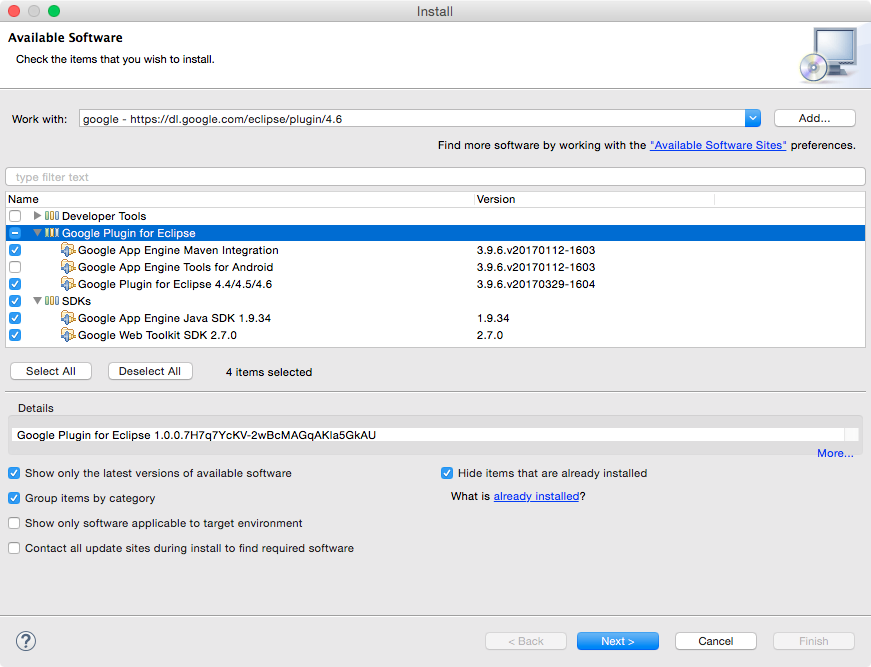
A dialog appears with the title “Available Software”. In the “Work with” input field, enter the plug-in URL that matches your Eclipse version and press Enter.
| Eclipse version | Installation instructions | Direct plugin link |
|---|---|---|
| Eclipse 4.6 (Neon) | Plugin for Eclipse 4.6 (Neon) | https://dl.google.com/eclipse/plugin/4.6 |
| Eclipse 4.5 (Mars) | Plugin for Eclipse 4.5 (Mars) | https://dl.google.com/eclipse/plugin/4.5 |
| Eclipse 4.4 (Luna) | Plugin for Eclipse 4.4 (Luna) | https://dl.google.com/eclipse/plugin/4.4 |
- If it is not in the table, look for it at the following address.
- https://developers.google.com/eclipse/docs/getting_started
- After waiting a short while, the list field below displays the plug-ins and SDKs provided by Google. Here, turn on every checkbox except the Android items. Since installation takes a long time if all update sites are contacted, turn off “Contact all update sites during install to find required” below. Then press the “Next>” button. Leave the other checkboxes at their default settings.
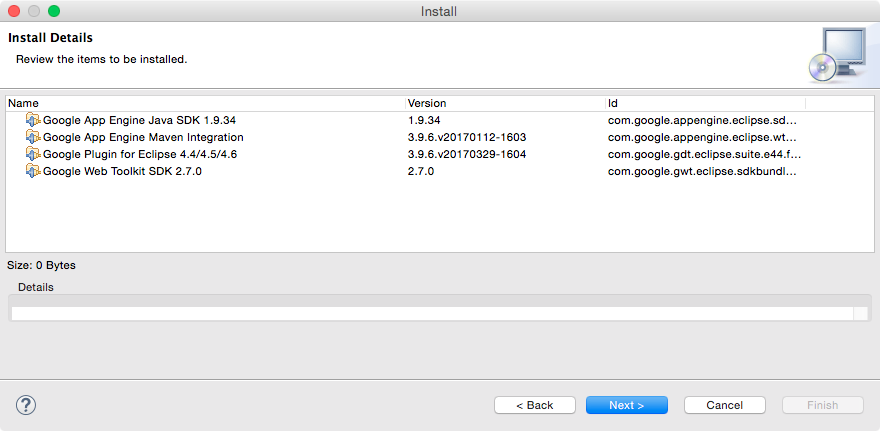
- When you continue, “Install Detail” is displayed. The plug-ins to be installed are listed here. Check the items and press the “Next>” button below to continue.
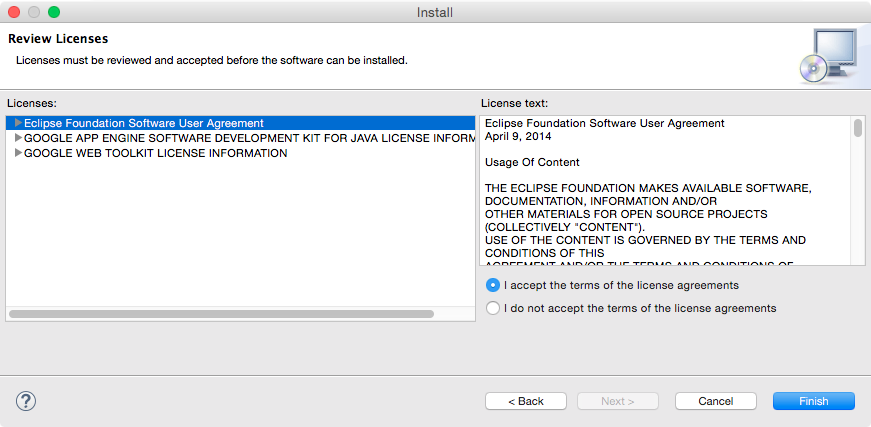
- You move to the “Review Licenses” screen. This is where you review the licenses. Click the radio button near the lower right labeled “I accept the terms of licens agreements” and press the “Finish” button. The dialog closes and installation begins.
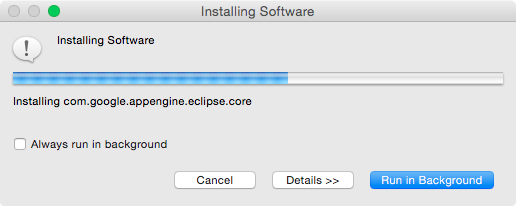
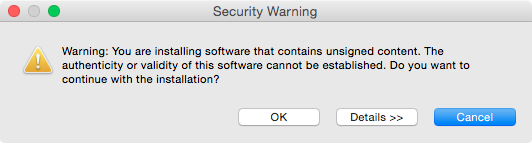
- The download process continues for a while, and when it finishes, a “Security Warning” appears on the screen. This warning asks whether it is okay to install unsigned content. Press the “OK” button here, and installation continues.
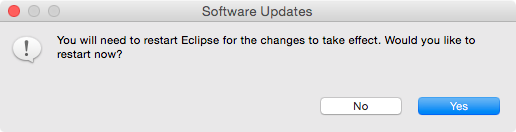
- After waiting a little longer, installation completes and Eclipse asks whether it is okay to restart because the plug-ins cannot be used until it restarts. Press the “Restart Now” button to restart Eclipse. The plug-ins are now available.
Now you are ready to start development.