Javadoc Tags
The @author Tag
The @author tag is written for classes, interfaces, and similar elements, and is used to specify the author.
@author name-text

Specifies information about the author.

Written in : overview, package, class, interface
Multiple entries : allowed
Output format : author
Other : requires the "-author" option
It is mainly used when writing comments for classes and specifying who the author is. It can be specified multiple times in the same comment.
/**
 * Comment description
 * @author devkuma
 * @author kimkc
 */
When the @author tag is written multiple times, each author is output on one line separated by commas.
Note that it is output only when Javadoc’s -author option is specified. For the -author option, see the -author option page.
@author Tag Practice
Let’s try a simple example.
/**
 * Class for Javadoc testing
 * @author devkuma
 * @author kimkc
 */
public class Sample05 {

    /**
     * Sets the size
     *
     * @param width width
     * @param height height
     */
    public void setSize(int width, int height) {

    }
}
Save the source code above as Sample05.java, then run the following command in the directory where it was saved.
$ javadoc -d doc -author Sample05.java
Open the generated Sample05.html file in the doc directory with a browser.
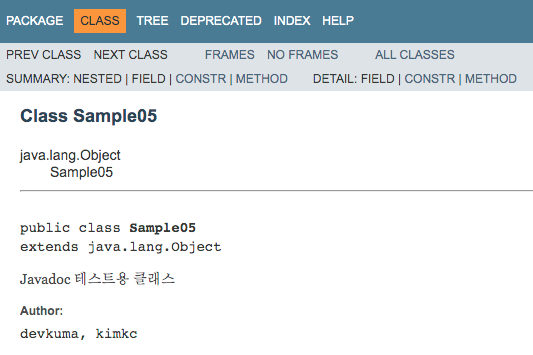
In the class description area, the names written in @author are displayed as Author. Because the @author tag was specified multiple times, you can confirm that the names are collected and displayed on one line.
The @version Tag
The @version tag is written for classes, interfaces, and similar elements, and is used to specify the software version.
@version version-text

Specifies the software version.

Written in : overview, package, class, interface
Multiple entries : allowed
Output format : version
Other : requires the "-version" option
It is used to specify the current version of the software. It can be specified multiple times in the same comment.
/**
 * Comment description
 *
 * @version 1.0
 * @version Project 2.0.1
 */
When the @version tag is written multiple times, each version is output on one line separated by commas.
There is a similar tag named @since; that tag is used to specify the version in which something was introduced, not the current version.
One point to note is that it is output only when Javadoc’s -version option is specified. For the -version option, see the -version option page.
@version Tag Sample
Let’s try a simple example.
/**
 * Class for Javadoc testing
 *
 * @version 1.0
 * @version Project 2.0.1
 */
public class Sample06 {

    /**
     * Sets the size
     *
     * @param width width
     * @param height height
     */
    public void setSize(int width, int height) {

    }
}
Save the source code above as Sample06.java, then run the following command in the directory where it was saved.
$ javadoc -d doc -version Sample06.java
Open the generated Sample06.html file in the doc directory with a browser.
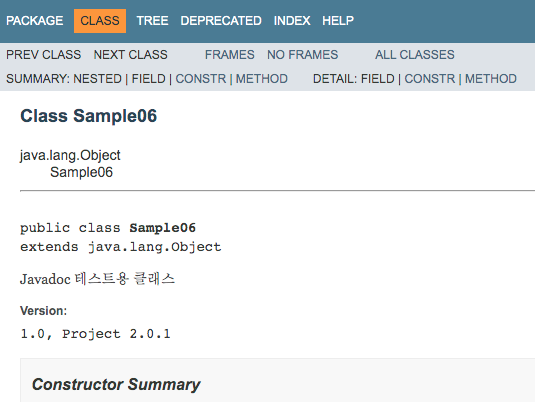
In the class description area, the version written in @version is displayed as Version. Because the @version tag was specified multiple times, you can confirm that the values are collected and displayed on one line.
The @see Tag
The @see tag is used to display external links or text as related items, or to display reference links to other fields or methods.
@see reference

Displays text and links as related items.

Written in : overview, package, class, interface, field, method
Multiple entries : allowed
Output format : related items
Text and External Links
The @see tag can be used for text and external links. Let’s look at how to use it.
First, here is how to display location information for a related item as a string.
@see "string"
Specify the string to display by enclosing it in double quotation marks. Use it as follows.
/**
 * Comment description
 * @see "Java"
 */
 ```

Next, here is how to display a link to an external site.

```java
@see <a href="URL">label</a>
Specify the link and label in the same format as an HTML <a> tag. Use it as follows.
/**
 * Comment description
 * @see <a href="http://www.devkuma.com">Devkuma</a>
 */
When the @see tag is written multiple times, each link label is output on one line separated by commas.
@see Tag Practice
Let’s try a simple example.
/**
 * Class for Javadoc testing
 *
 * @see "Java"
 * @see <a href="http://www.devkuma.com">Devkuma</a>
 */
public class Sample07 {

    /**
     * Sets the size
     *
     * @param width width
     * @param height height
     * @see <a href="https://www.google.com/">Google</a>
     */
    public void setSize(int width, int height) {

    }
}
Save the source code above as Sample07.java, then run the following command in the directory where it was saved.
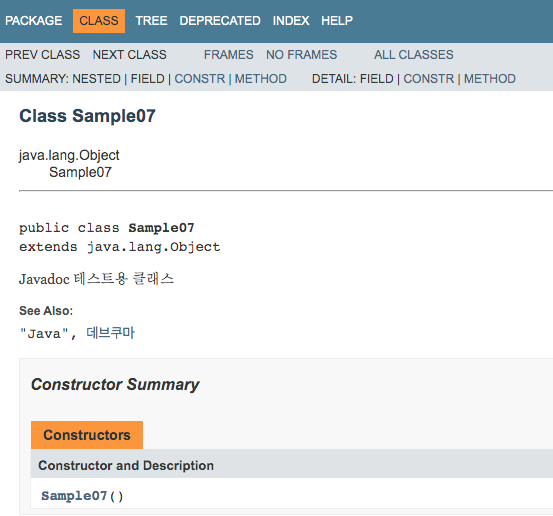
The class and method display related information by using the @see tag. Because the @see tag was specified multiple times, you can confirm that the items are collected and displayed on one line.
Reference Links
Another use of the @see tag is to display reference links to other fields or methods.
Here is how to display a reference link to another field or method.
@see package.class#member label
This creates a link to another method specified in the package.class#member format. label is displayed as the link label, but label is optional. If it is omitted, the target method name is displayed.
/**
 * Comment description
 * @see Sample08_02#setSize(int, int) setSize
 */
In the example above, the package name is omitted. When the package name, or even the class name, is omitted in this way, Javadoc searches for the omitted part in the following order.
- The current class or interface
- Enclosing classes and interfaces, starting from the nearest one
- Superclasses and superinterfaces, starting from the nearest one
- The current package
- Imported packages, classes, and interfaces, in the order of the import statements
Specifying the full name from package to member is always reliable, but the comment can become too long. Omitting parts lets you write the comment more concisely.
According to the official documentation, the following formats are available.
Refer to a member of the current class.
@see #field
@see #method(Type, Type,...)
@see #method(Type argname, Type argname,...)
@see #constructor(Type, Type,...)
@see #constructor(Type argname, Type argname,...)
Refer to another class in the current or imported package.
@see Class#field
@see Class#method(Type, Type,...)
@see Class#method(Type argname, Type argname,...)
@see Class#constructor(Type, Type,...)
@see Class#constructor(Type argname, Type argname,...)
@see Class.NestedClass
@see Class
Refer to an element in another package. This is fully explicit.
@see package.Class#field
@see package.Class#method(Type, Type,...)
@see package.Class#method(Type argname, Type argname,...)
@see package.Class#constructor(Type, Type,...)
@see package.Class#constructor(Type argname, Type argname,...)
@see package.Class.NestedClass
@see package.Class
@see package
Practice
Let’s try a simple example.
/**
 * Class for Javadoc testing
 *
 * @see Sample08_02
 */
public class Sample08_01 {

    /**
     * Sets the size
     *
     * @param width width
     * @param height height
     * @see Sample08_02#getWidth()
     * @see Sample08_02#getHeight()
     */
    public void setSize(int width, int height) {

    }
}
/**
 * Class for Javadoc testing
 *
 * @see Sample08_01
 */
public class Sample08_02 {

    /**
     * Returns the width
     *
     * @return width
     * @see Sample08_01#setSize(int, int)
     * @see #getHeight()
     */
    public int getWidth() {
        return 0;
    }

    /**
     * Returns the height
     *
     * @return height
     * @see Sample08_01#setSize(int, int)
     * @see #getWidth()
     */
    public int getHeight() {
        return 0;
    }
}
Save the source code above as Sample08_01.java and Sample08_02.java, then run the following command in the directory where they were saved.
$ javadoc -d doc Sample08_01.java Sample08_02.java
Open the generated Sample08_01.html file in the doc directory with a browser.
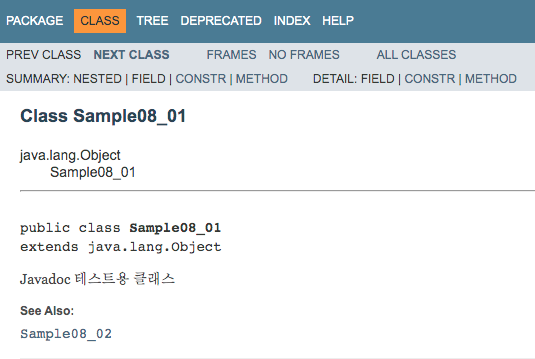
For the Sample08_01 class, the comment sets a link to the Sample08_02 class, so the related items section displays a reference link to the Sample08_02 class.
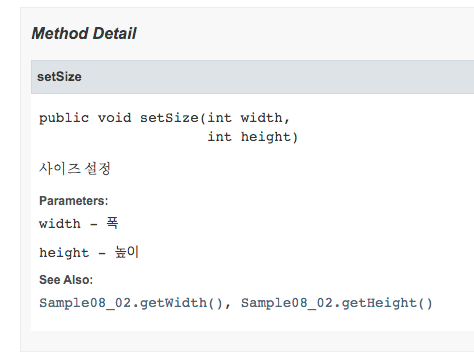
The setSize method also has links to the getWidth and getHeight methods of the Sample08_02 class. In this case too, the method’s related items section displays reference links to each method.
The @deprecated Tag
The @deprecated tag is used when a class, method, or similar element is no longer recommended for use. Being not recommended does not mean it cannot be used. It means only that its use is discouraged and that it may be removed in the future.
@deprecated deprecated-text

Specifies that use is not recommended.

Written in : overview, package, class, interface, field, method
Multiple entries : not allowed
Output format : Deprecated. + the entered text
Write a string that explains why use is no longer recommended. Use it as follows.
/**
 * Comment description
 * @deprecated Replaced by another method.
 */
You can also specify a link to the replacement method or class. Use the {@link} tag for the link.
/**
 * Comment description
 * @deprecated Replaced by another method {@link #setScale()}
 */
The string specified in @deprecated is displayed before the comment description, together with the text Deprecated..
@deprecated Tag Practice
Let’s try a simple example.
/**
 * Class for Javadoc testing
 */
public class Sample09 {

    /**
     * Sets the size
     *
     * @param width width
     * @param height height
     * @see Sample08_02#getWidth()
     * @see Sample08_02#getHeight()
     * @deprecated Replaced by another method {@link #setScale(int, int)}
     */
    public void setSize(int width, int height) {

    }

    /**
     * Sets the size
     *
     * @param width width
     * @param height height
     */
    public void setScale(int width, int height){

    }
}
Save the source code above as Sample09.java, then run the following command in the directory where it was saved.
$ javadoc -d doc Sample09.java
Open the generated Sample09.html file in the doc directory with a browser.
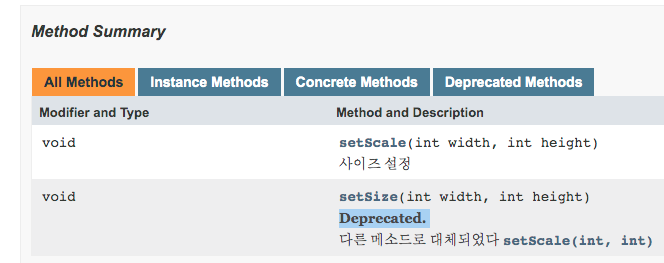
You can see that Deprecated. appears first in the method, followed by the content written in the @deprecated tag.
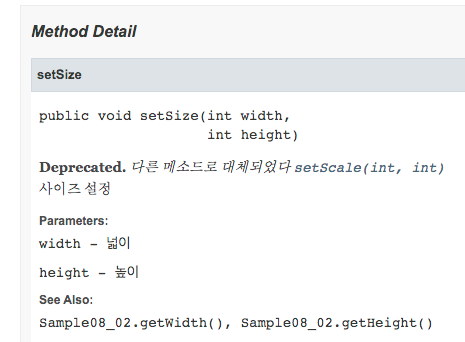
Note that the content written with the @deprecated tag is displayed before the comment description.
These days, it is recommended to add the @Deprecated annotation in code before deprecated methods or classes.
The @since Tag
The @since tag is used to show the version in which something was introduced. Unlike the @version tag, which indicates the current version, the @since tag indicates the version in which the element was introduced.
@since since-text

Displays the introduced version.

Written in : overview, package, class, interface, field, method
Multiple entries : allowed
Output format : introduced version
Specify a string such as a version. Use it as follows.
/**
 * Comment description
 * @since 2.5.1
 */
When the @since tag is written multiple times, each version is output on one line separated by commas.
@since Tag Practice
Let’s try a simple example.
/**
 * Class for Javadoc testing
 *
 * @since 2.5.1
 * @since Project 1.4A
 */
public class Sample10 {

    /**
     * Sets the size
     *
     * @param width width
     * @param height height
     * @since 1.8
     */
    public void setSize(int width, int height) {

    }
}
Save the source code above as Sample10.java, then run the following command in the directory where it was saved.
$ javadoc -d doc Sample10.java
Open the generated Sample10.html file in the doc directory with a browser.
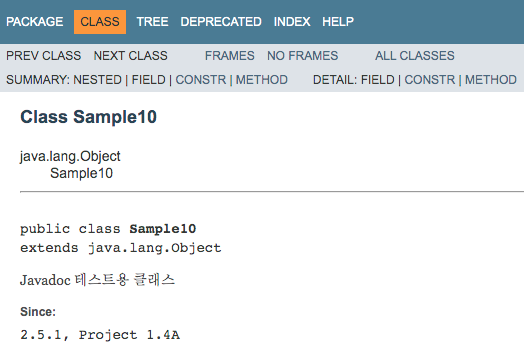
Because the @since tag was specified multiple times, you can confirm that the values are collected and displayed on one line.
The @param Tag
The @param tag is used to display descriptions for parameters.
@param parameter-name description

Displays a description for a parameter.

Written in : method
Multiple entries : allowed
Output format : parameter name and description
When the @param tag is written multiple times, each parameter is output on a separate line.
Write the method parameter name and a description of that parameter. Use it as follows.
/**
 * Comment description
 * @param width width
 * @param height height
 */
 ```
The description can span multiple lines. There is no special syntax for expressing that the description spans multiple lines.

```java
/**
 * Comment description
 * @param width width
 * Second line of the description for width
 * Third line of the description for width
 * @param height height
 */
@param Tag Practice
Let’s try a simple example.
/**
 * Class for Javadoc testing
 */
public class Sample11 {

    /**
     * Sets the size
     *
     * @param width width<br>
     * The unit is centimeters.
     * @param height height
     */
    public void setSize(int width, int height) {

    }
}
Save the source code above as Sample11.java, then run the following command in the directory where it was saved.
$ javadoc -d doc Sample11.java
Open the generated Sample11.html file in the doc directory with a browser.
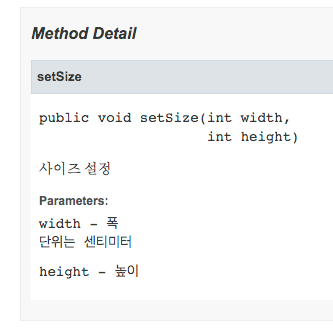
Note that descriptions written across multiple lines are still treated as HTML documents. To create a line break, a line-break tag such as <br> is required.
The @return Tag
The @return tag is used to display a description of the return value, such as its data type or range.
@return description

Displays a description of the return value.

Written in : method
Multiple entries : not allowed
Output format : return value
Write a description of the method’s return value. Use it as follows.
/**
 * Comment description
 * @return calculated area
 */
@return Tag Practice
Let’s try a simple example.
/**
 * Class for Javadoc testing
 */
public class Sample12 {

    /**
     * Sets the size
     *
     * @param width width
     * @param height height
     * @return calculated area
     */
    public int getSize(int width, int height) {
        return width * height;
    }
}
Save the source code above as Sample12.java, then run the following command in the directory where it was saved.
$ javadoc -d doc Sample12.java
Open the generated Sample12.html file in the doc directory with a browser.
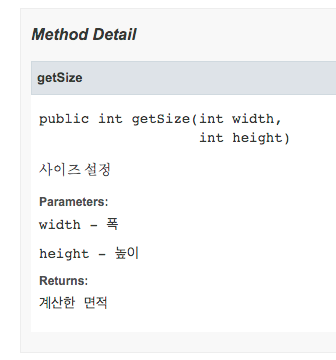
This tag simply displays the description text that was written.
The @throws and @exception Tags
The @throws tag is used to display a description of exceptions that may occur. The @exception tag and the @throws tag have different names, but they are used in the same way.
@throws class-name description

Displays a description of an exception.

Written in : method
Multiple entries : allowed
Output format : Throws
Enter the exception class name and description for an exception that occurs in the method. Use it as follows.
/ **
 * Comment description
 *
 * @throws java.io.FileNotFoundException The specified file cannot be found
 * /
The class name can be specified with the full package name, but if the package name is omitted, it is searched for in the following order.
- The current class or interface
- Enclosing classes and interfaces, starting from the nearest one
- Superclasses and superinterfaces, starting from the nearest one
- The current package
- Imported packages, classes, and interfaces, in the order of the import statements
When multiple @throws tags are specified, each one is displayed on a different line.
@throws and @exception Tag Practice
Let’s try a simple example.
import java.io.FileNotFoundException;
import java.io.IOException;

/**
 * Class for Javadoc testing
 */
public class Sample13 {

    /**
     * Writes a file
     *
     * @throws FileNotFoundException The specified file cannot be found
     */
    public void writeToFile() throws FileNotFoundException {

    }

    /**
     * Reads a file
     *
     * @throws java.io.IOException Input/output related
     * @throws java.lang.SecurityException Security related
     */
    public void readFromFile() throws IOException, java.lang.SecurityException {

    }

    /**
     * Deletes a file
     *
     * @throws java.lang.SecurityException Security related
     * @exception FileNotFoundException The specified file cannot be found
     */
    public void deleteFile() throws SecurityException {

    }

    /**
     * Searches for a file
     */
    public void searchFile() throws FileNotFoundException {

    }

}
Save the source code above as Sample13.java, then run the following command in the directory where it was saved.
$ javadoc -d doc Sample13.java
Open the generated Sample13.html file in the doc directory with a browser.
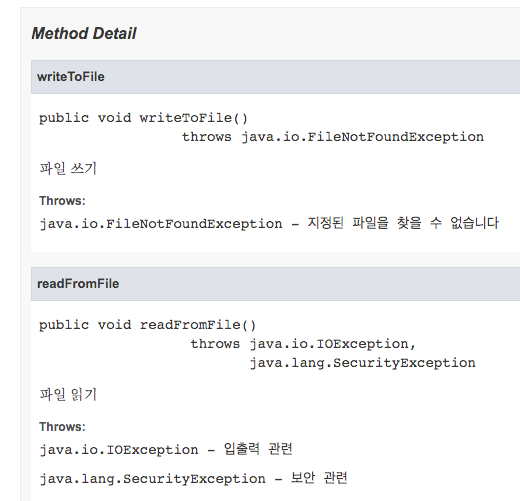
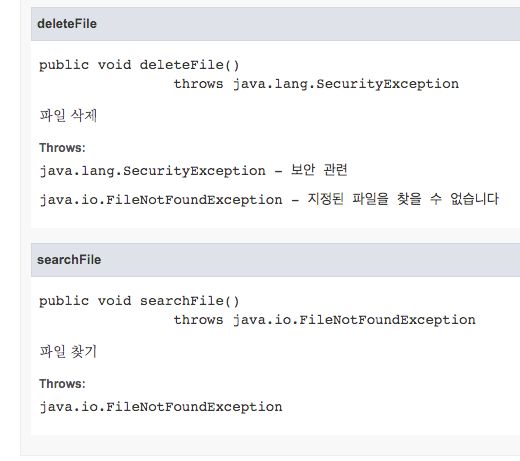
For the deleteFile method, the item written with the @exception tag is displayed under Throws in the same way as when the @throws tag is written.
The searchFile method does not have an @throws tag, but you can see that Javadoc automatically extracts and displays the exception that may occur.
The {@link} and {@linkplain} Tags
The {@link} tag is used when displaying a reference link inside another Javadoc tag. The tags covered so far are called block tags, while this tag is called an inline tag. Inline tags are enclosed in {} and can be used as part of a string in a comment description or inside another block tag.
The {@linkplain} tag is basically used in the same way as the {@link} tag. It is used when displaying a reference link at a position where text is displayed in another Javadoc tag. The only difference is that when the {@link} tag is used, the linked string is displayed as code text, while with the {@linkplain} tag, the linked string is displayed as ordinary text.
{@link package.class#member label}

Displays a reference link inside a description or string in a block tag.

Written in : overview, package, class, interface, field, method
Multiple entries : allowed
This creates a link to another method specified in the package.class#member format. The label specified as the link label is displayed, but label is optional. If it is omitted, the target method name is displayed. The basic usage is the same as the @see tag.
/ **
 * Comment description
 * See the following method: {@link Sample14#setSize(int, int) setSize}
 * /
For how links are searched when the package name is omitted, see the @see tag (reference links).
{@link} and {@linkplain} Tag Practice
Let’s try a simple example.
/**
 * Class for Javadoc testing
 */
public class Sample14 {

      /**
       * Sets the name
       * For the return value, see {@link Sample14#getName() getName}
       *
       * @param name name
       */
      public void setName(String name){

      }

      /**
       * Returns the name
       * For the setting, see {@link #setName(String)}
       *
       * @return returns the name as a String
       */
      public String getName(){
          return null;
      }

}
Save the source code above as Sample14.java, then run the following command in the directory where it was saved.
$ javadoc -d doc Sample14.java
Open the generated Sample14.html file in the doc directory with a browser.
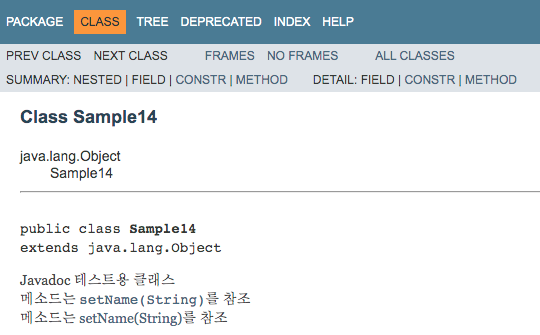
First, let’s check the difference between the {@link} tag and the {@linkplain} tag. The sentence above is written with the {@link} tag and is displayed as code text, while the sentence below is written with the {@linkplain} tag and is displayed in the default text font.
The code font is the font applied when text is wrapped in the HTML <code>...</code> tag. The default text font is not wrapped in this HTML tag, so its appearance is different. Both are displayed as links.
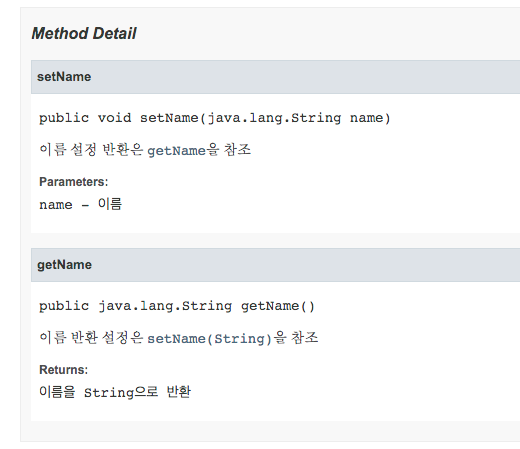
As shown above, the {@link} and {@linkplain} tags are used to create inline links in descriptions. When you want to display a link separately as a reference, use the @see tag.
The {@code} Tag
The {@code} tag is used when writing sample code in Javadoc.
{@code source-code}

Displays sample code.

Written in : overview, package, class, interface, field, method
Multiple entries : allowed
It is used when attaching sample code to a description. Use it as follows.
/**
 * Comment description
 *
 * <pre>
 * {@code
 * Foo foo = new Foo();
 * foo.foo();
 * }
 * </pre>
 */
When attaching sample code to a description, you can use only the {@code} tag, but if line breaks are needed, you should use the HTML <pre> tag together with it.
{@code} Tag Practice
Let’s try a simple example.
/**
 * Class for Javadoc testing<br>
 *
 * <pre>
 * {@code
 * Foo foo = new Foo();
 * foo.foo();
 * }
 * </pre>
 */
public class Sample15 {

}
Save the source code above as Sample15.java, then run the following command in the directory where it was saved.
$ javadoc -d doc Sample15.java
Open the generated Sample15.html file in the doc directory with a browser.
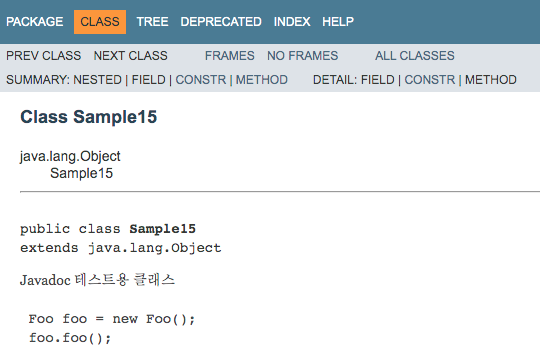
As shown above, it is displayed in a code font. The code font is the font applied when text is wrapped in the HTML <code>...</code> tag.