Javadoc Comment Format
Comment Structure
Let’s look at the structure of comments related to Javadoc. As shown on another page, comments are written between /** and */ as follows.
/**
 *
 * Write the comment here.
 *
 */
The inside of a comment can be broadly divided into two parts: the description and the tag section.
The description is text that briefly explains a class, method, or similar element.
/**
 * This class is for explaining Javadoc.
 */
The description can span multiple lines. The description is the part from the start of the comment until the first tag section appears. However, because the description is interpreted as HTML, simply writing it across multiple lines does not display line breaks. To insert an explicit line break, write <br>.
/**
 * This class is for explaining Javadoc.
 * It can be written across multiple lines.
 * @version 2.0
 */
A tag section starts with @ as the first character. There are many Javadoc tags such as @version and @author, and each has a different meaning. Details about Javadoc tags will be covered on another page.
Multiple types of tag sections can be written in a single comment.
/**
 * This class is for explaining Javadoc.
 * It can be written across multiple lines.
 * @version 2.0
 * @author devkuma
 */
Some tag sections can be used only once in a comment, while others can be used multiple times. Tags that can be used multiple times will be explained later.
/**
 * This class is for explaining Javadoc.
 * It can be written across multiple lines.
 * @version 2.0
 * @param string name
 * @param int age
 */
After a tag section has been written, you cannot write a description. The following is an incorrect example.
/**
 * This class is for explaining Javadoc.
 * It can be written across multiple lines.
 * @version 2.0
 * @param string name
 * @param int age
 * Do not write a description after the tag section.
 */
Now try a simple example.
/**
 * Class for Javadoc testing
 * It can be written across multiple lines.
 */
public class Sample02 {
    /**
     * Sets the size
     *
     * @param width width
     * @param height height
     */
    public void setSize(int width, int height) {

    }
}
Save the source code above as Sample02.java, then run the following command in the directory where it was saved.
$ javadoc -d doc Sample02.java
Open the index.html file in the doc directory with a browser.
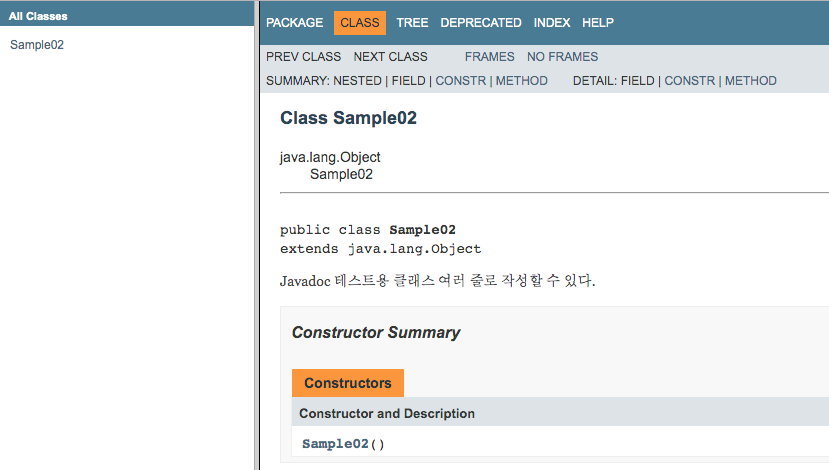
The class description was written across two lines, but because <br> was not written, you can see that it is displayed on one line.
Writing HTML
Text written in Javadoc is interpreted and displayed as HTML. Conversely, if you need to write characters that are not tags, you must write them as character entity references. For example, write < as <.
Because the text is HTML, HTML tags can be used.
/**
 * Comments are written as <b>HTML text</b>.
 */
HTML tags can be used, but it is better not to use heading tags such as <h1> and <h2> outside class and package sections.
Try a simple example.
/**
 * Class for Javadoc <b>testing</b>
 * Write a <a href="http://www.devkuma.com" target="_blank">link</a>
 * Write a <p style="color : #ff0000">style sheet</p>
 */
public class Sample03 {

    /**
     * Set the <font color="#ff0000">size</font>
     *
     * @param width width
     * @param height <font color="#0000ff">height</font>
     */
    public void setSize(int width, int height) {

    }
}
Save the source code above as Sample03.java, then run the following command in the directory where it was saved.
$ javadoc -d doc Sample03.java
Open the Sample03.html file in the doc directory with a browser.
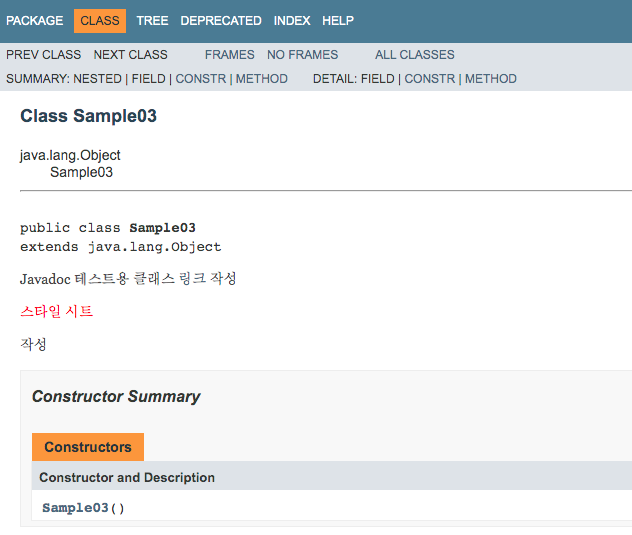
As shown above, you can confirm that emphasis with the <b> tag, links with the <a> tag, style sheets with <p>, and color specification with <font color="#0000ff"> are reflected properly.
Notes When Writing Comments for Fields
In Java, you can declare multiple fields of the same data type at once.
int width, height;
If you write a comment for this form, it will look like the following.
/**
 * Represents width and height.
 */
int width, height;
In this case, the same comment is applied to both variables. As a result, it is the same as writing the following.
/**
 * Represents width and height.
 */
int width;

/**
 * Represents width and height.
 */
int height;
Depending on the situation, this format may be acceptable, but in most cases it will not be an appropriate comment. Therefore, when using Javadoc, declare each field separately and write a separate comment for each one.
Try a simple example.
/**
 * Class for Javadoc testing
 */
public class Sample04 {

    /**
     * Represents width and height.
     */
    public int width, height;

    /**
     * Sets the size
     *
     * @param width width
     * @param height height
     */
    public void setSize(int width, int height) {

    }
}
Save the source code above as Sample04.java, then run the following command in the directory where it was saved.
$ javadoc -d doc Sample04.java
Open the Sample04.html file in the doc directory with a browser.
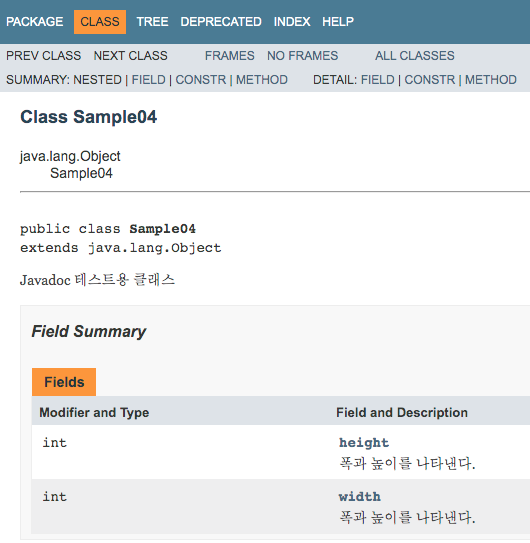
When multiple fields are declared at once and a single comment is written, the same comment is displayed for each field.