Python Introduction | Python Development Environment | Using Python
The Python Language
Python is a scripting language. Unlike compiled languages such as C and Java, it is executed through an interpreter.
An interpreter reads source code, translates it into commands the computer can perform, and executes those commands. This means that you can run Python source code directly without a separate compilation or build step.
However, running a Python program requires a Python interpreter. Languages such as C convert source code into an executable file, such as an .exe file. A Python program instead needs an interpreter to read and execute its source code.
Python also supports object-oriented programming and dynamic typing, but you do not need to memorize those features yet. For now, remember that you install an interpreter, write source code in a text file, and run it.
Download the Python interpreter from the official Python website.
https://www.python.org/downloads/
Pay attention to the Python version. The latest stable release as of May 10, 2026 is Python 3.14.5. The latest version continues to change, so check the official downloads page when installing Python.
Python changed significantly between version 2 and version 3. Many programs written for Python 2 do not run unchanged on Python 3. Python 2 support ended on January 1, 2020.
New learners should use Python 3. This documentation is also based on Python 3.
Installing Python
Run the downloaded installer to install Python.
Windows
On Windows, start the installer and click Install Now. Wait for the installation to complete.
Enable both checkboxes shown at the bottom of the installer. Otherwise, you may not be able to run the Python command later from the command prompt.
macOS
The Python installation state on macOS can differ depending on the operating system version. To use Python 3, install it separately with the official installer or Homebrew.
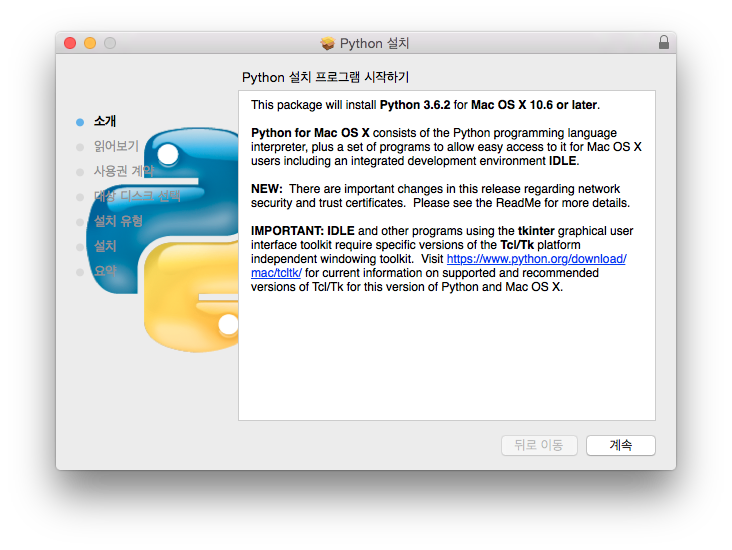
The macOS installer uses the standard installation workflow. Proceed through the introduction, readme, license agreement, destination selection, installation type, installation, and summary screens. The default options are usually sufficient.
Installing with Homebrew
Install Python from a terminal with Homebrew.
% brew install python3
Upgrade it as follows.
% brew upgrade python3