Lua Overview
Intended Audience
This article is intended for readers with experience programming in C or a related language such as C++, C#, or Java. Familiarity with basic syntax such as if, for, while, and defining functions is sufficient.
However, the explanations are written to be understandable even for readers who do not know C or a similar language.
About the Lua Language
There is a reason this article assumes some knowledge of C or a similar language. Lua is commonly called from or embedded in C programs, so programs are rarely written only in Lua.
Setting Up the Development Environment
Setting Up the Environment on Windows
Download and install the latest version from the History section of the following page.
Setting Up the Environment on macOS
On macOS, install Lua with Homebrew using the following command.
brew install lua
After installation, check the version.
% lua -v
Lua 5.4.6  Copyright (C) 1994-2023 Lua.org, PUC-Rio
If the version is displayed, Lua was installed successfully.
Setting Up the Development Environment in Visual Studio Code
Installing Extensions
Open Visual Studio Code and install the Lua and Lua Debug extensions.
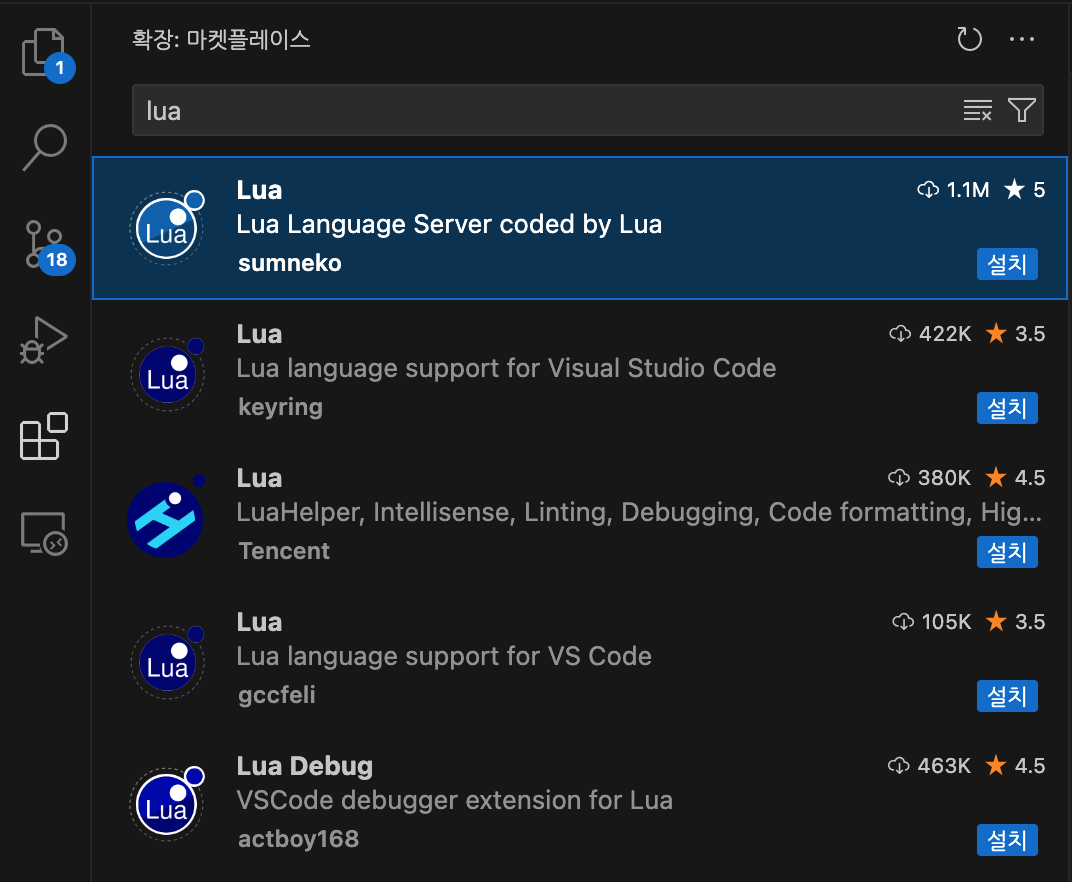
Then install Code Runner.

Running Lua
Create a Lua file, enter print("Hello World!"), and click the Run button.
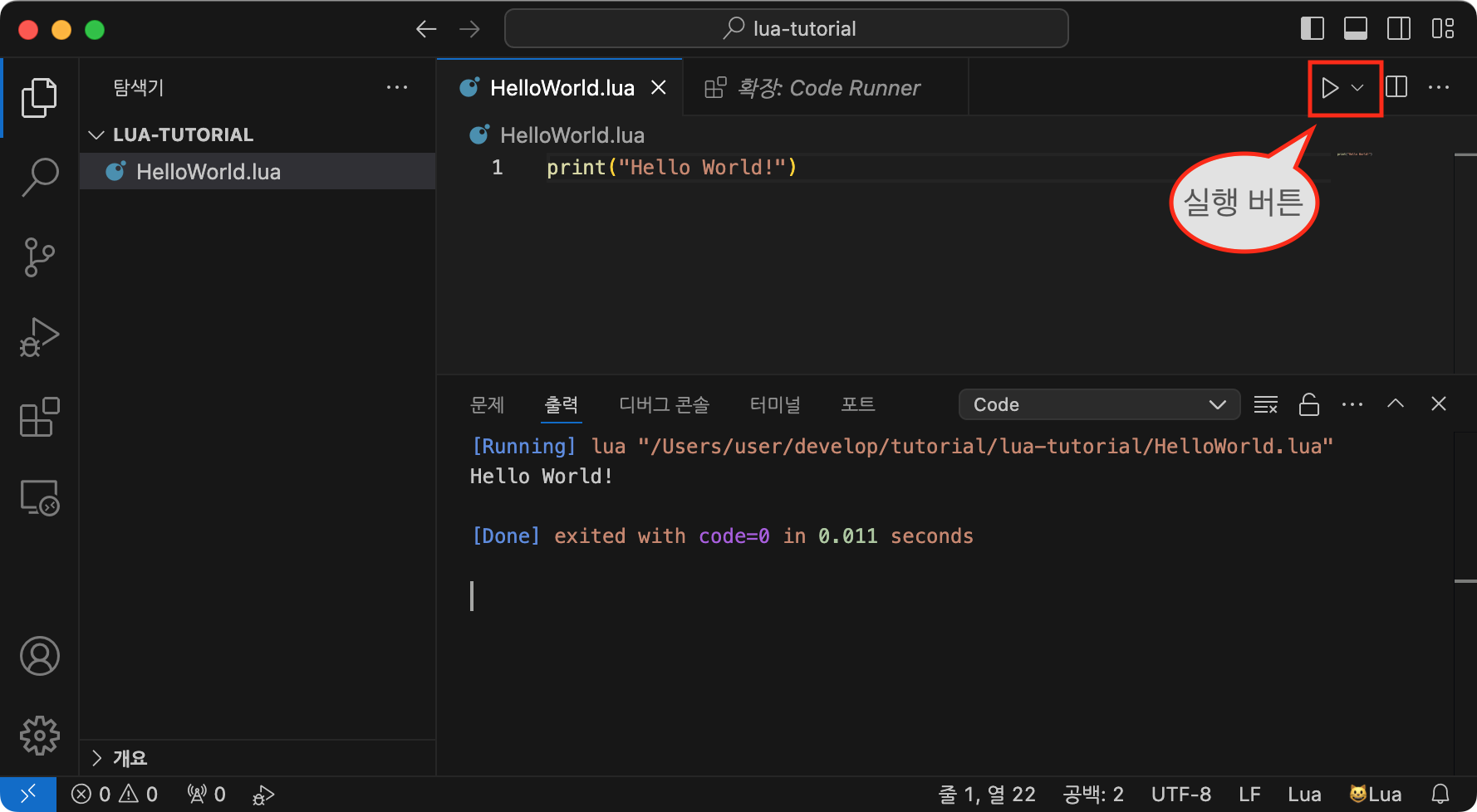
The output is displayed as shown above.