How to Automatically Format Code and Configure Indentation Width in Visual Studio Code
Automatically Formatting Code
Formatting Code with Keyboard Shortcuts
The keyboard shortcuts for formatting code in Visual Studio Code (VSCode) are as follows for each operating system.
- Windows: Shift + Alt + F
- macOS: Shift(⇧) + Option(⌥) + F
- Linux: Ctrl + Shift + I
Pressing the shortcut on unformatted code like the following formats it.
<!DOCTYPE html>
<html lang="ko">
<head>
<meta charset="UTF-8">
<title>HTML 테이블(table)</title>
</head>
<body>
<h1>기본 테이블</h1>
<table>
<tr><th>분류</th>  <th>항목</th>
</tr>
<tr>
  <td>과일</td><td>사과</td>
</tr><tr>
<td>채소</td>
  <td>당근</td>
</tr></table>
</body>
</html>
The following code has been formatted by pressing the shortcut.
<!DOCTYPE html>
<html lang="ko">

<head>
  <meta charset="UTF-8">
  <title>HTML 테이블(table)</title>
</head>

<body>
  <h1>기본 테이블</h1>
  <table>
    <tr>
      <th>분류</th>
      <th>항목</th>
    </tr>
    <tr>
      <td>과일</td>
      <td>사과</td>
    </tr>
    <tr>
      <td>채소</td>
      <td>당근</td>
    </tr>
  </table>
</body>

</html>
Code formatting is available not only for HTML but also for Java, C, and other languages.
Formatting Code from the Menu
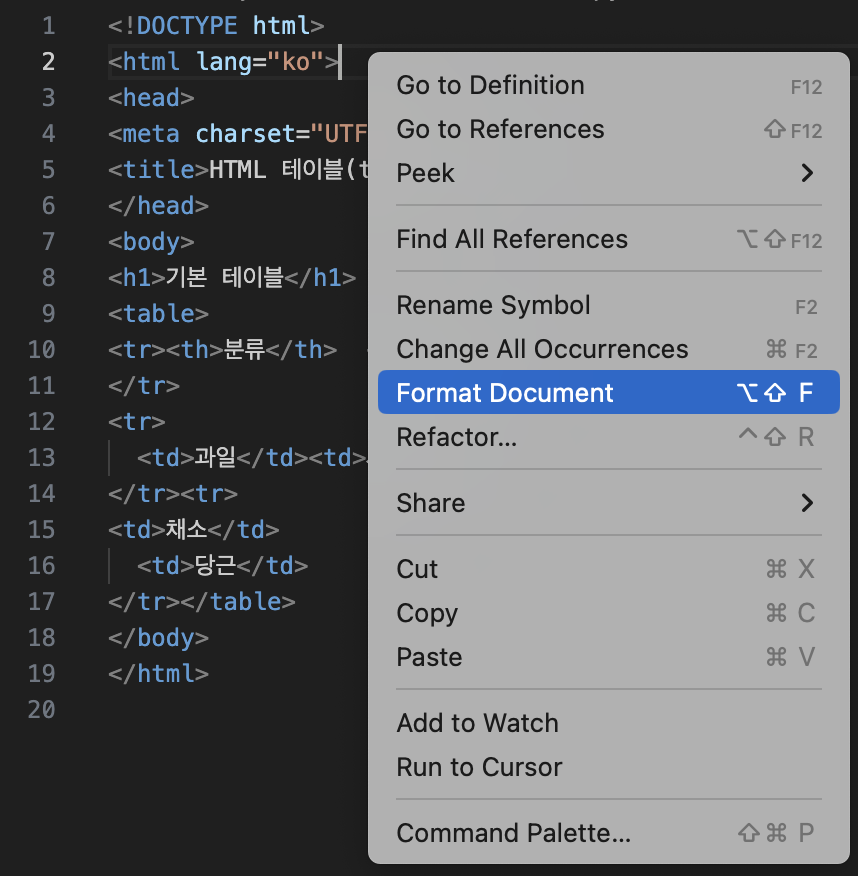
Right-click in VSCode to display the “Format Document” menu. Click this menu item to format the code automatically.
Configuring Indentation Width
Indentation commonly uses two or four spaces, but you may want to change it depending on the situation.
The current setting is displayed in the lower-right corner of VSCode as shown below.

Here, the indentation width is four spaces. Click “Spaces: 4” to display “Select Action” at the top.
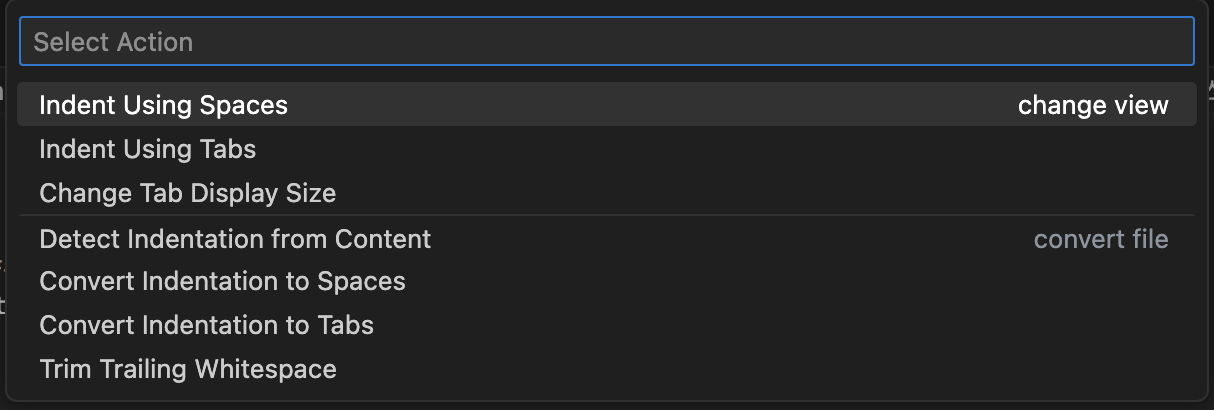
Click “Indent Using Spaces” in the menu to display the available indentation widths.
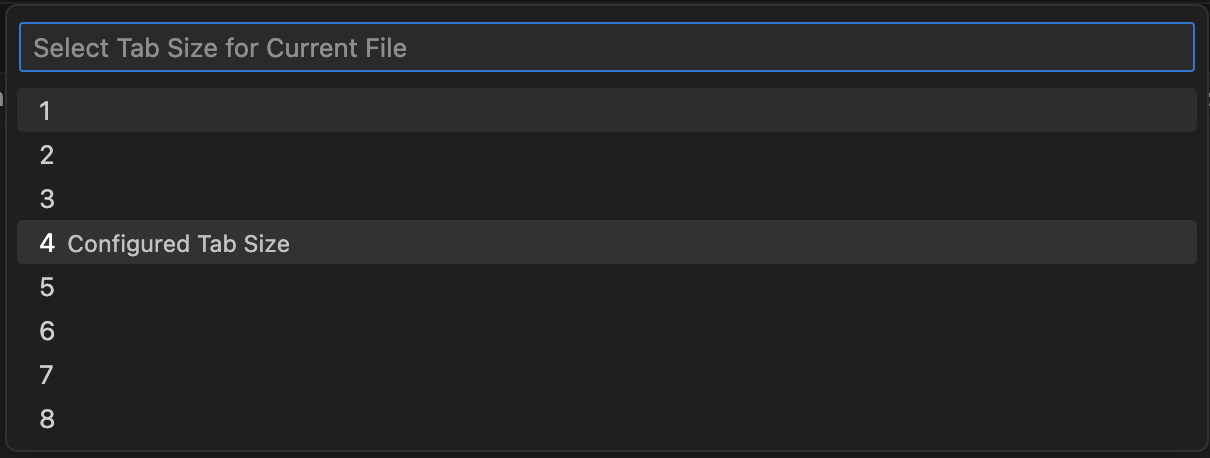
Select the desired width to apply the change.