Introduction to GitHub Actions and Basic Usage

What Is GitHub Actions? A Feature for Workflow Automation
GitHub Actions is an official GitHub feature that automates combinations of predefined processing and conditions, also known as workflows.
With GitHub Actions, processing defined in a dedicated workflow can be executed automatically when events such as pushes to a repository occur.
Using GitHub Actions, you can implement CI/CD, which is widely used in modern development.
Main Components and Features of GitHub Actions
GitHub Actions consists of several components and features. The main ones are as follows.
Action | A custom application that runs predefined tasks
An Action is a custom application for GitHub Actions that runs predefined tasks. Existing Actions can be found in GitHub Marketplace, and you can also create your own Actions.
Main Actions
The following table shows representative Actions.
Action examples
| Action | Description |
|---|---|
| checkout | Checks out files from a repository. |
| upload-artifact | Stores arbitrary files as artifacts. |
| download-artifact | Downloads files stored as artifacts. |
| cache | Caches dependencies or build output to speed up processing. |
| github-script | Accesses GitHub features through the GitHub API. |
| create-release | Creates releases through the GitHub Release API. |
| stale | Warns about or closes issues and pull requests that have not been used for a certain period. |
| labeler | Applies labels to pull requests. |
| delete-package-versions | Deletes package versions from GitHub Packages. |
| setup-node | Sets up a Node.js environment. |
| setup-python | Sets up a Python environment. |
| setup-go | Sets up a Go environment. |
| setup-dotnet | Sets up a .NET CLI environment. |
| setup-java | Sets up a Java environment. |
| toolkit | Makes a toolkit available for creating Actions more easily. |
| javascript-action | Creates a JavaScript Action. |
| typescript-action | Creates a TypeScript Action. |
Workflow | A process that defines what to run and when to run it
A Workflow is a process that defines the tasks to execute and the conditions under which they should run. You can create a Workflow by combining multiple Actions.
Runner | The server that executes a workflow
In GitHub, the server or environment that executes a Workflow is called a Runner. When using GitHub Actions, you can use virtual machines officially provided by GitHub as Runners. You can also prepare and use your own Runner.
Job | A workflow stage that runs on the same Runner
A Job is a stage within a workflow that runs on the same Runner. Jobs can also define dependencies on other Jobs. By default, Jobs run in parallel without dependencies between them.
Benefits of Using GitHub Actions
There are other tools that support automation such as CI/CD. Among them, one of the biggest advantages of GitHub Actions is that you can use virtual servers provided by GitHub.
With GitHub Actions, users do not need to prepare their own servers. If a physical server is required instead of a virtual server, users can also prepare their own server and use it with GitHub Actions.
Because GitHub Actions is an official feature, automation related to GitHub can be implemented smoothly. This is a unique advantage that GitHub Actions has over other tools.
Cautions When Using GitHub Actions
GitHub Actions has the following functional limits depending on the plan.
| Plan | Maximum concurrent Jobs | Maximum concurrent Jobs (macOS) | Available time limit | Available storage |
|---|---|---|---|---|
| Free | 20 | 5 | 2,000 minutes/month | 500 MB |
| Pro | 40 | 5 | 3,000 minutes/month | 1 GB |
| Team | 60 | 5 | 10,000 minutes/month | 2 GB |
| Enterprise | 180 | 50 | 50,000 minutes/month | 50 GB |
GitHub Actions must also be used only within the scope of its usage policy. For details about GitHub plans and terms, see the official sites below.
GitHub Actions Use Cases
GitHub Actions can be used in many ways. Here are a few examples.
- Automatically generate release notes and release source packages to make software release work more efficient.
- Automatically set up environments such as Java or Python.
- Automatically notify Slack or email about pull request activity.
- Run JavaScript linting every time code is pushed.
Many other use cases are also possible.
Basic GitHub Actions Usage Example
This section walks through basic usage by setting up GitHub Actions.
It assumes that Git, a GitHub account, and other initial GitHub-related settings are already prepared.
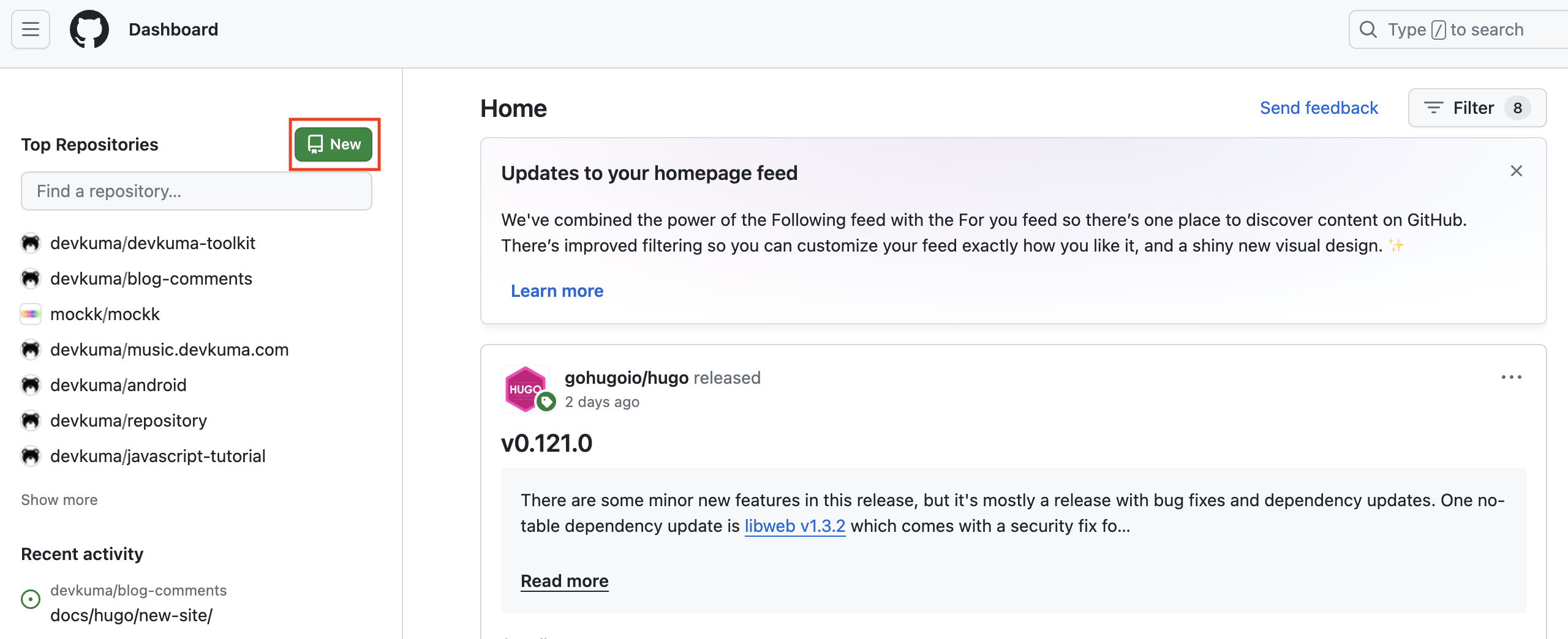
First, create a dedicated repository for GitHub Actions from the GitHub management screen. Click ‘New’ in GitHub.
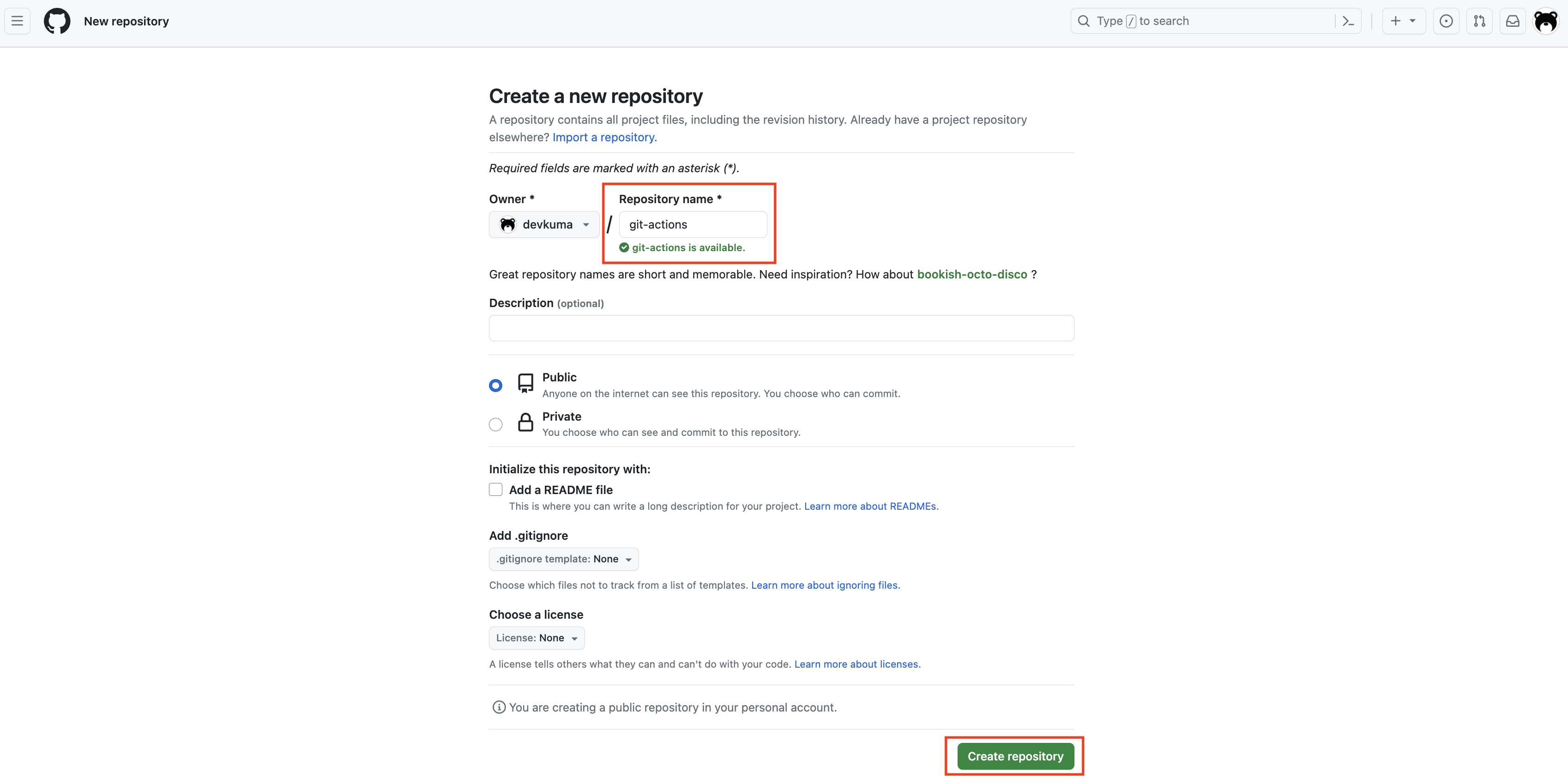
The repository creation screen appears. Enter the desired name in ‘Repository name’ and click ‘Create repository’.
In Git bash or another terminal, run the following command to clone the created repository locally.
HTTP:
git clone https://github.com/[user name]/[repository name].git

SSH:
git clone git@github.com:[user name]/[repository name].git
If the user name is devkuma and the repository name is test, the commands are as follows.
HTTP:
git clone https://github.com/user/git-actions.git

SSH:
git clone git@github.com:devkuma/git-actions.git
% git clone git@github.com:devkuma/git-actions.git
Cloning into 'git-actions'...
warning: You appear to have cloned an empty repository.
Inside the cloned local repository, create a .github/workflows folder, and then create a file named actions-test.yml in that folder. This actions-test.yml file becomes the GitHub Actions workflow.
% cd git-actions
% mkdir -p .github/workflows
% cd .github/workflows
% touch actions-test.yml
GitHub Actions workflows are stored in the
.github/workflowsdirectory. Workflows are written in YAML format (.yml).
Next, edit actions-test.yml in any text editor as follows.
name: actions-test
on: [push]
jobs:
  check-bats-version:
    runs-on: ubuntu-latest
    steps:
      - run: echo "Hello World"
The meaning of this file is as follows.
| Code | Description |
|---|---|
name: actions-test |
Creates a workflow named actions-test. |
on: [push] |
Runs when a push is performed. |
runs-on: ubuntu-latest |
Prepares the latest Ubuntu environment. |
run: echo "Hello World" |
Runs the echo "Hello World" command. |
This creates the GitHub Actions workflow file. After creating the file, add, commit, and push it in the following order.
git add .
git commit -m "[Add] actions test"
git push
When this push is executed, the workflow runs.
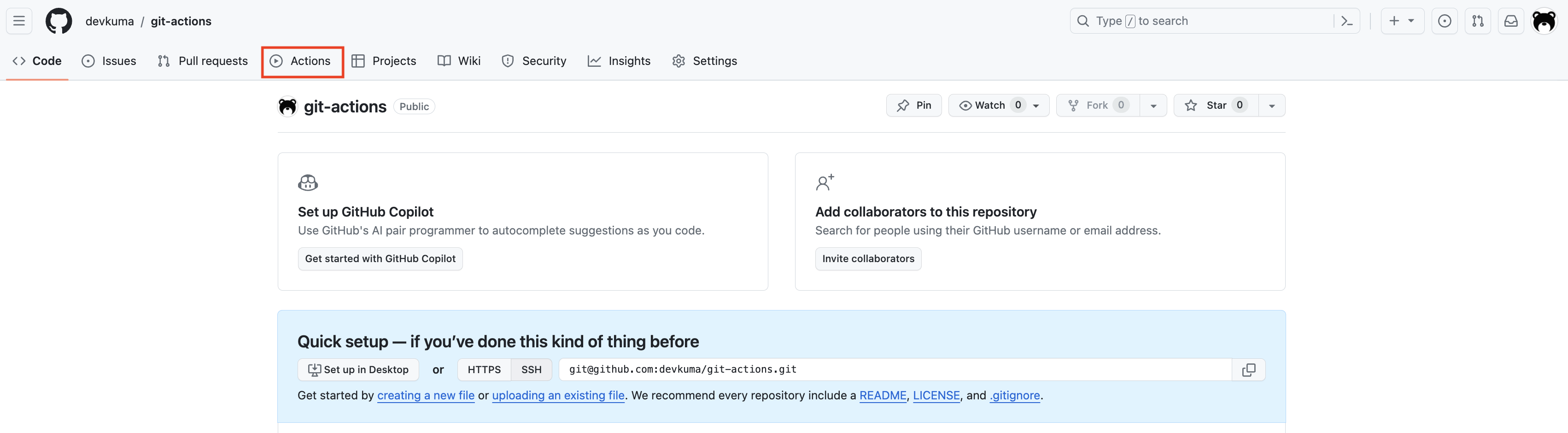
Now check whether the workflow actually runs. Open the repository you just created in the GitHub management screen, then open the ‘Actions’ menu.
The GitHub Actions management screen appears. As shown below, a GitHub Actions log is recorded with the comment name specified in the git commit, so click that log and check it.

Next, click in the following order.
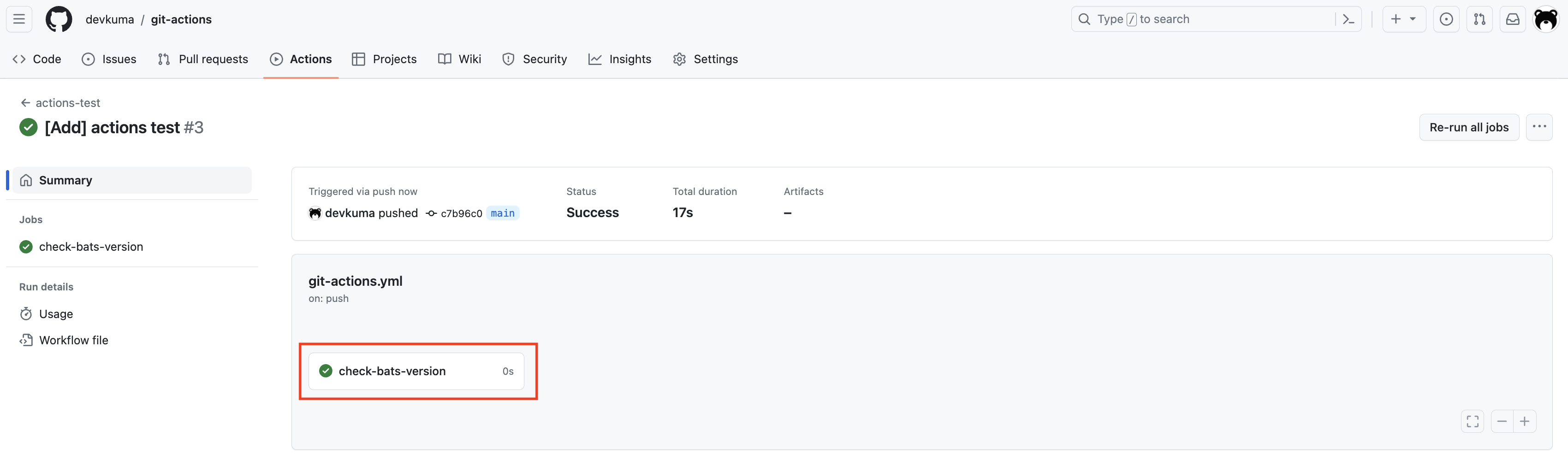
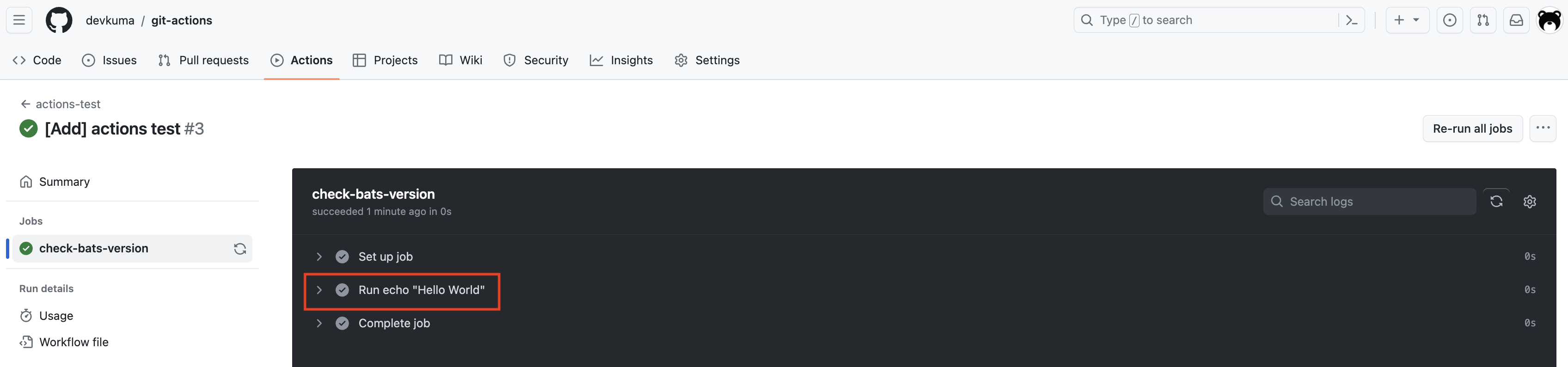
The following screen appears, and you can confirm that the command Run echo "Hello world!" was executed as specified in the workflow.
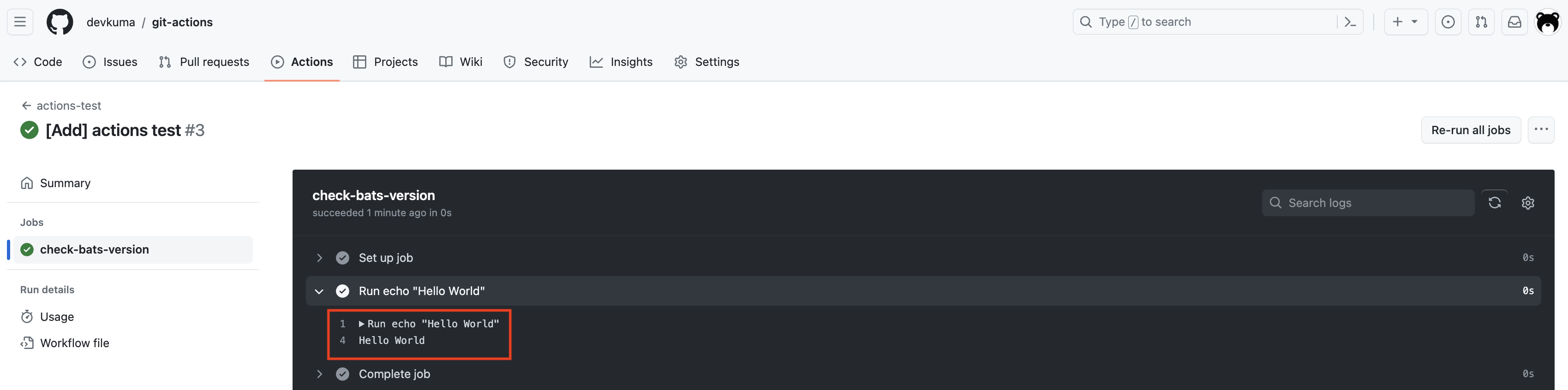
As this example shows, a GitHub Actions workflow can prepare an Ubuntu environment and execute various commands inside Ubuntu.
Closing
With GitHub Actions, you can automatically execute specified tasks by using events such as Push as triggers, and you can also implement CI/CD.
Because GitHub Actions can use virtual servers provided by GitHub, users do not need to separately prepare and operate execution environments. Also, because it is an official GitHub feature, it integrates easily with GitHub, which is an advantage other CI/CD tools do not have.
GitHub Actions is useful for many tasks, such as automatically generating release notes or running JavaScript linting on every push. On the other hand, be aware that the Free plan limits the maximum number of concurrent jobs to 20, and that GitHub Actions must be used in compliance with the terms summarized on the official site.