Undoing Git Changes | git revert
The git revert command
git revert is a command for undoing a committed snapshot. It does not remove the commit from the project history. Instead, it finds a way to undo the changes introduced by that commit and adds the result as a new commit. This preserves Git history and helps maintain collaboration safety.
Git Tutorial: git revert
Usage
git revert <commit>
Reverts all changes introduced by <commit>, creates a new commit, and applies it to the current branch.
Additional notes
Use “revert” when you want to undo a commit without removing it from project history. This is useful when you trace a bug and discover that a specific commit caused it. Instead of manually analyzing the change, fixing it, and committing the result as a new snapshot, git revert automates that process.
Reverting and resetting
It is important to understand that git revert only reverses one commit. It does not move the project back to an earlier state by removing that commit and every commit after it. In Git, the latter operation is handled by reset, not revert.
Git Tutorial: Reverting and resetting
Reverting has two important advantages compared with resetting. First, it does not rewrite project history, so it is safe to use for commits that have already been published to a shared repository. See the git reset page for the risks of rewriting published history.
Second, git reset can only move the current commit backward. git revert, by contrast, can target any individual commit in the history. For example, if you tried to undo just one older commit with git reset, you would have to remove that commit and all commits after it, then re-create the later commits. This is clearly not an efficient way to undo one change.
Example
The following is a simple example of git revert. It creates a snapshot and immediately reverts it.
# Edit some tracked files

# Commit a snapshot
git commit -m "Make some changes that will be undone"

# Revert the commit we just created
git revert HEAD
The process can be illustrated as follows:
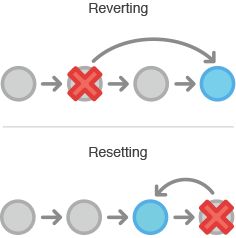
Notice that the fourth commit remains in the project history even after the revert operation. git revert does not delete the commit to undo the change. Instead, it adds a new commit. As a result, the repository state after the third and fifth commits is exactly the same, while the fourth commit remains in the history and can still be inspected.