Gradle Jib Plugin - Build Docker Container Images with Gradle
What Is Jib?
Jib is Google’s open source Java containerizer that lets you build Java application containers without using a Dockerfile or installing Docker.
Jib is a container image builder that quickly handles every step required to package an application as a container image.
You do not need to write a Dockerfile or install Docker. It works as a Maven and Gradle plugin, so after installing the plugin, you only need to define the target image settings and build configuration to containerize a Java application immediately.
-
Docker build flow

-
Jib build flow

How to Configure and Run Jib
To use Jib, add the related library to build.gradle and configure the container image.
Prerequisites
- A Java development environment is required.
- A Docker Hub account is required.
- If you do not have one, create an account first.
Create a Jib Example Program
First, create a project.
curl https://start.spring.io/starter.tgz \
-d bootVersion=2.7.5 \
-d dependencies=web \
-d baseDir=spring-gradle-jib \
-d groupId=com.devkuma \
-d artifactId=devkuma-gradle-jib \
-d packageName=com.devkuma.hello \
-d applicationName=HelloApplication \
-d packaging=jar \
-d javaVersion=17 \
-d type=gradle-project | tar -xzvf -
Create a simple application as follows.
package com.devkuma.hello;

import org.springframework.boot.SpringApplication;
import org.springframework.boot.autoconfigure.SpringBootApplication;
import org.springframework.web.bind.annotation.RequestMapping;
import org.springframework.web.bind.annotation.RestController;

@RestController
@SpringBootApplication
public class HelloApplication {

	public static void main(String[] args) {
		SpringApplication.run(HelloApplication.class, args);
	}

	@RequestMapping("/")
	public String hello() {
		return "hello";
	}
}
You can use the generated project above from GitHub.
Add the Jib Library
Add the Jib library to the plugins section of the build.gradle build file.
plugins {

  //... omitted ...

  id 'com.google.cloud.tools.jib' version '3.2.0'
}
Add the Jib Configuration
Add the Jib configuration to the build.gradle file.
The Jib configuration items are as follows.
from- The most important item that can be configured in
fromisimage. - It specifies the base image that the Jib library uses when creating a container image from the application.
- If nothing is configured,
adoptopenjdk:11-jrebecomes the default.
- The most important item that can be configured in
to- The most important items that can be configured in
toareimageandtags. - Here, unlike
from,imagemeans the repository where the generated container image will be stored.tagsmeans the tags that will be set on this image.
- The most important items that can be configured in
container- The
containerblock lets you configure settings such asjvmFlagsandenvironmentthat are required when the Java application runs as a container image.
- The
Based on the content above, create the Jib configuration as follows.
jib {
    from {
        image = "adoptopenjdk/latest"
    }
    to {
        image = "devkuma/hello-jib"
        tags = ["latest"]
        auth {
          username = 'devkuma'
          password = "xxxx"
        }
    }
    container {
        jvmFlags = ["-Xms128m", "-Xmx128m"]
    }
}
- from
- Creates the container image using the
adoptopenjdk/latestimage as the base image.
- Creates the container image using the
- to
- Pushes the image to the
devkuma/hello-jibrepository on Docker Hub with thelatesttag and containerizes it. - Docker Hub account information was added to
auth. (Enter your own account information here.)
- Pushes the image to the
- container
- At runtime, the two JVM options
"-Xms128m"and"-Xmx128m"are added throughjvmFlags.
- At runtime, the two JVM options
Verify Jib Image Creation
Create the image with the following Jib image creation command.
$ ./gradlew jib
The following is the output from actually running the command.
% ./gradlew jib
Starting a Gradle Daemon, 1 busy and 3 stopped Daemons could not be reused, use --status for details

> Task :jib

Containerizing application to devkuma/gradle-jib, devkuma/gradle-jib...
Base image 'adoptopenjdk' does not use a specific image digest - build may not be reproducible
Using credentials from to.auth for devkuma/gradle-jib
The base image requires auth. Trying again for adoptopenjdk...
Using base image with digest: sha256:3f2982d13b40d8c6d56a3a736c4f6c51a3c99688c2b434a27ed5d1b5f3fbedfb

Container entrypoint set to [java, -Xms128m, -Xmx128m, -cp, @/app/jib-classpath-file, com.devkuma.hello.HelloApplication]

Built and pushed image as devkuma/gradle-jib, devkuma/gradle-jib
Executing tasks:
[==============================] 100.0% complete


BUILD SUCCESSFUL in 58s
3 actionable tasks: 1 executed, 2 up-to-date
user@AD02291831 spring-gradle-jib %
Verify Jib Image Creation and Registration
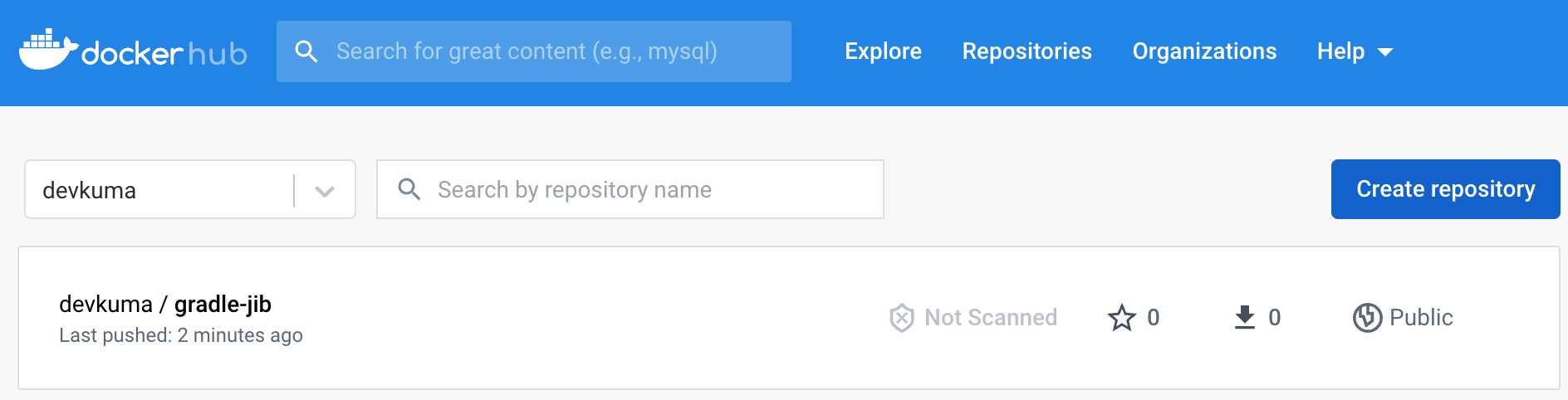
If you open Docker Hub, you can confirm that the generated image has been registered.
References
- Introducing Jib — build Java Docker images better | Google Cloud Platform Blog
- Build Java containers with Jib | Google Cloud
- You can find all of the source code above on GitHub.