PostgreSQL | Installing PostgreSQL | Start and Stop the Windows Service
When PostgreSQL is installed in a Windows environment, it is automatically registered as a Windows service and set to a “running” state. This article explains how to check how PostgreSQL is registered as a Windows service, and how to stop or restart PostgreSQL.
Check the Windows Service List
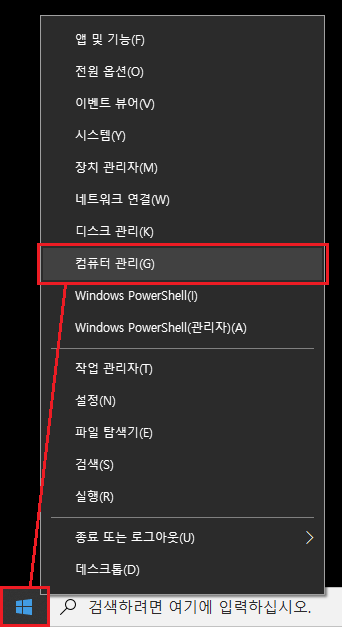
First, check whether PostgreSQL is registered as a Windows service. To display the Windows service list, right-click the Start menu at the lower left of the desktop, and click “Computer Management” from the displayed menu.
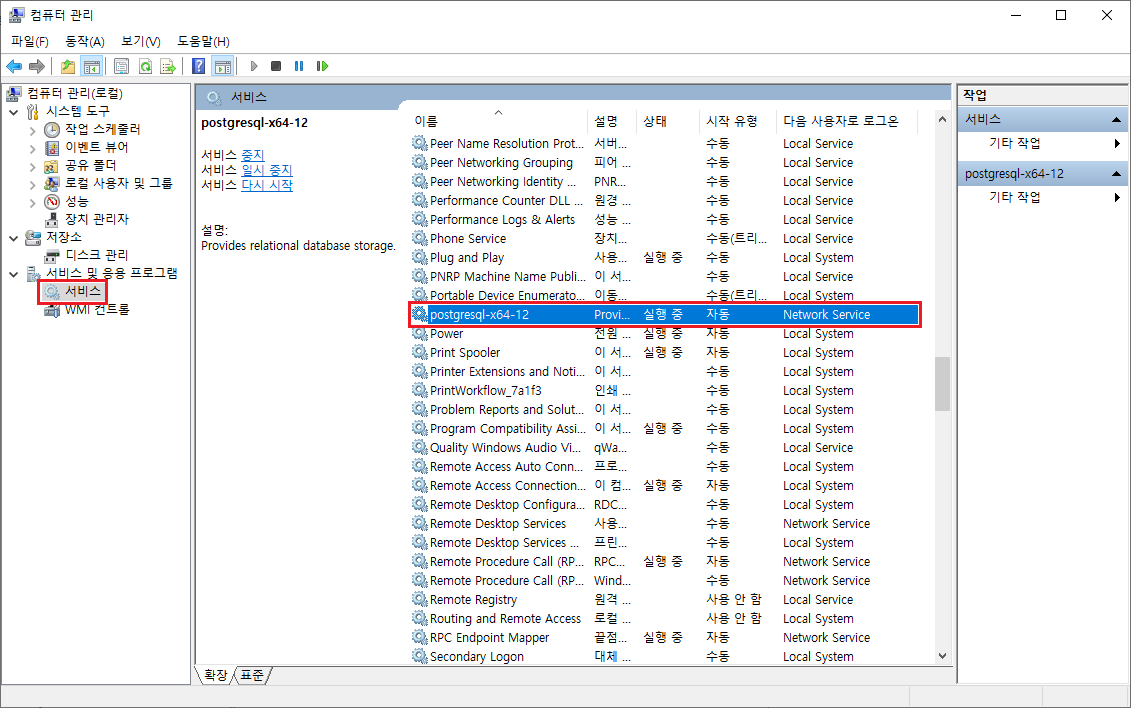
When the “Computer Management” screen is displayed, click “Services” under “Services and Applications” in the left menu. Information about services is displayed. In the displayed list, find “postgresql-x64-12” and double-click it.
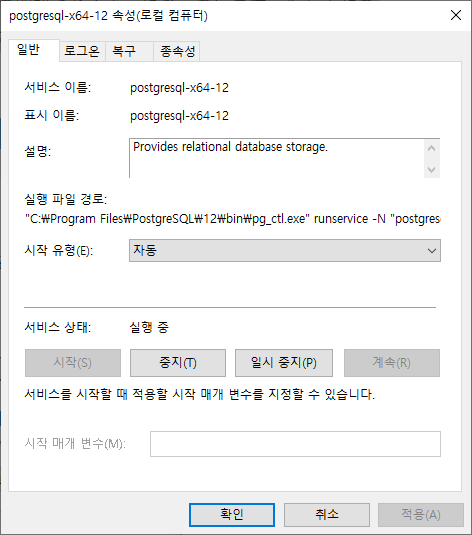
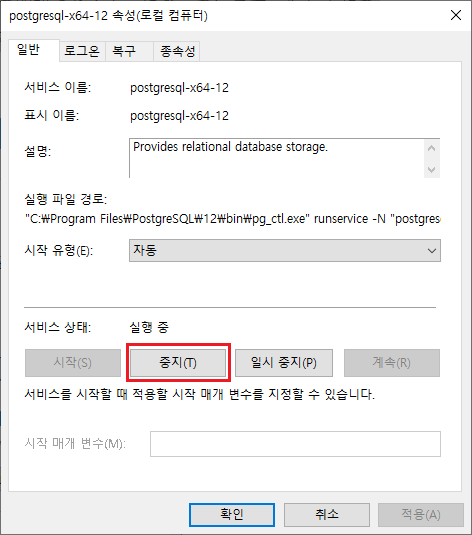
The properties for PostgreSQL registered as a Windows service are displayed as shown below.
Start and Stop the PostgreSQL Service
Because “Startup type” is set to “Automatic”, PostgreSQL starts automatically as a service when Windows starts. If you want to start PostgreSQL manually, change “Startup type” to “Manual”.
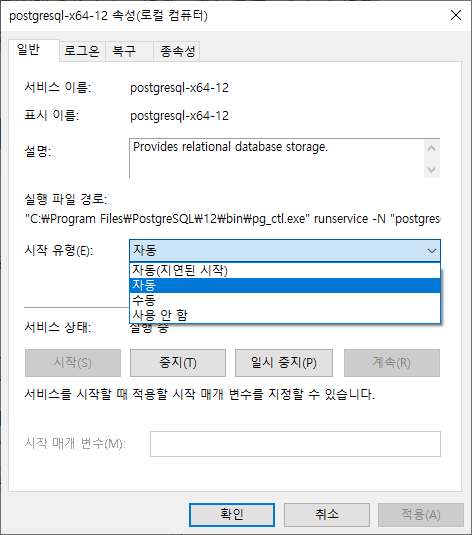
To stop PostgreSQL, click “Stop” under “Service status”.
To start a stopped PostgreSQL service, click “Start” under “Service status”.
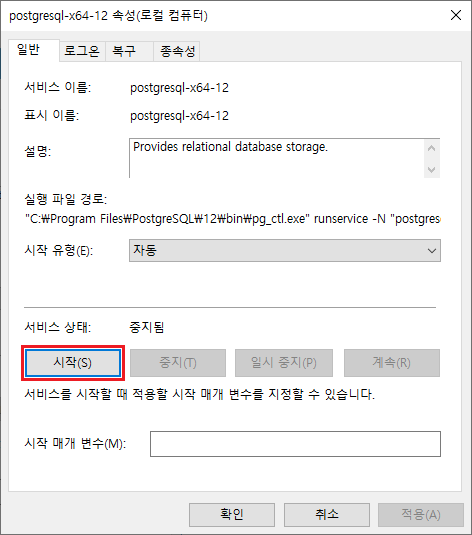
In “Path to executable”, you can see the command used to start PostgreSQL.
C:\Program Files\PostgreSQL\12\bin\pg_ctl.exe" runservice -N "postgresql-x64-12" -D "C:\Program Files\PostgreSQL\12\data" -w
–
This article explained how to check how PostgreSQL is registered as a Windows service, and how to start or stop PostgreSQL as a Windows service.