PostgreSQL | Installing PostgreSQL | Download and Install PostgreSQL
This article explains how to download and install PostgreSQL. As of March 2020, the latest version is PostgreSQL 12.2. This time, PostgreSQL is installed on Windows 10 64-bit.
Download PostgreSQL
Download PostgreSQL from the following URL.
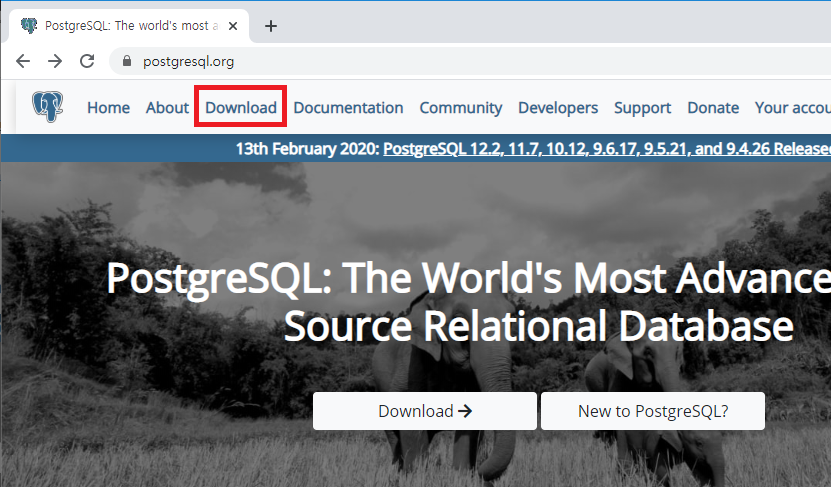
Click Download at the top of the screen.
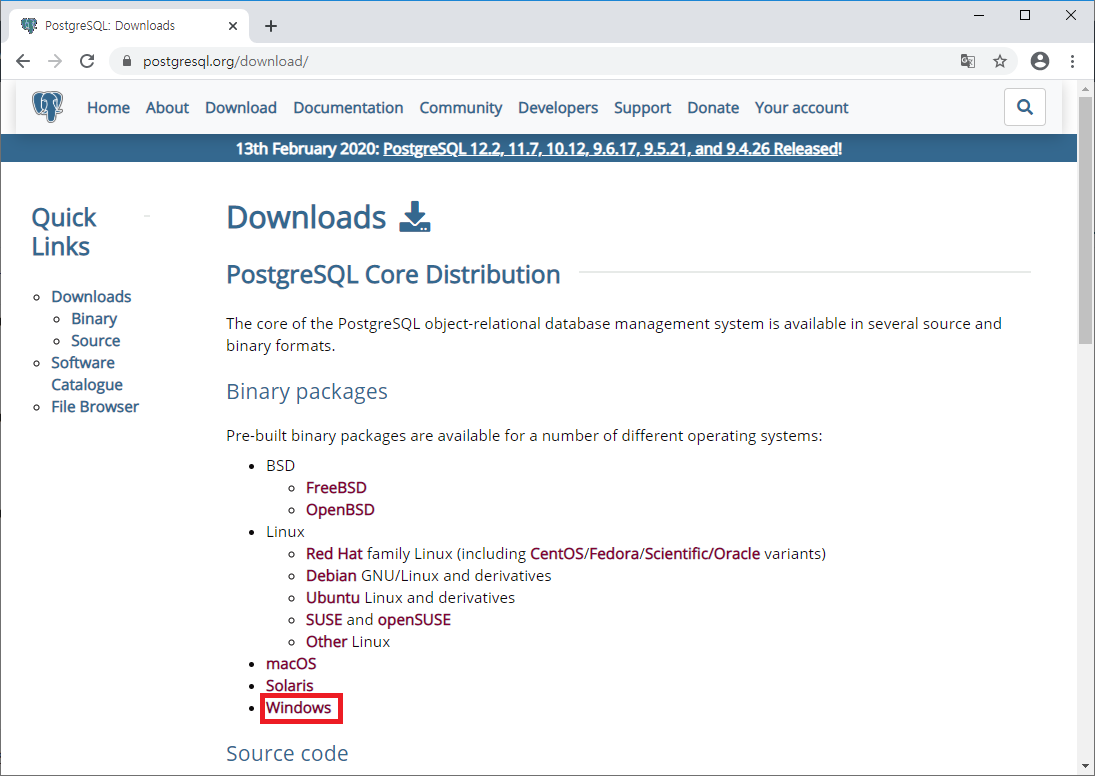
Click the “Windows” link under Binary packages.
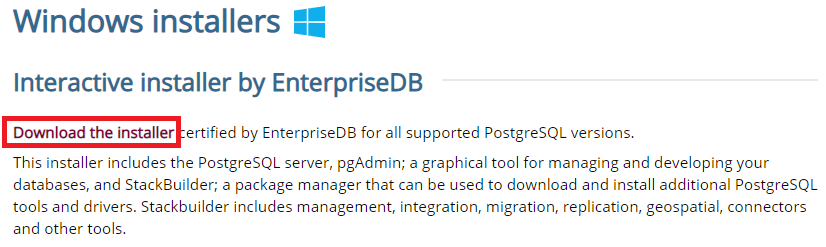
The download page for Windows is displayed. Click the “Download the installer” link.
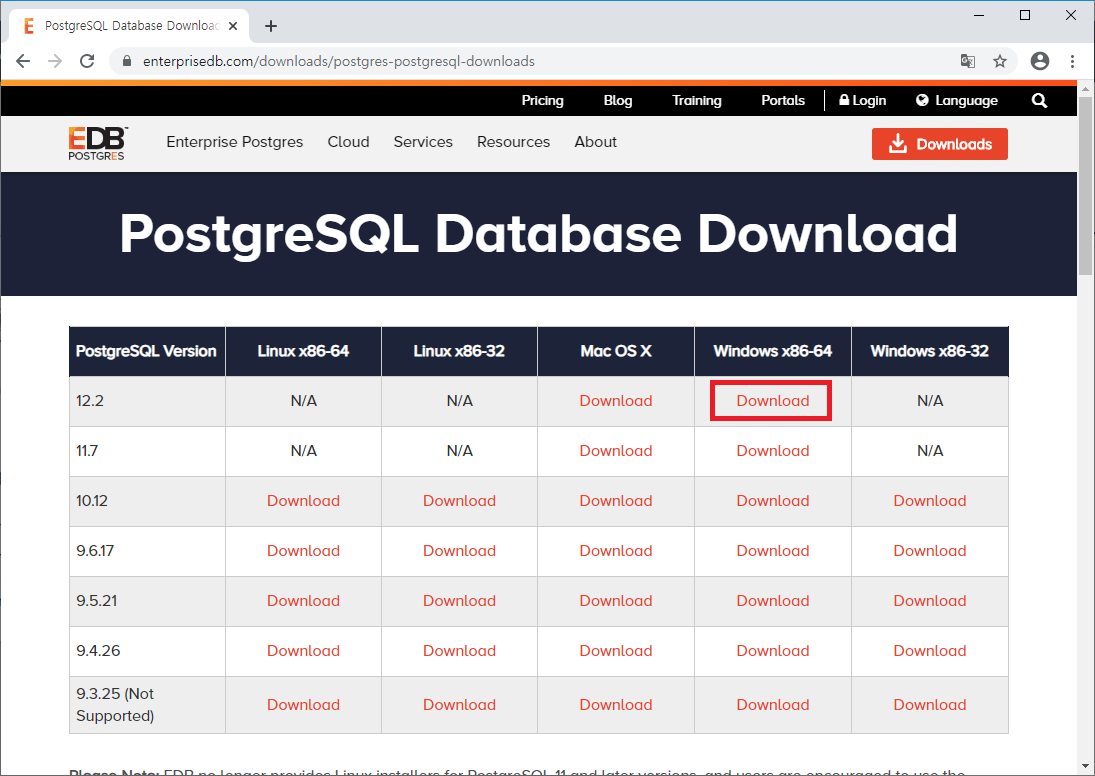
A screen where you can download each version is displayed. Since PostgreSQL 12.2 Windows x86-64 is used here, click Download in that row.
The download will then start. Save the file in an appropriate location.
Install PostgreSQL
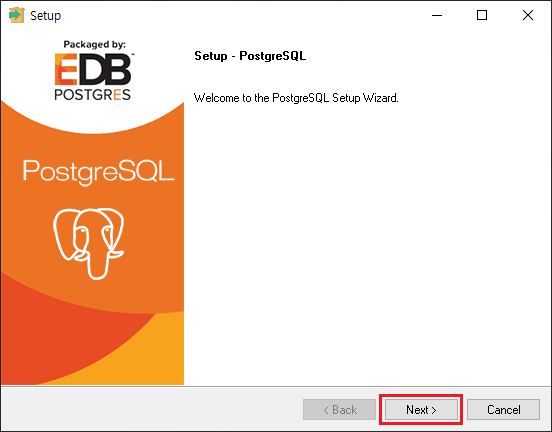
Next, install PostgreSQL. Double-click the downloaded postgresql-12.2-1-windows-x64.exe file, and the following window is displayed. Click Next.
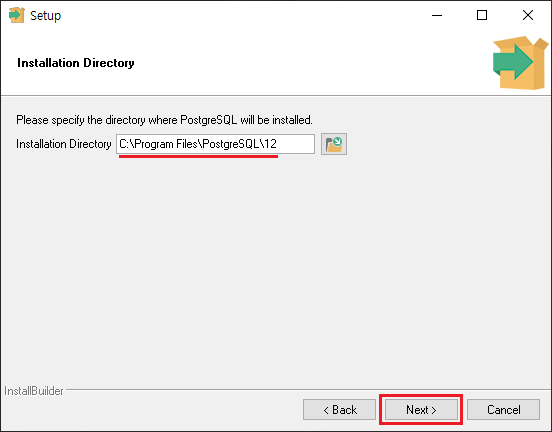
Specify the installation location. You can leave the default as is, or specify another installation directory if you want to change it. Here, the default location is used. Click Next.
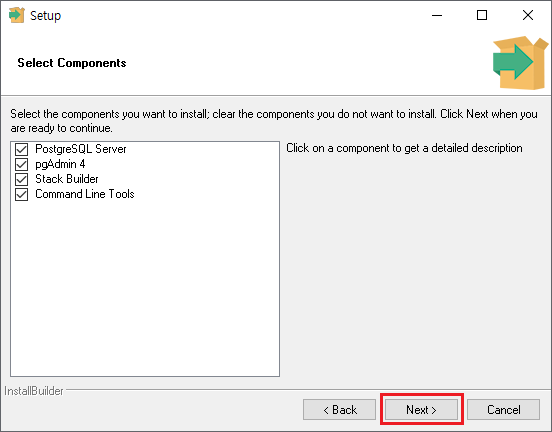
Select the components to install. Here, leave everything checked and click Next.
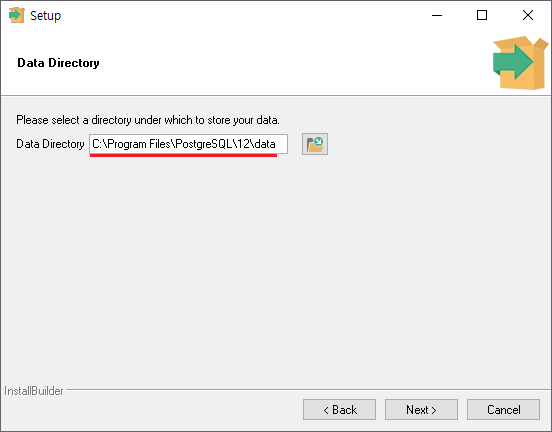
Specify the directory where generated data, such as databases, will be stored. If you want to change it, specify another directory. This time, the default is used again. Click Next.
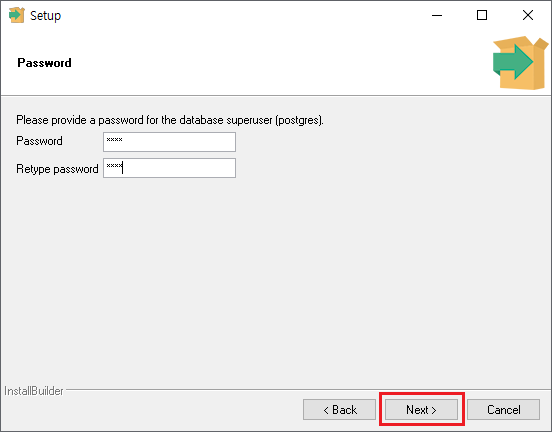
Set the password for the postgres superuser account. Enter the password twice for confirmation. When the setting is complete, click Next.
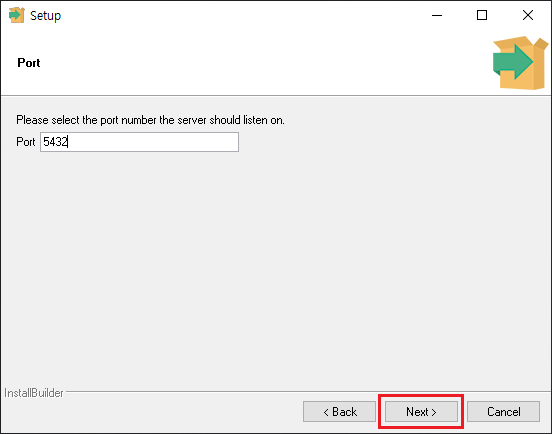
Specify the port number used to connect to PostgreSQL. The default 5432 is usually fine, but you can change it. When the setting is complete, click Next.
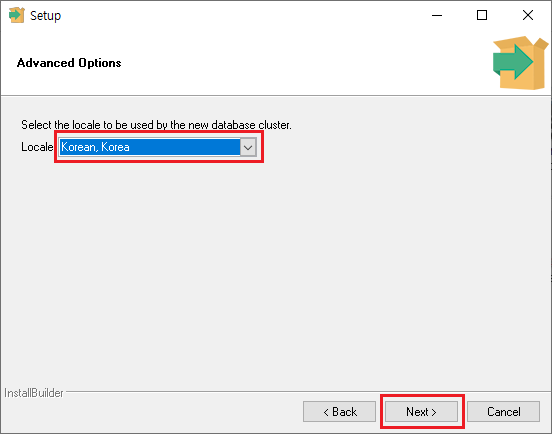
Specify the locale to use when creating the new database cluster. It is initially set to [Default locale]. Select Korean, Korea, and click Next.
Review the settings so far. Click Next.
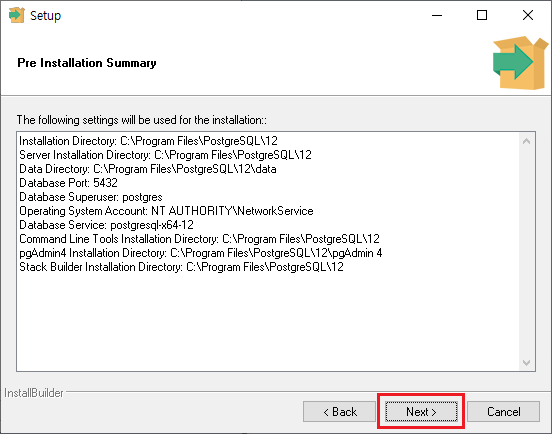
Perform the final check before installation. If everything is ready, click Next.
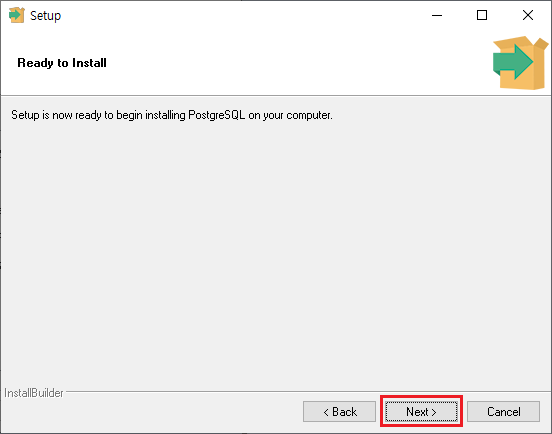
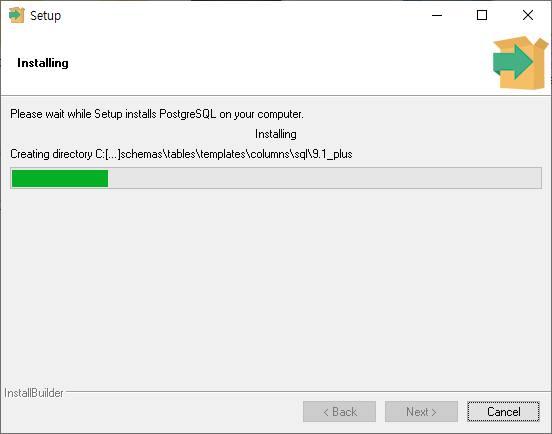
When installation begins, the installation files are created.
When the following screen appears, PostgreSQL installation is complete.
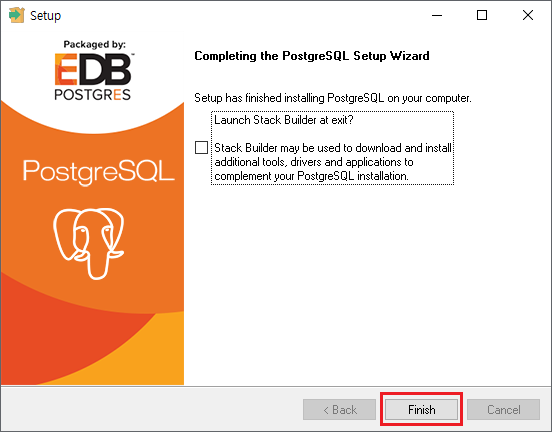
If you click Finish while the checkbox on the left of Stack Builder is selected, Stack Builder starts so that additional applications such as drivers can be installed. This will not be used here, so clear the checkbox and click Finish.
–
This completes the explanation of how to download and install PostgreSQL.