PostgreSQL | Installing PostgreSQL | PATH Settings
When connecting to PostgreSQL from Command Prompt, setting PATH is convenient. This article explains how to configure PATH.
Configure PATH
The PostgreSQL programs that are run from the command line are included in the bin directory under the PostgreSQL installation directory.
C:\Program Files\PostgreSQL\12\bin>dir/w
 C 드라이브의 볼륨에는 이름이 없습니다.
 볼륨 일련 번호: XXXX-XXXX

 C:\Program Files\PostgreSQL\12\bin 디렉터리

[.]                           [..]                          clusterdb.exe                 createdb.exe
createuser.exe                dropdb.exe                    dropuser.exe                  ecpg.exe
icudt53.dll                   icuin53.dll                   icuio53.dll                   icule53.dll
iculx53.dll                   icutest53.dll                 icutu53.dll                   icuuc53.dll
initdb.exe                    isolationtester.exe           libcrypto-1_1-x64.dll         libcurl.dll
libcurl.lib                   libecpg.dll                   libecpg_compat.dll            libiconv-2.dll
libintl-8.dll                 libpgtypes.dll                libpq.dll                     libssl-1_1-x64.dll
libwinpthread-1.dll           libxml2.dll                   libxslt.dll                   oid2name.exe
pgbench.exe                   pg_archivecleanup.exe         pg_basebackup.exe             pg_checksums.exe
pg_config.exe                 pg_controldata.exe            pg_ctl.exe                    pg_dump.exe
pg_dumpall.exe                pg_isolation_regress.exe      pg_isready.exe                pg_receivewal.exe
pg_recvlogical.exe            pg_regress.exe                pg_regress_ecpg.exe           pg_resetwal.exe
pg_restore.exe                pg_rewind.exe                 pg_standby.exe                pg_test_fsync.exe
pg_test_timing.exe            pg_upgrade.exe                pg_waldump.exe                postgres.exe
psql.exe                      reindexdb.exe                 stackbuilder.exe              vacuumdb.exe
vacuumlo.exe                  wxbase28u_net_vc_custom.dll   wxbase28u_vc_custom.dll       wxbase28u_xml_vc_custom.dll
wxmsw28u_adv_vc_custom.dll    wxmsw28u_aui_vc_custom.dll    wxmsw28u_core_vc_custom.dll   wxmsw28u_html_vc_custom.dll
wxmsw28u_xrc_vc_custom.dll    zic.exe                       zlib1.dll
              69개 파일          56,286,000 바이트
               2개 디렉터리  442,429,300,736 바이트 남음

C:\Program Files\PostgreSQL\12\bin>
Now configure PATH. This example uses Windows 10.
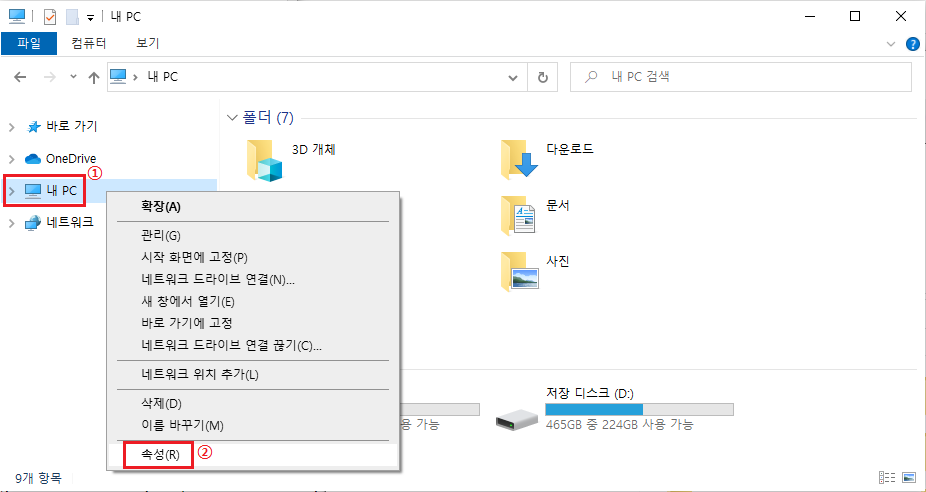
First, open File Explorer, select “This PC”, and right-click it.
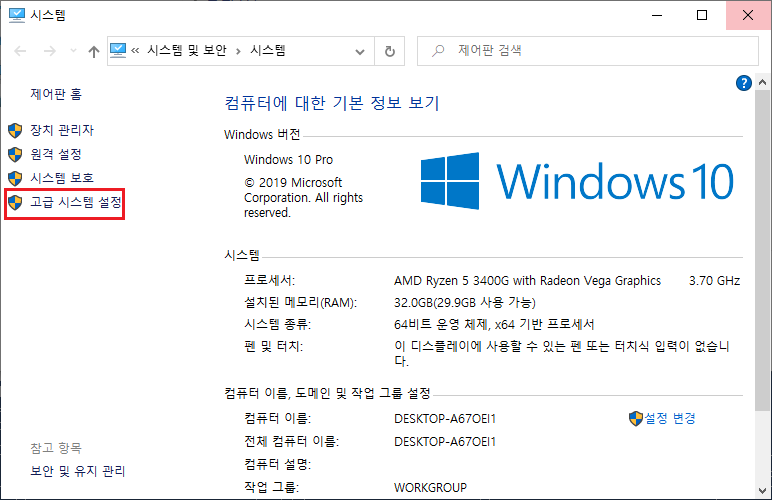
When the “System” screen appears, click “Advanced system settings” in the left menu.
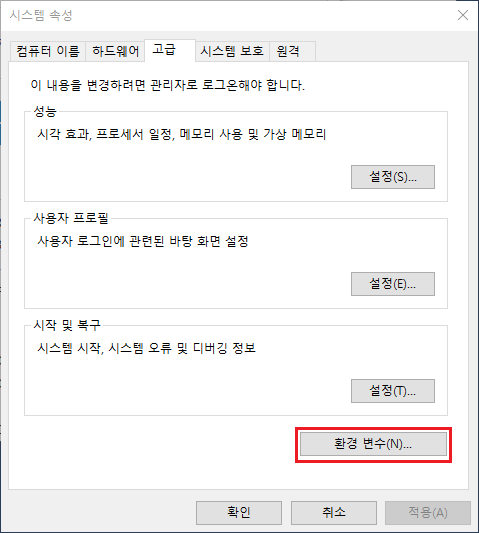
When the “System Properties” screen appears, click “Environment Variables” near the bottom.
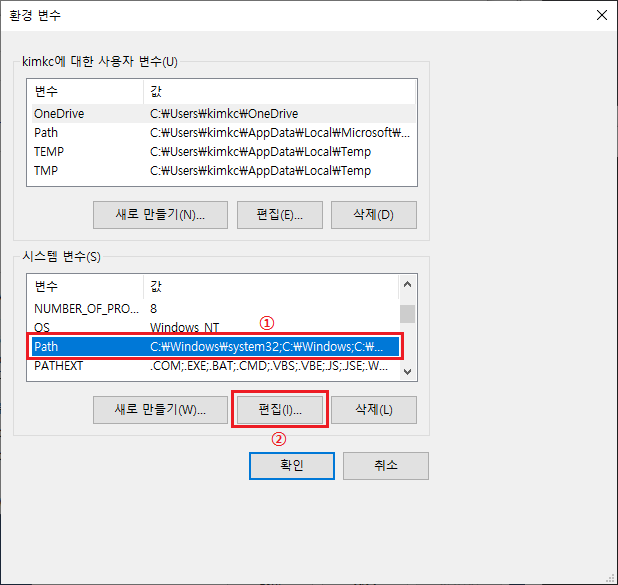
The “Edit environment variable” screen is displayed. Configure PATH on this screen.
In “System variables”, find the variable named “Path”. Select the row labeled “Path” and click the “Edit” button.
The “Edit environment variable” screen appears.
Click “New” in the upper right to add a new item to the end of the list on the left. Enter the PostgreSQL bin directory, such as C:\Program Files\PostgreSQL\12\bin. Enter the path that matches your installed PostgreSQL directory. When you are done, click “OK”.
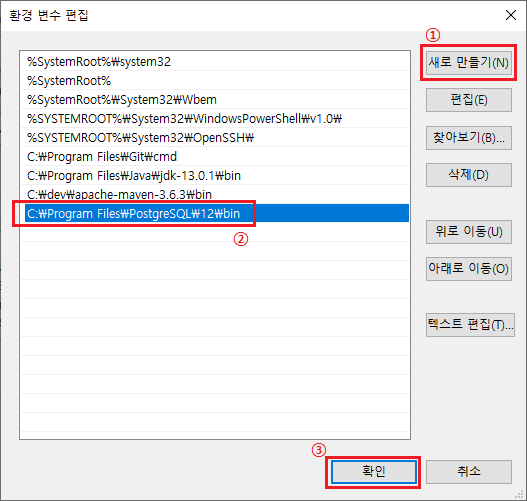
This completes adding the PATH used for PostgreSQL to the PATH setting.
Check Whether PATH Is Set Correctly
Now check whether the setting is correct. After setting PATH, the setting is not applied unless you open a new Command Prompt, so open a new Command Prompt. Then run the following command.
$ psql --version
C:\>psql --version
psql (PostgreSQL) 12.2

C:\>
If the PostgreSQL version is displayed, PATH is set correctly.
If the following message appears, PATH is not set correctly, so check the setting again.
C:\>psql --version
'psql'은(는) 내부 또는 외부 명령, 실행할 수 있는 프로그램, 또는
배치 파일이 아닙니다.

C:\>
This article explained how to configure PATH so PostgreSQL can be used from the command line.