Mac OS | Windows Remote Desktop
Introduction
If you install an application called “Microsoft Remote Desktop” on macOS and make a few settings on Windows, you can easily connect through Remote Desktop. Let’s look at how to do it.
Windows Settings
Enable Remote Desktop in Windows
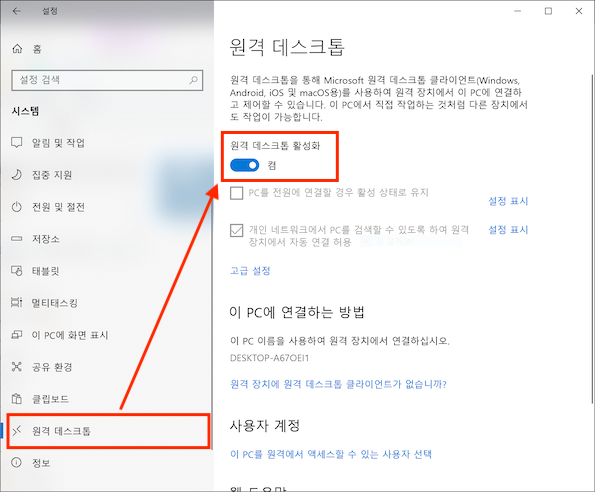
Go to “Windows Settings > System > Remote Desktop” and click the “Enable Remote Desktop” button to enable it.
Set a Windows Account Password
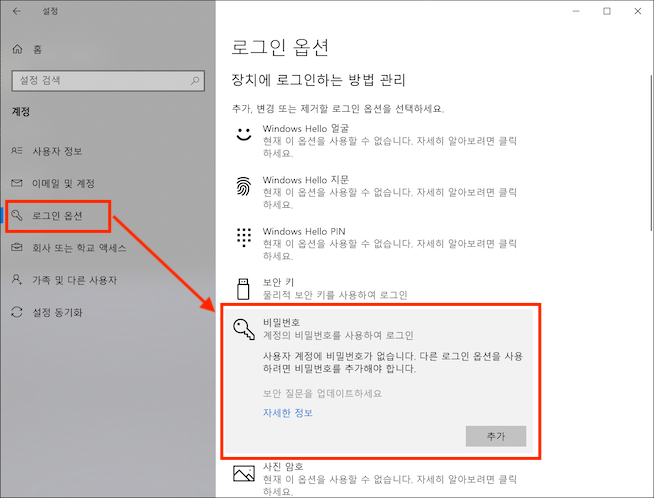
Go to “Windows Settings > Accounts > Sign-in options” and click the “Password” button to add a password.
Check the Windows IP Address
Press “Windows key + R” to open the Windows Run dialog.
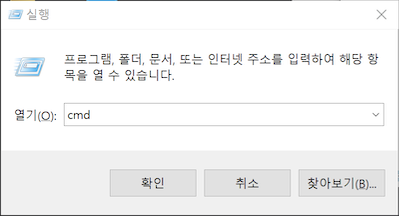
Enter “cmd” to open the Command Prompt.
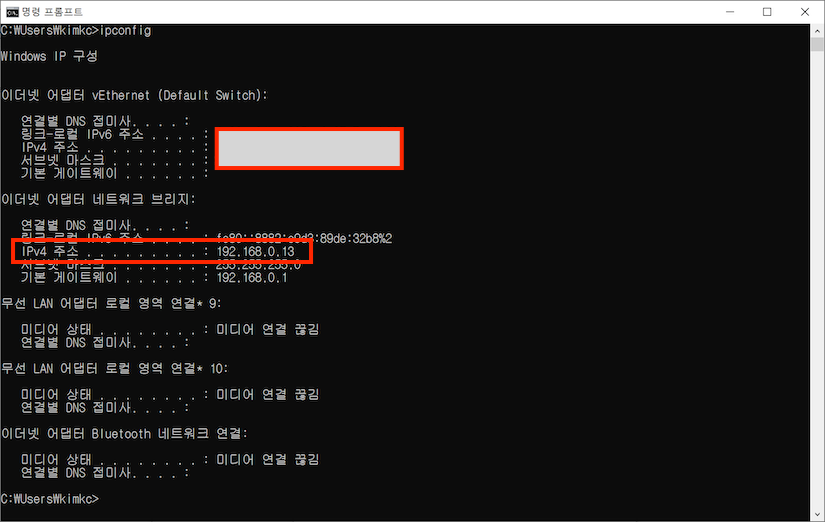
In the output, you can check the IPv4 address, such as “192.168.0.13”.
macOS Settings
Now configure macOS.
Install Microsoft Remote Desktop on macOS
First, search for “Microsoft Remote Desktop” in the App Store and install it.

Configure Microsoft Remote Desktop
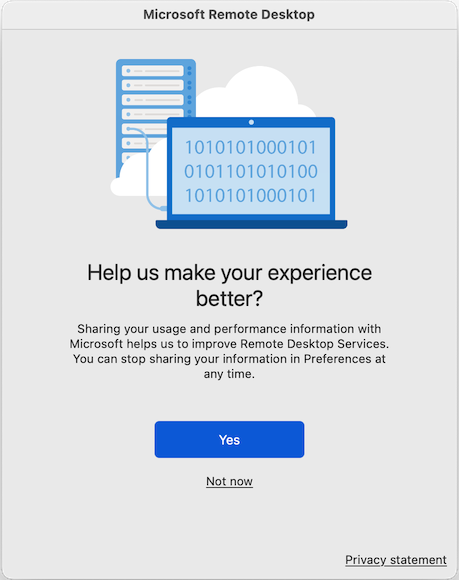
When you first connect and see the following screen, click “Yes”.
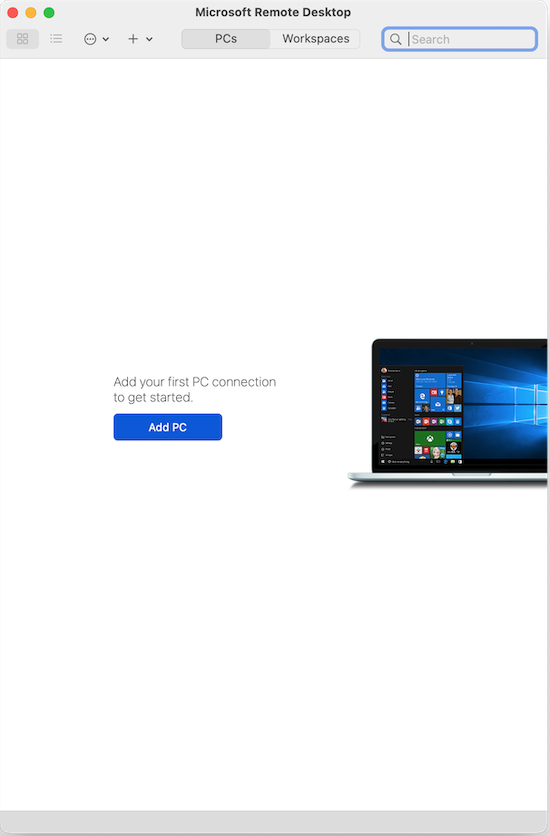
When the following screen appears, click “Add PC”.
The “Add PC” popup appears. Enter the Windows IP address in PC Name.
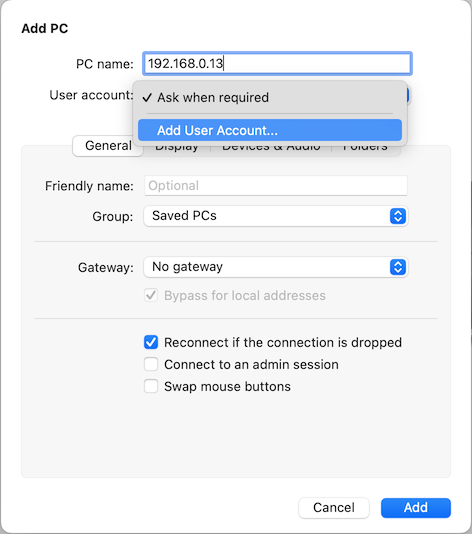
For User account, select “Add User Account” and enter the account and password as shown below.
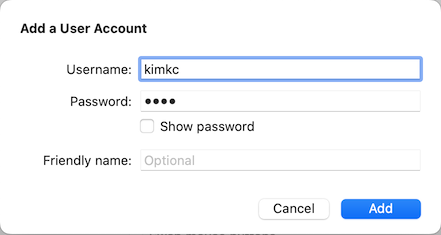
This completes the setup.
Connect to Windows
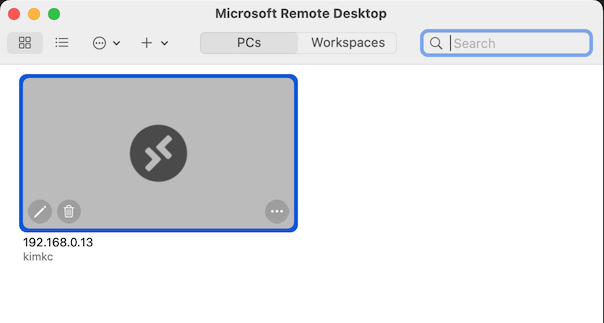
After the setup is complete, a computer to connect to appears as shown below. Click it.
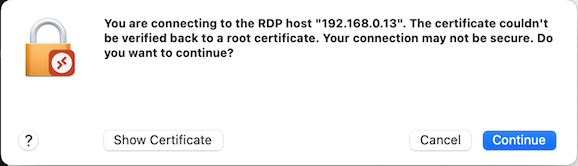
When a message asks whether to continue connecting, click “Continue”.
You can finally confirm that you are connected to Windows.
