Excel Screen Layout
Excel Screen
When you start Excel, a screen similar to the following is displayed.
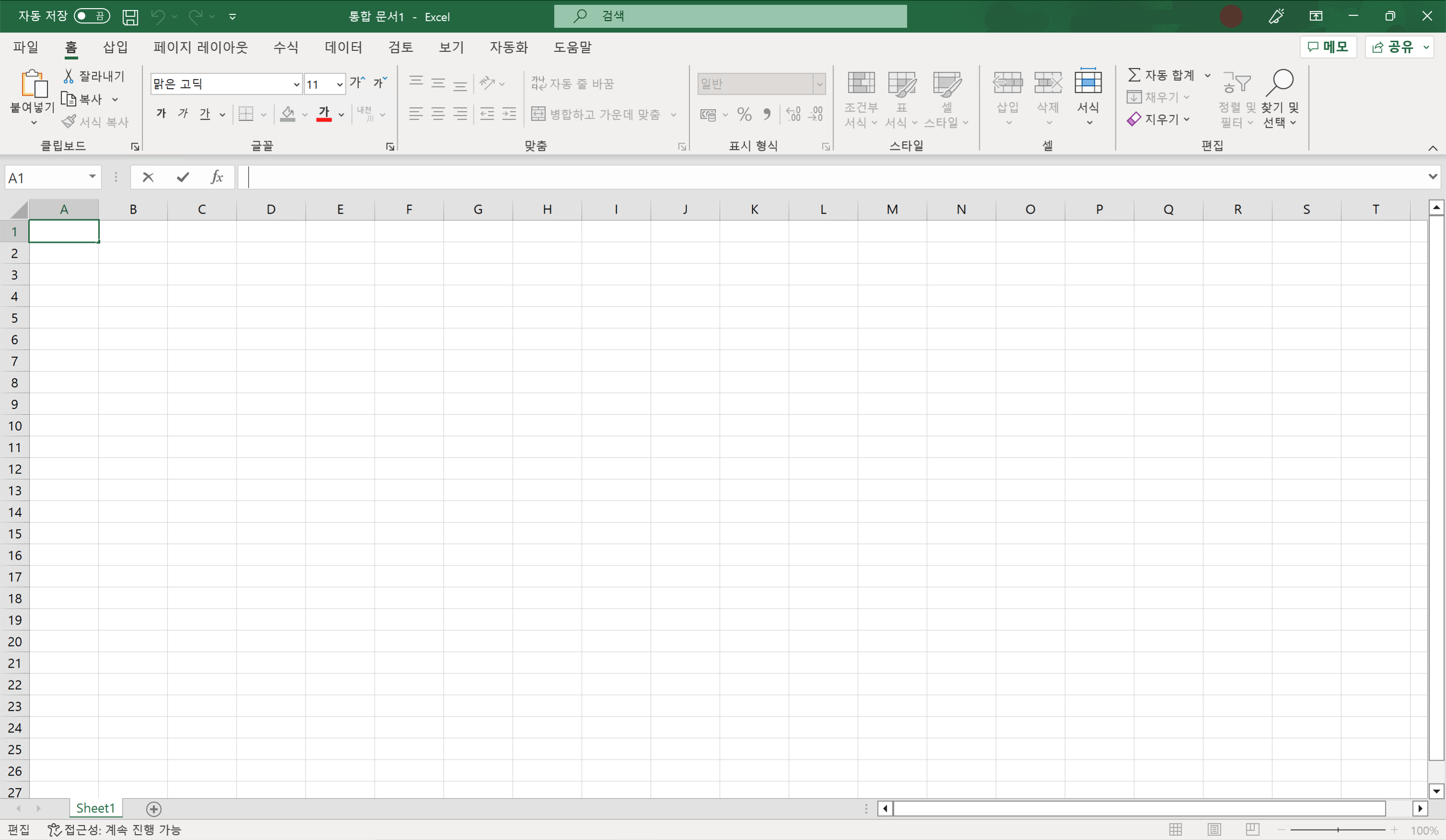
The main parts used are the worksheet, tabs, ribbon, and formula bar. Here, we will briefly explain what is displayed on the Excel screen, such as the Quick Access Toolbar and zoom slider.
Quick Access Toolbar
The item displayed at the upper left is the “Quick Access Toolbar”. Frequently used commands are displayed there.
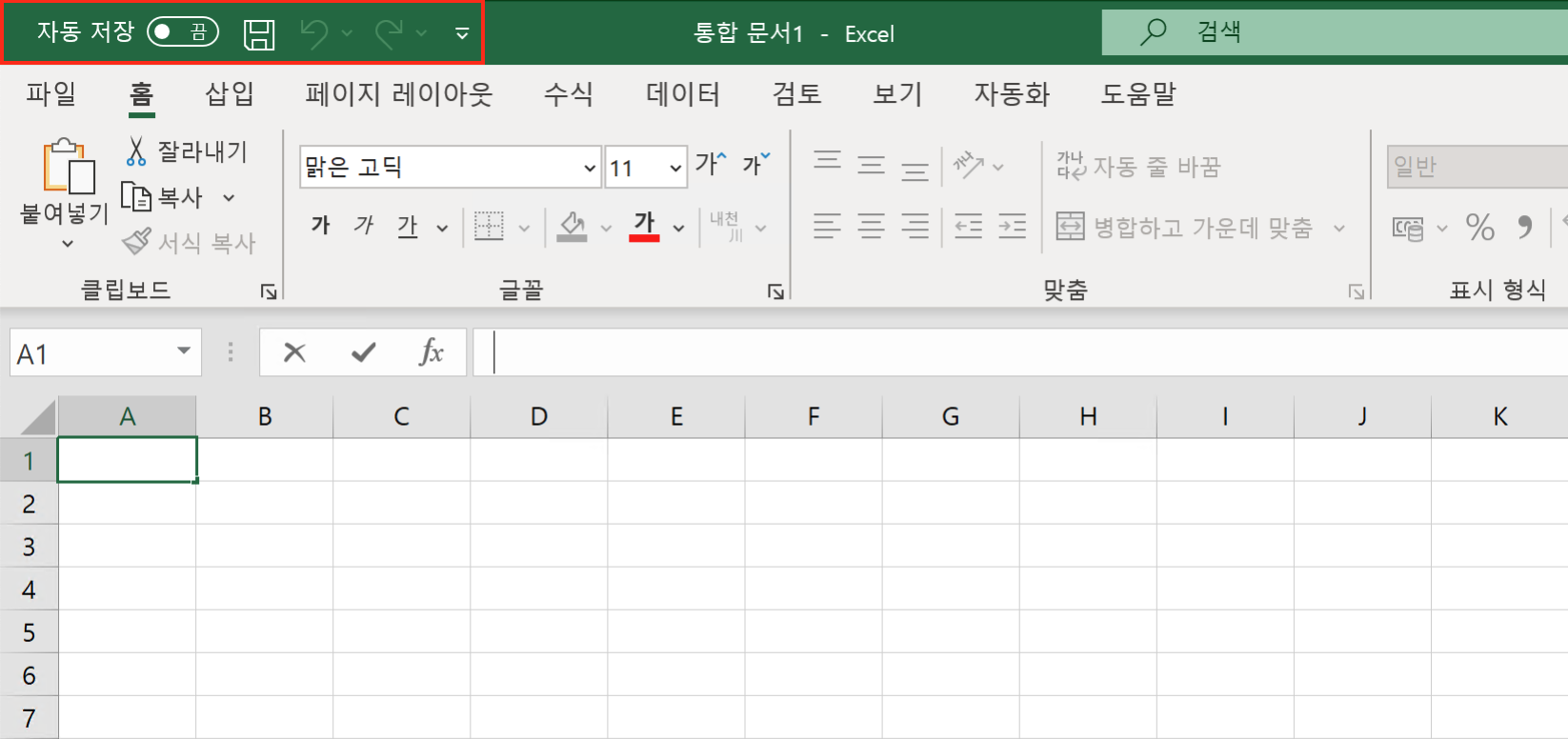
By default, the commands shown from the left are “AutoSave”, “Save”, “Undo”, and “Redo”.
You can customize the commands displayed on the Quick Access Toolbar. Click the icon in the following location.
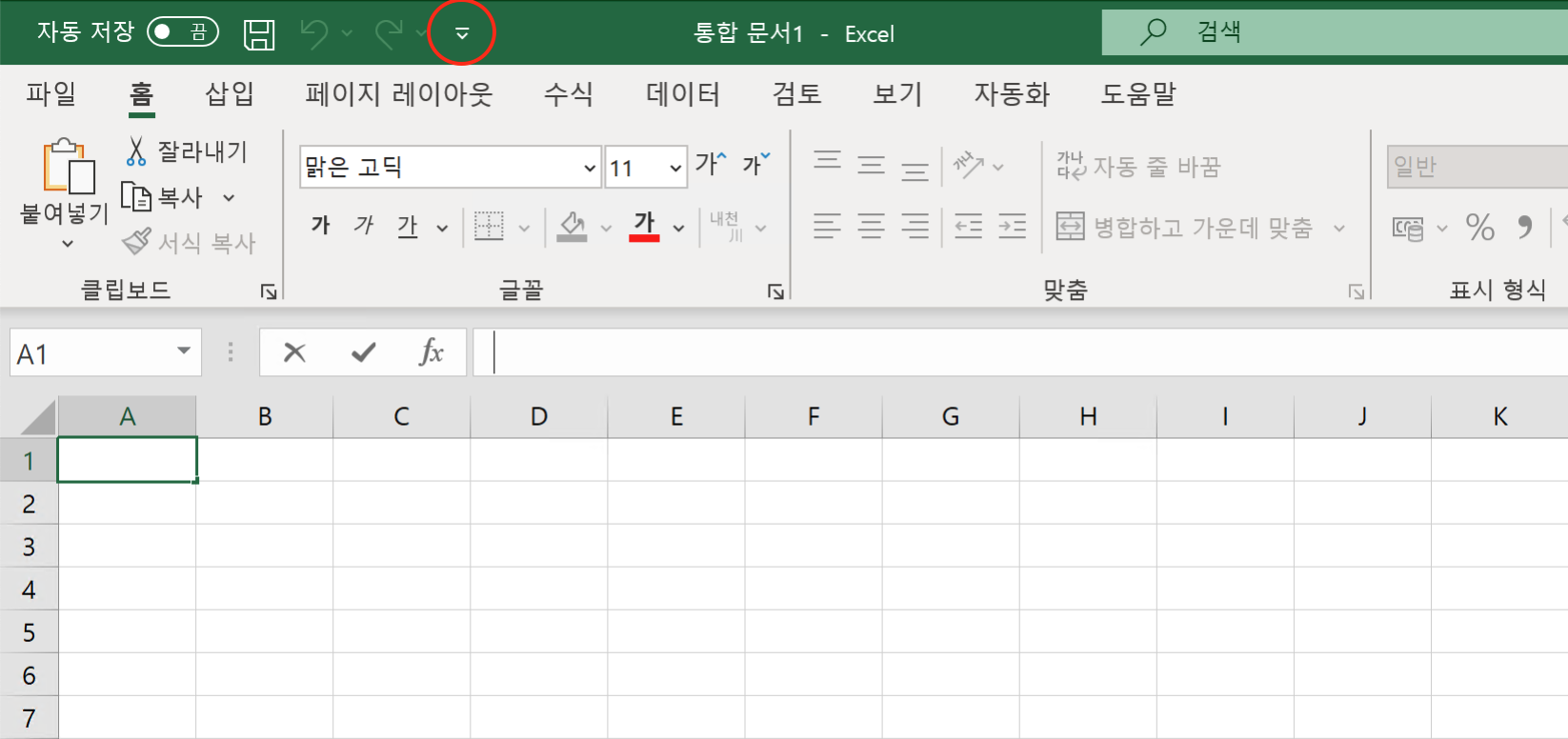
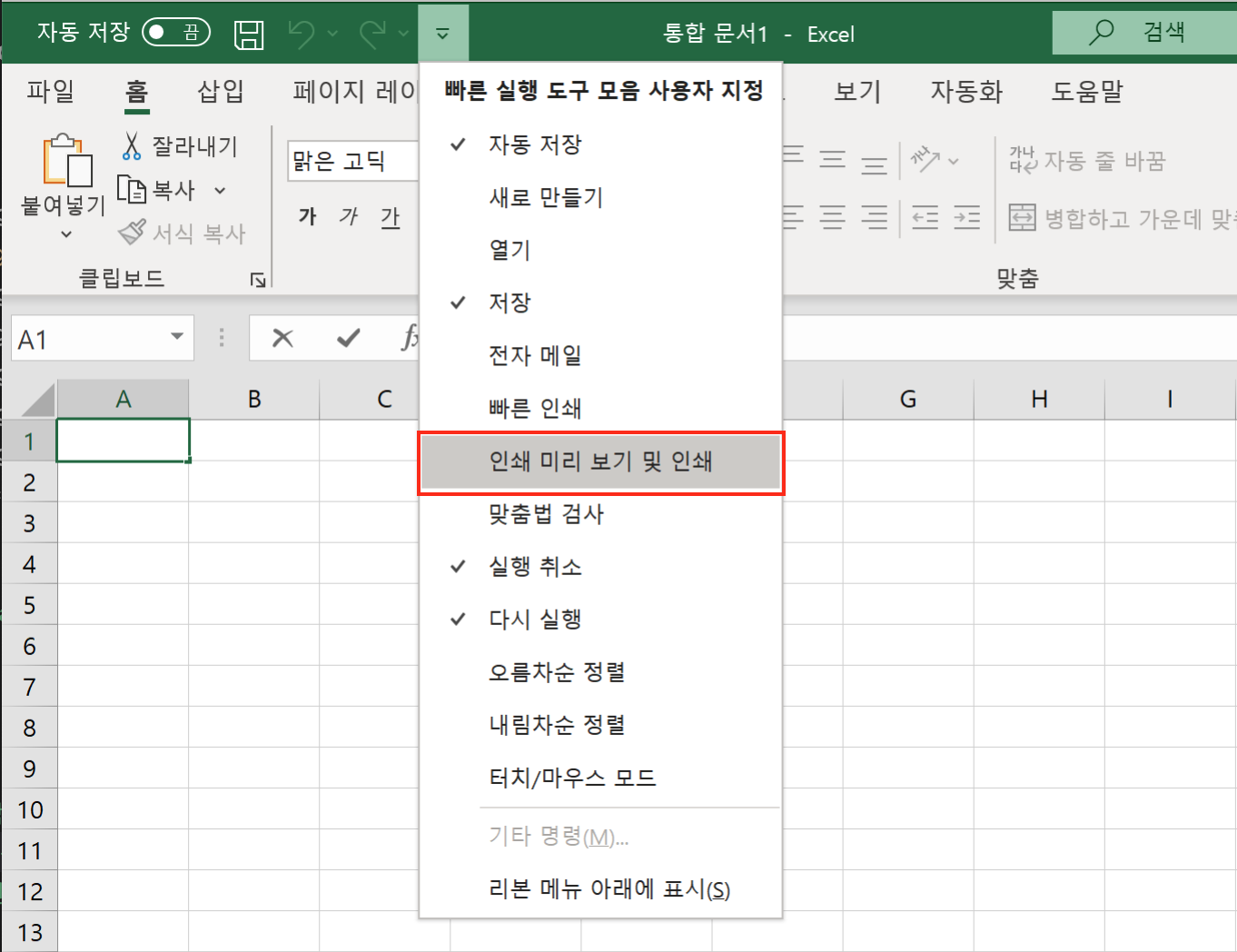
A list of commands that can be added to the Quick Access Toolbar is displayed. Items with check marks are currently displayed buttons. For example, click Print Preview and Print.
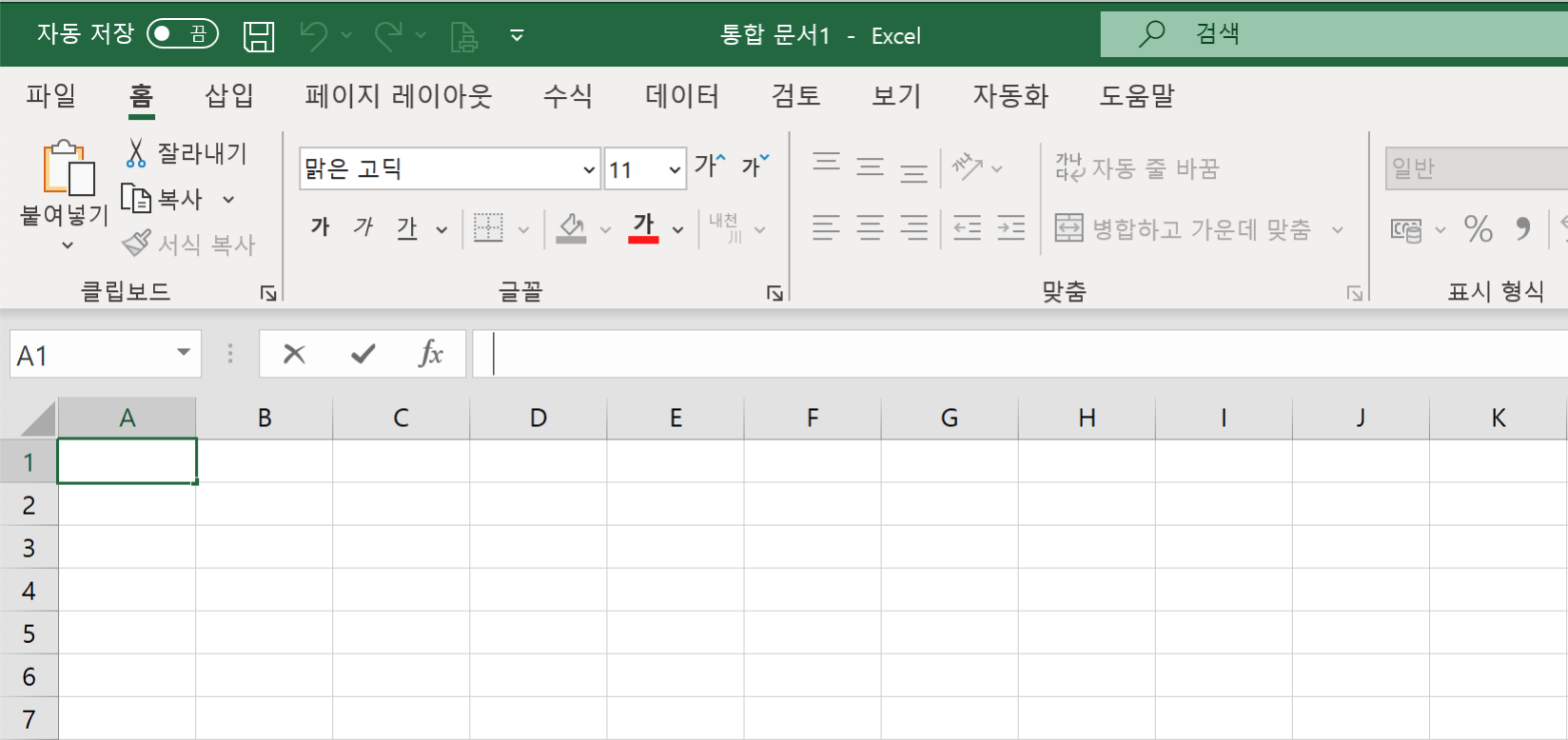
The “Print Preview and Print” command has been added to the Quick Access Toolbar. It is useful to display frequently used commands on the Quick Access Toolbar.
Tabs
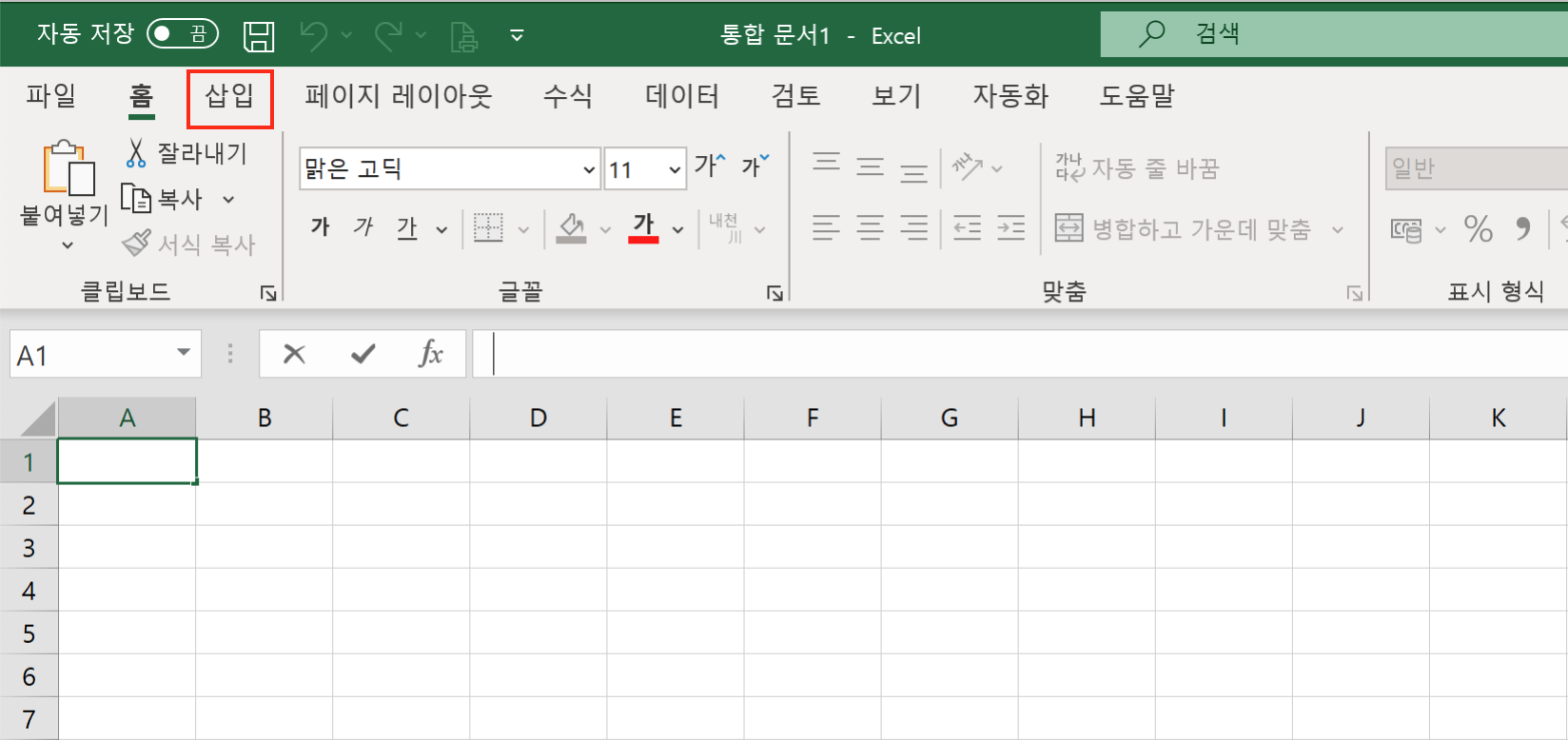
Displayed below the Quick Access Toolbar are the “tabs”. Currently nine tabs are displayed.
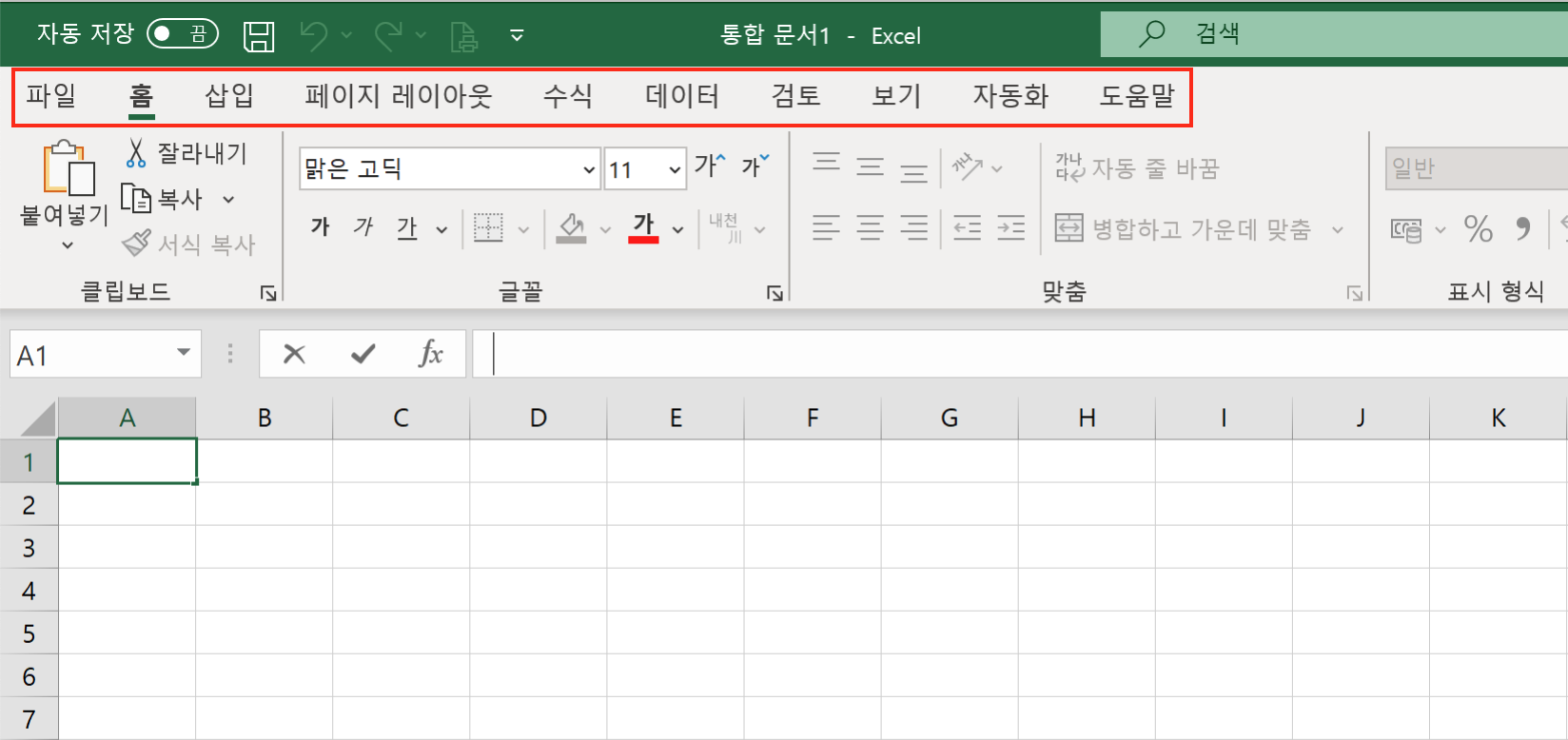
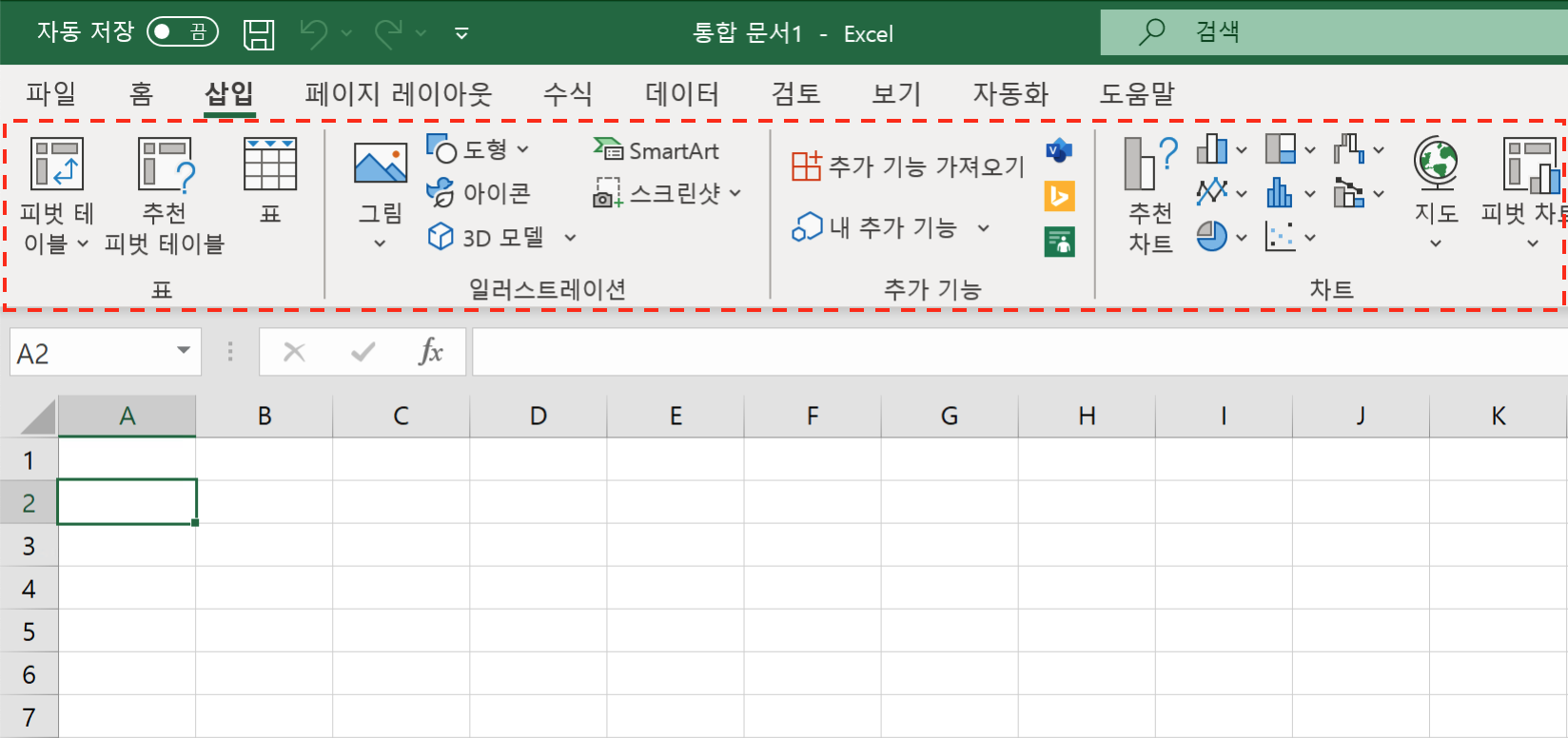
When you click a tab, the contents of the ribbon displayed below it change. The “Home” tab is currently selected; if you click the “Insert” tab, the ribbon contents change for the Insert tab.
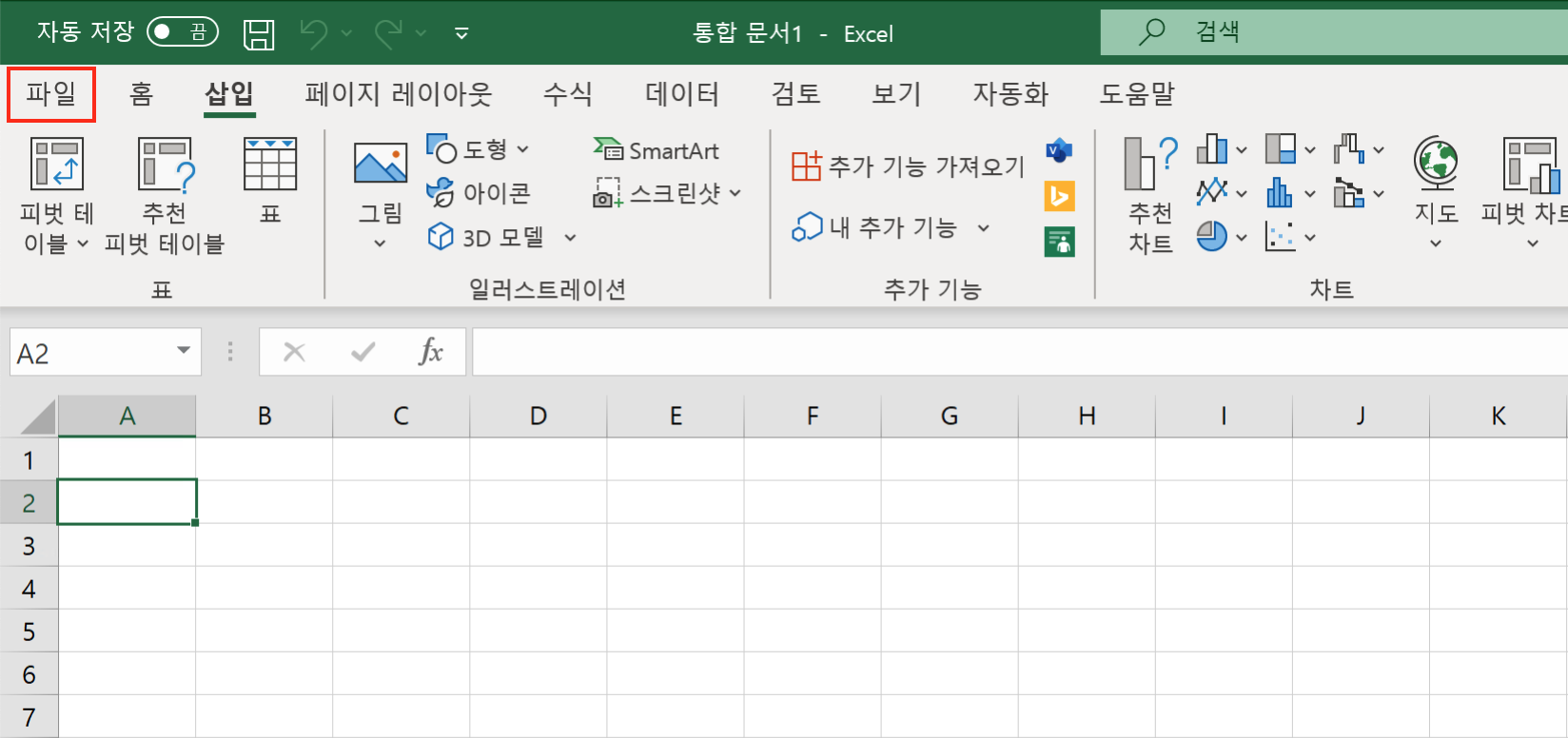
File Tab
The File tab is one of the tabs, but while clicking other tabs displays the ribbon, clicking the File tab displays the following screen.
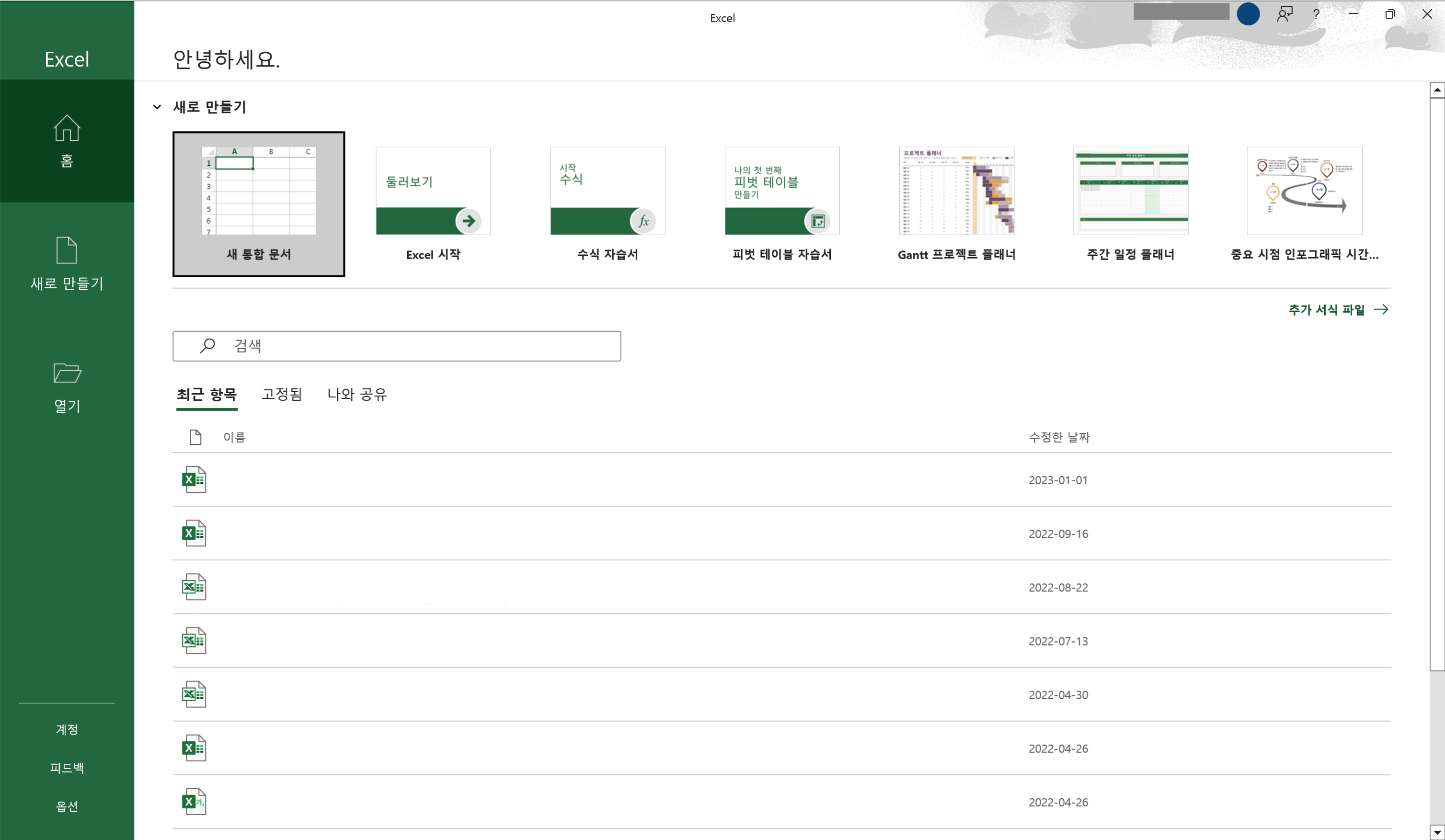
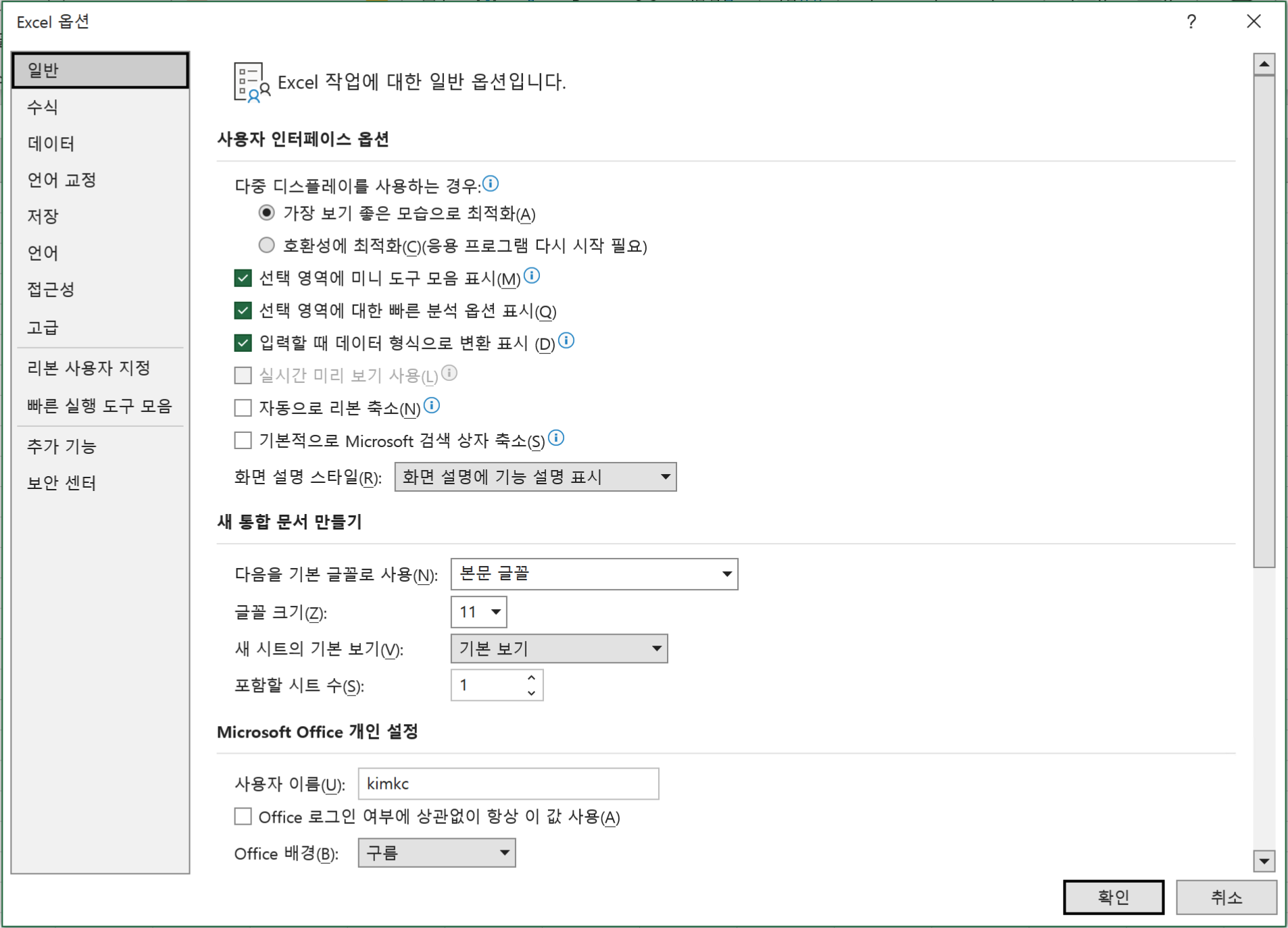
A menu is displayed where you can create a new workbook or save the current workbook.
If you click Options in the lower-left menu, you can also display the Options screen for configuring various Excel settings.
Ribbon
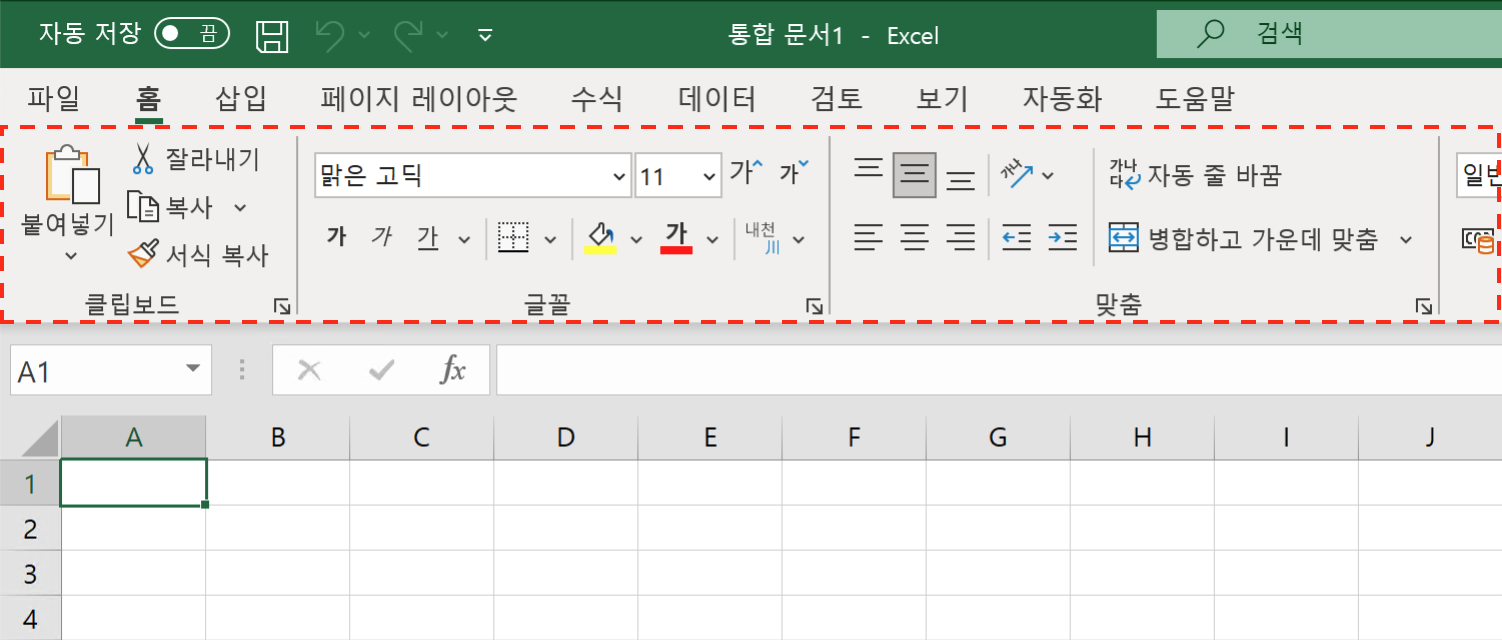
When you click a tab other than the File tab, the ribbon is displayed as follows. The contents displayed in the ribbon differ by tab. For example, clicking the Home tab displays the following ribbon.
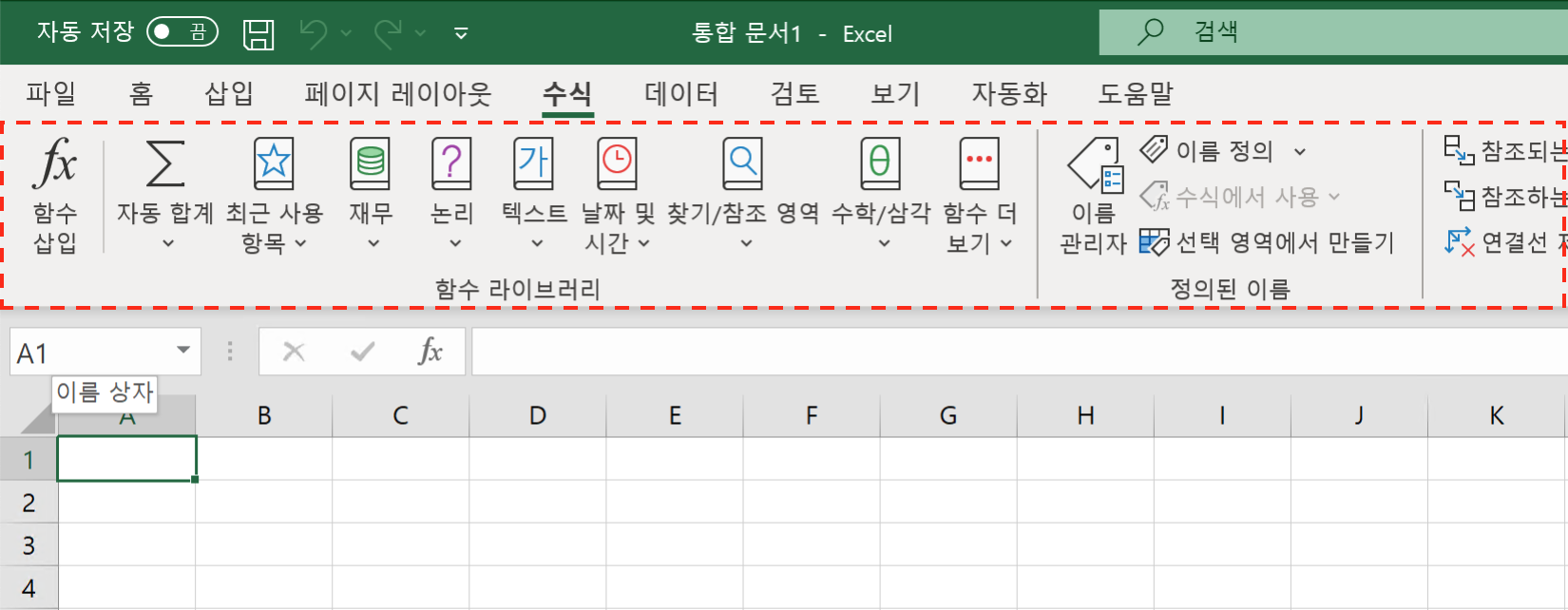
Clicking the Formulas tab displays the following ribbon.
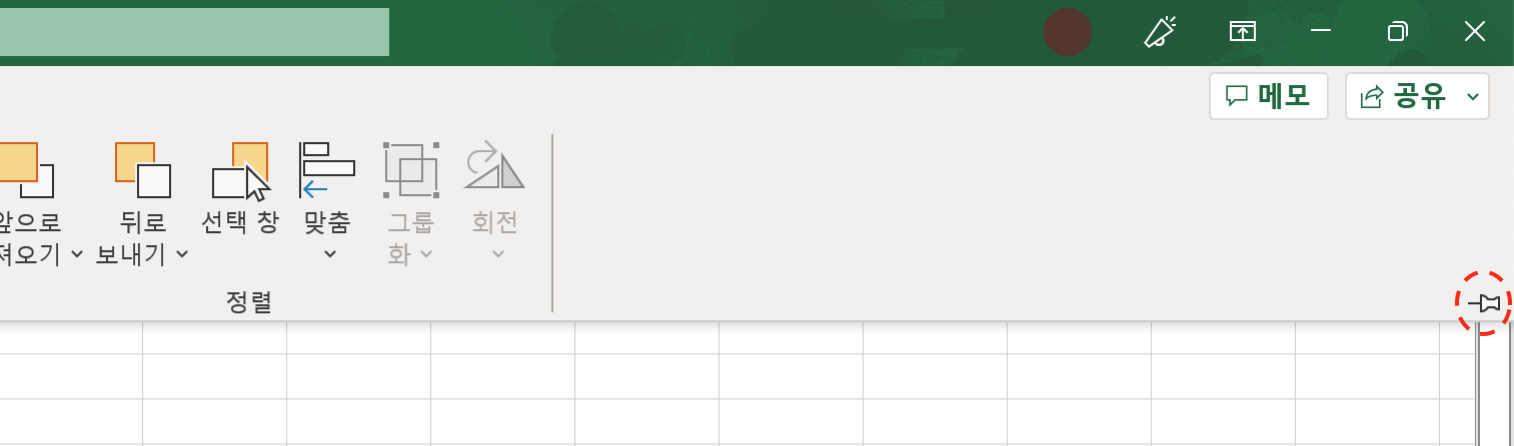
The ribbon can always be displayed, or you can close it by pressing the close button near the lower right of the ribbon so that it normally stays closed and appears only when you click a tab.
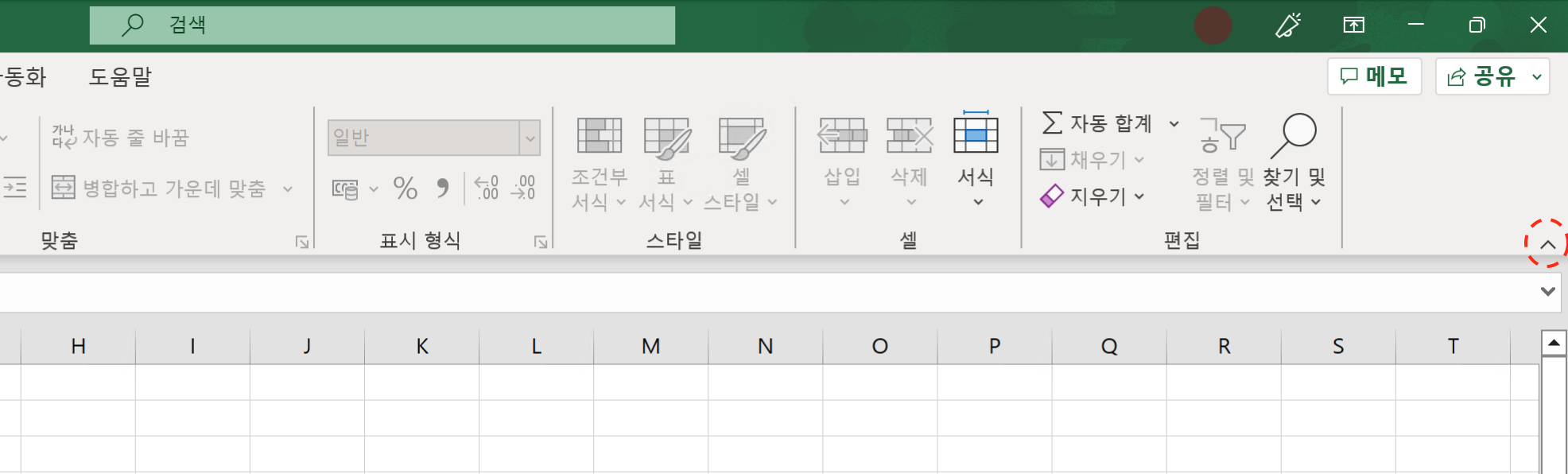
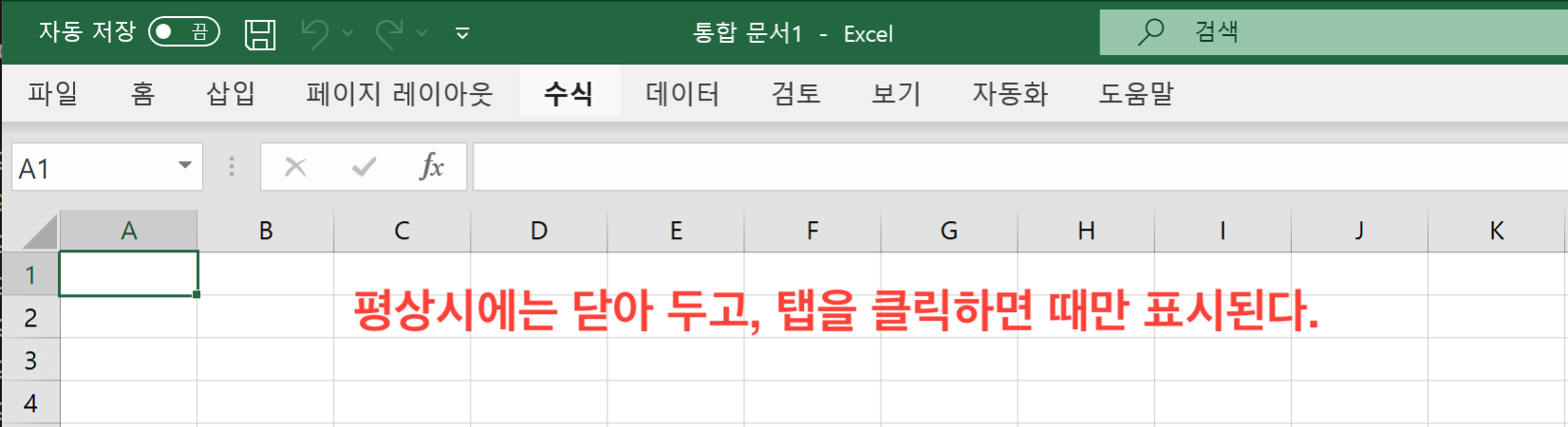
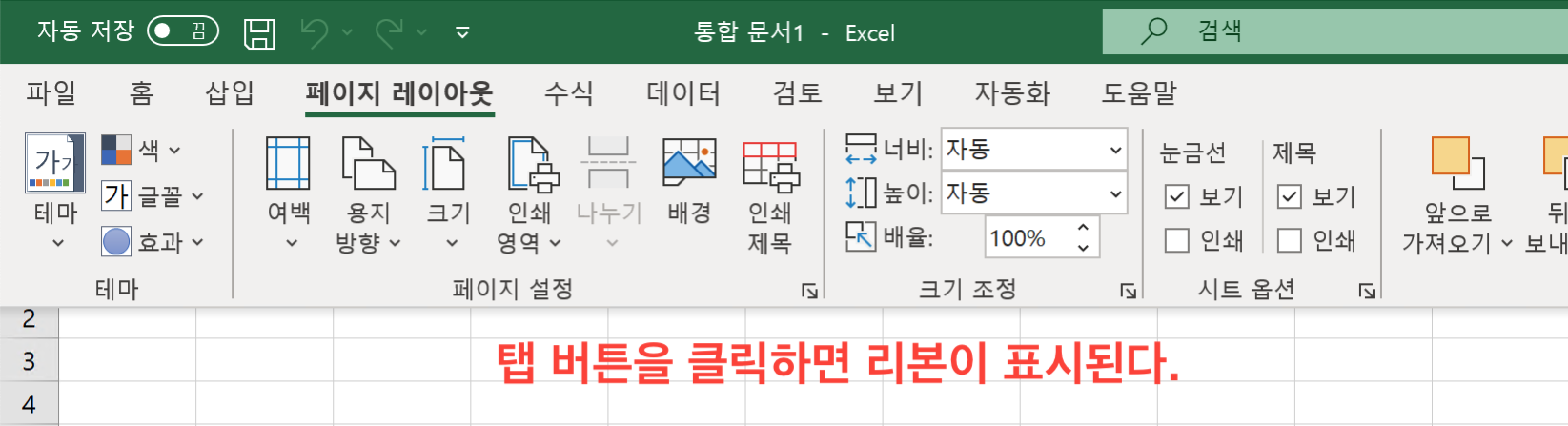
Closing the ribbon lets you use Excel with a wider workspace.
If you want the ribbon to always be displayed again, click the pin button near the lower right of the ribbon to pin it again.
Name Box
The green box displayed in the following location is the “Name Box”.
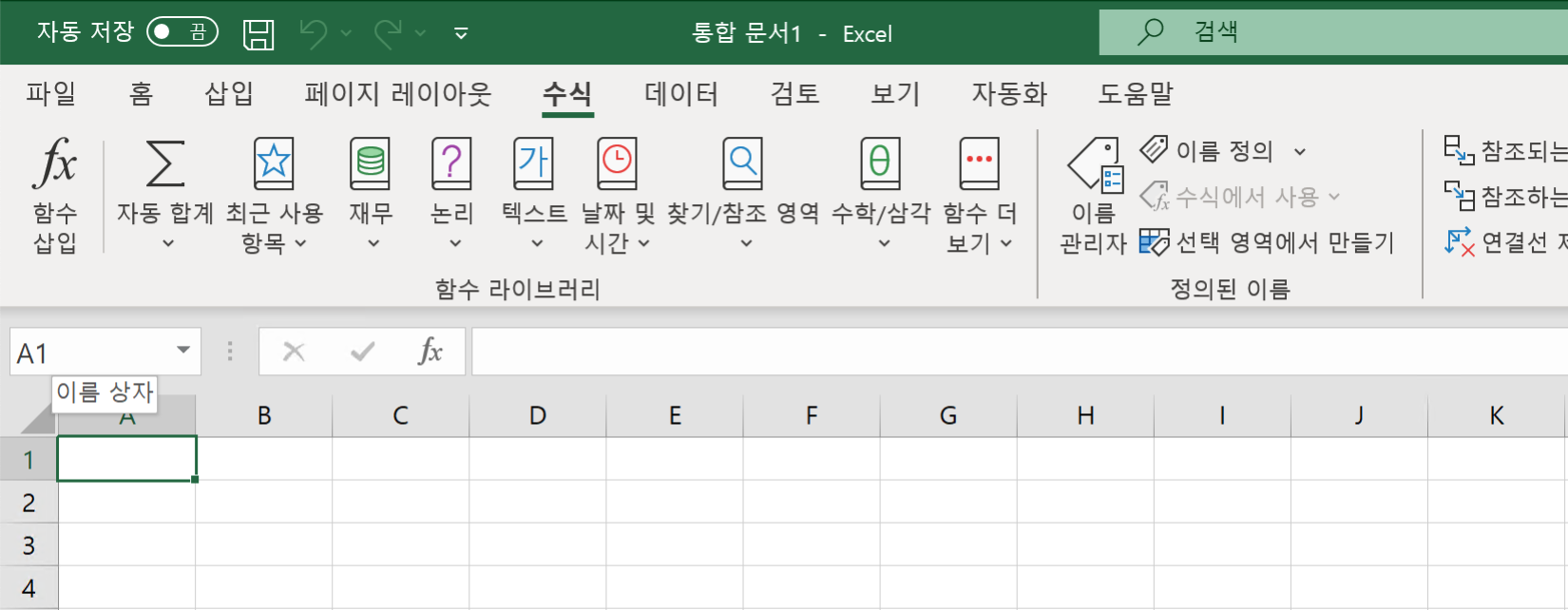
The Name Box displays the position of the selected cell in the current worksheet. For example, because cell A1 is currently selected, A1 is displayed in the Name Box.
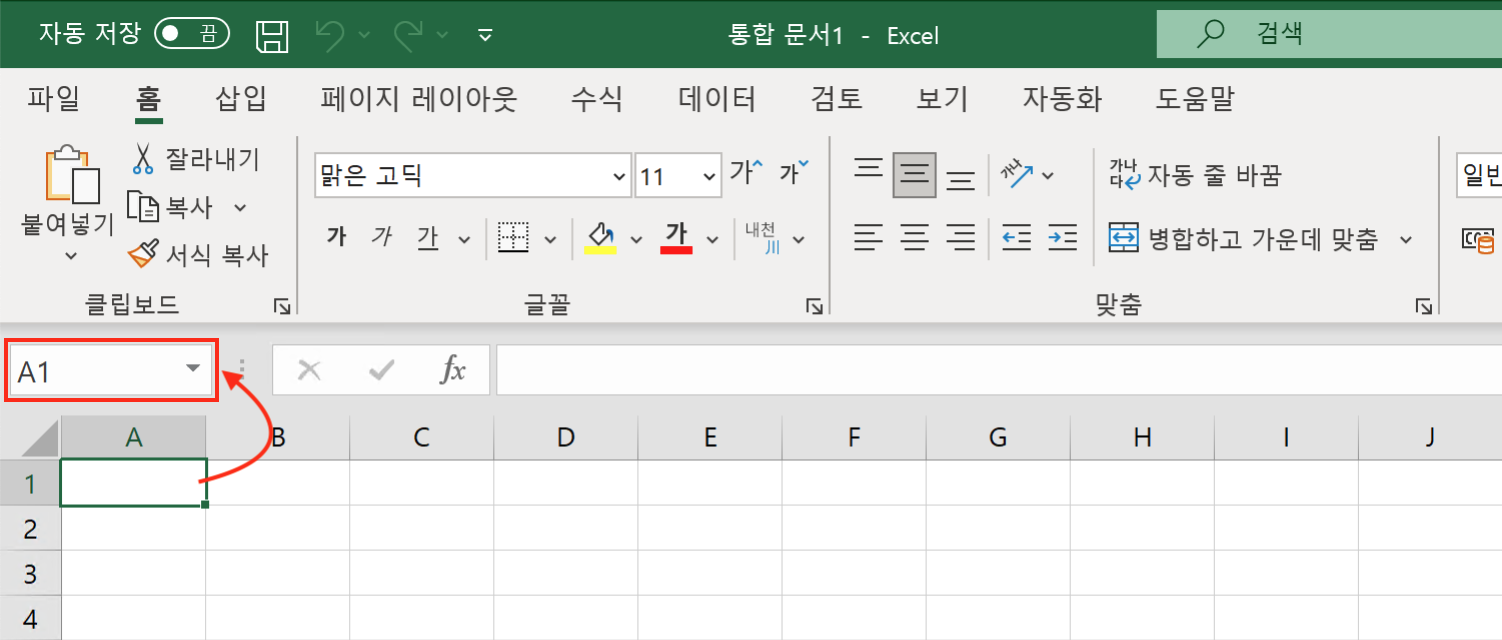
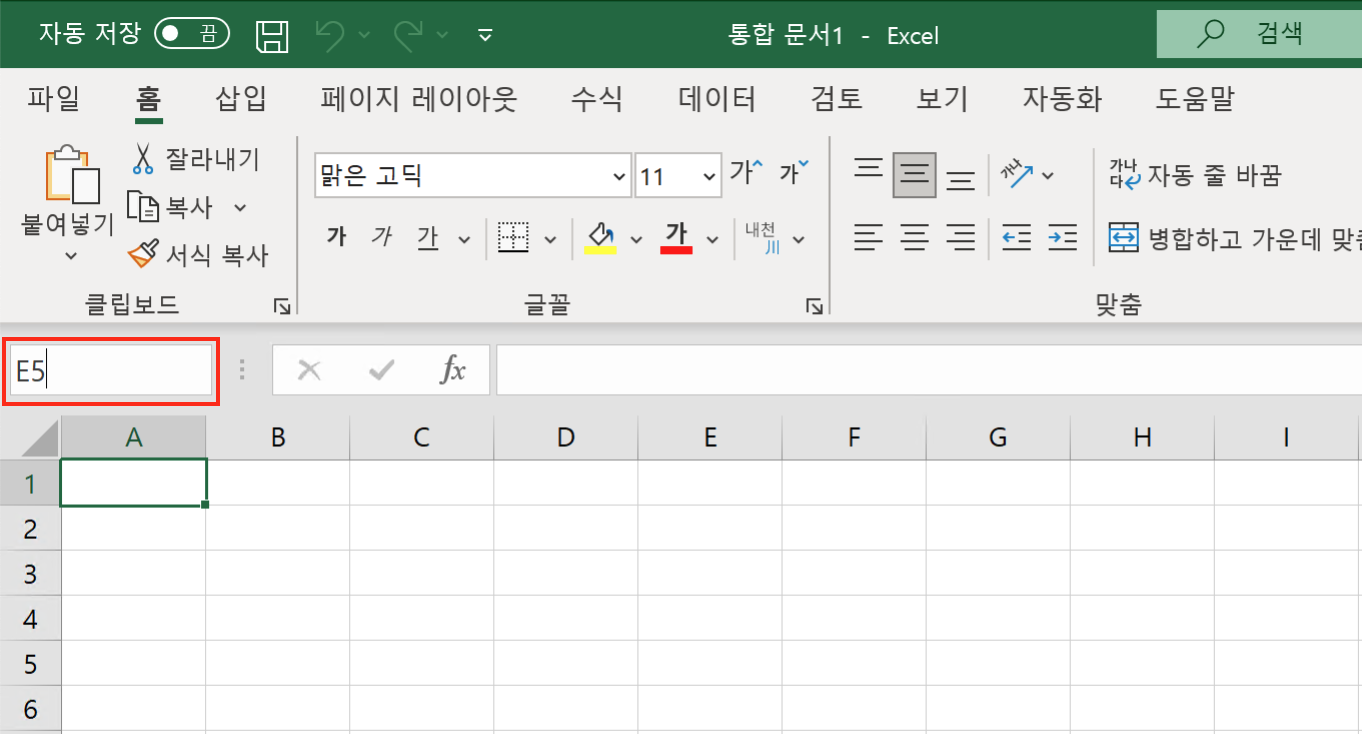
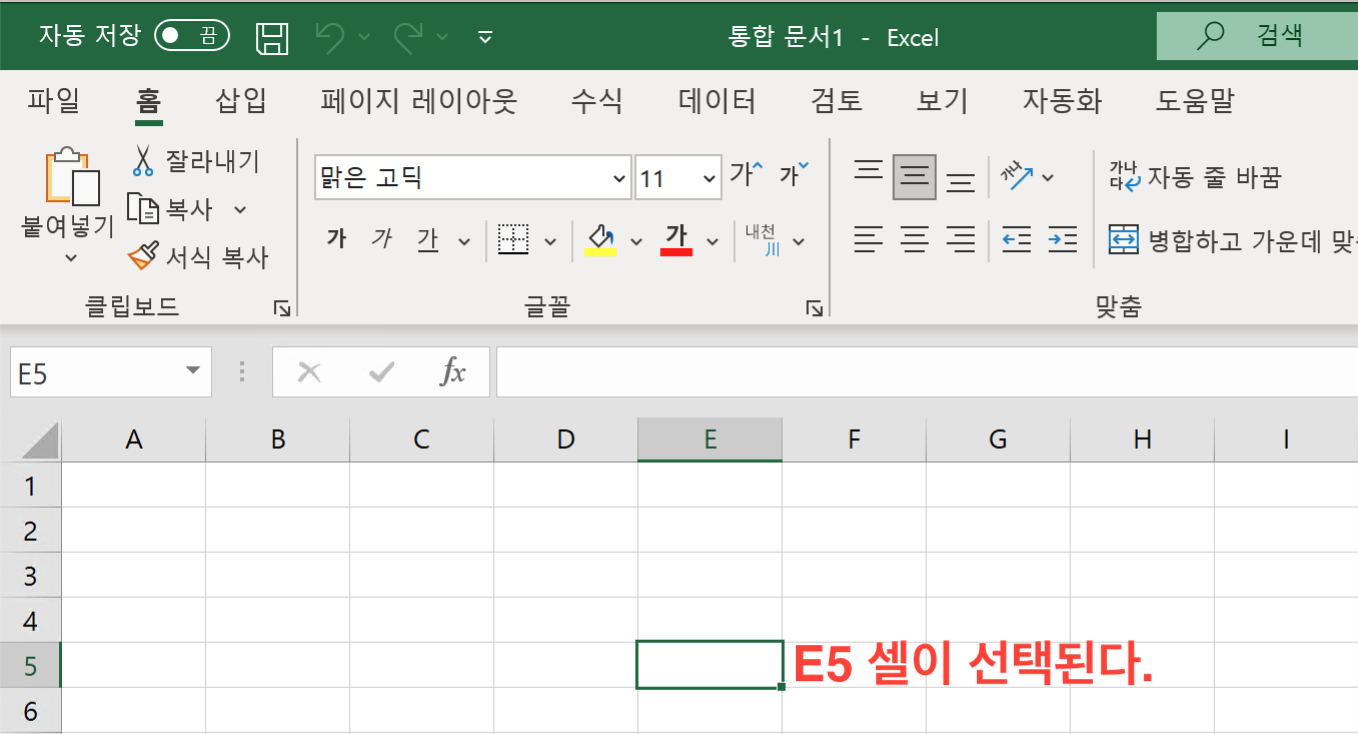
Now enter E5 in the Name Box and press Enter. The cell E5 you just entered becomes selected.