Starting and Closing Excel
This article explains how to start Excel and how to close it after use. The example uses Excel for Microsoft 365 on Windows 10.
Starting Excel
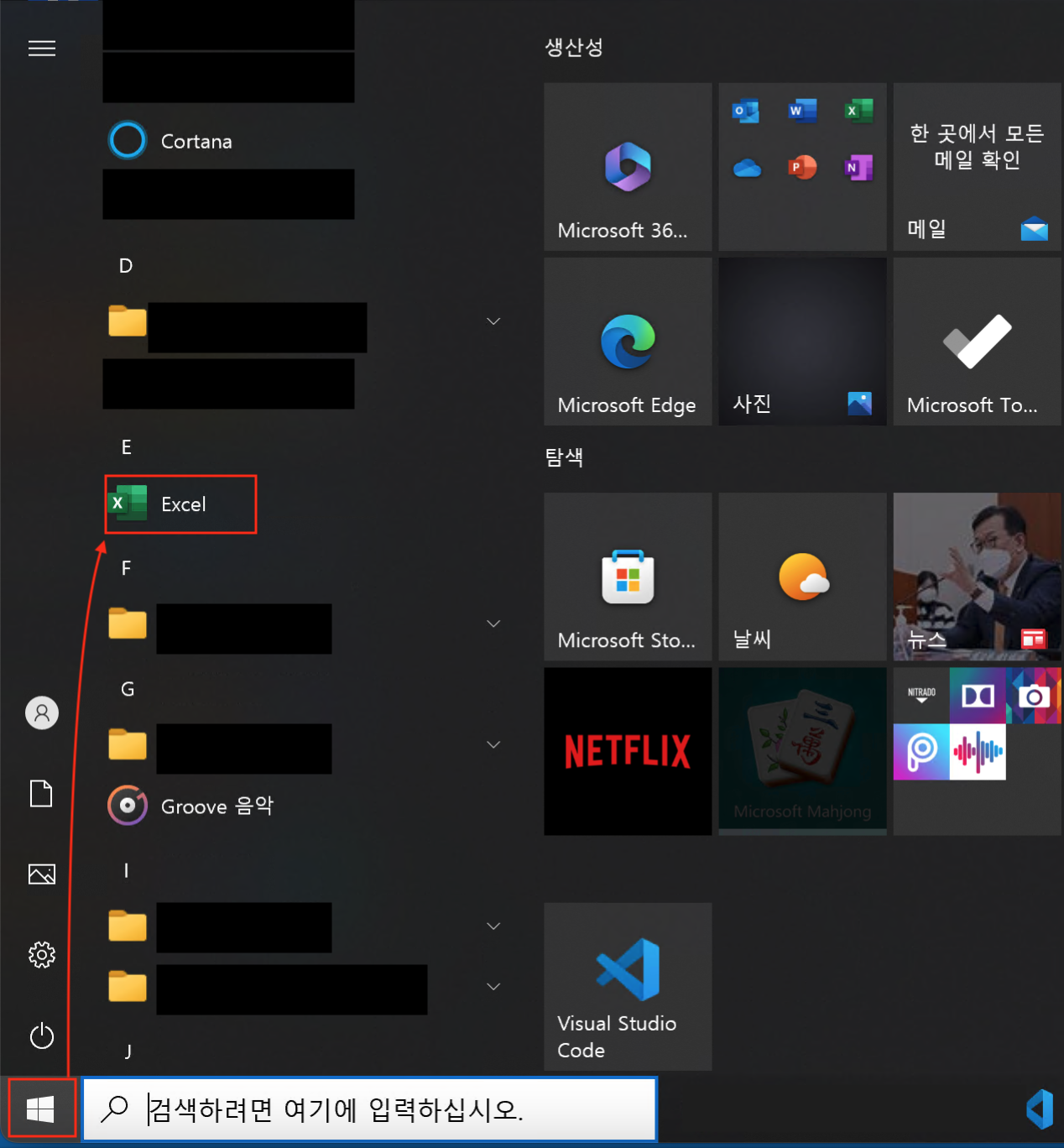
On the Windows 10 screen, click Start, then click Excel in the displayed app list.
Excel starts and the home screen is displayed.
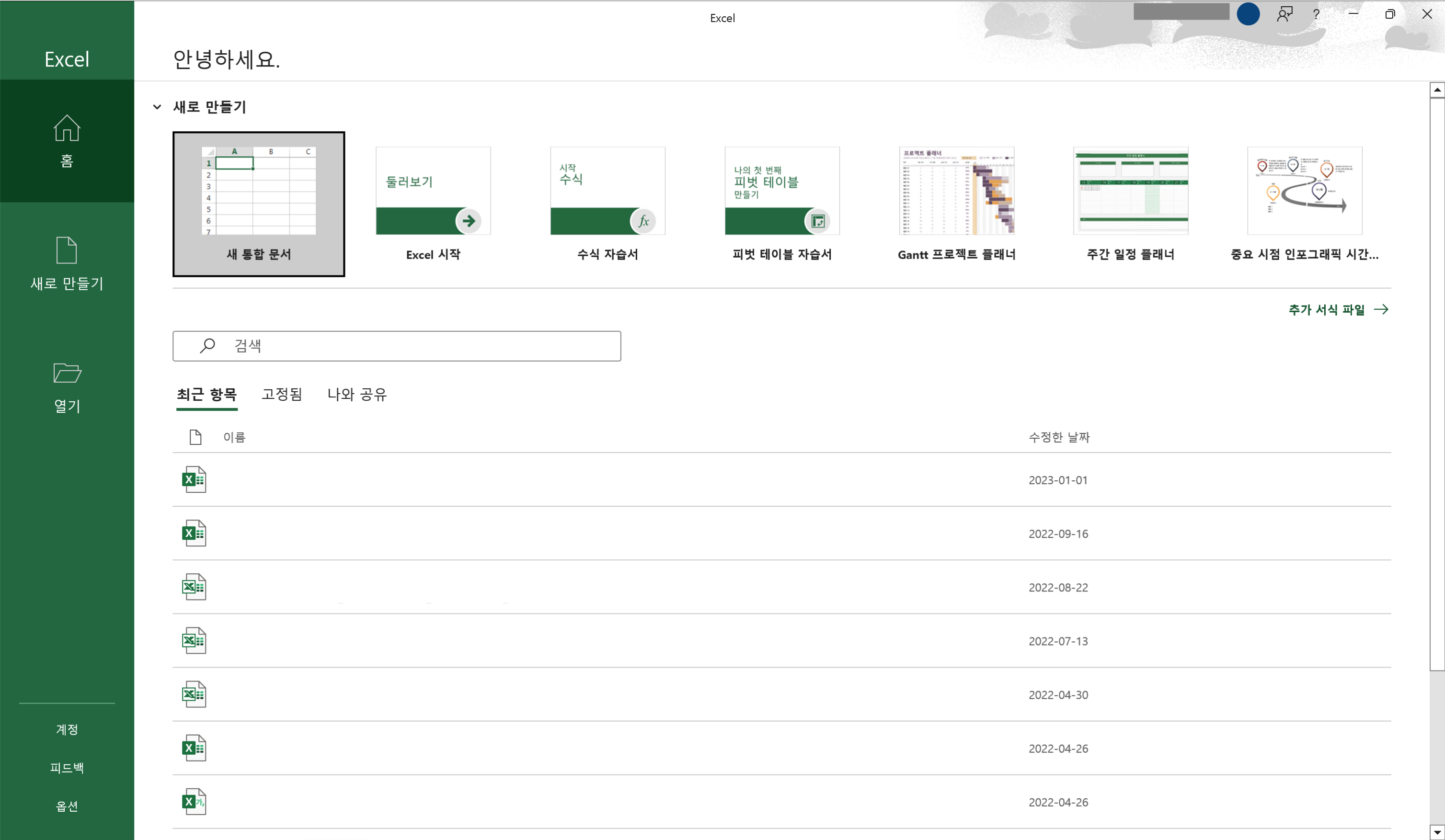
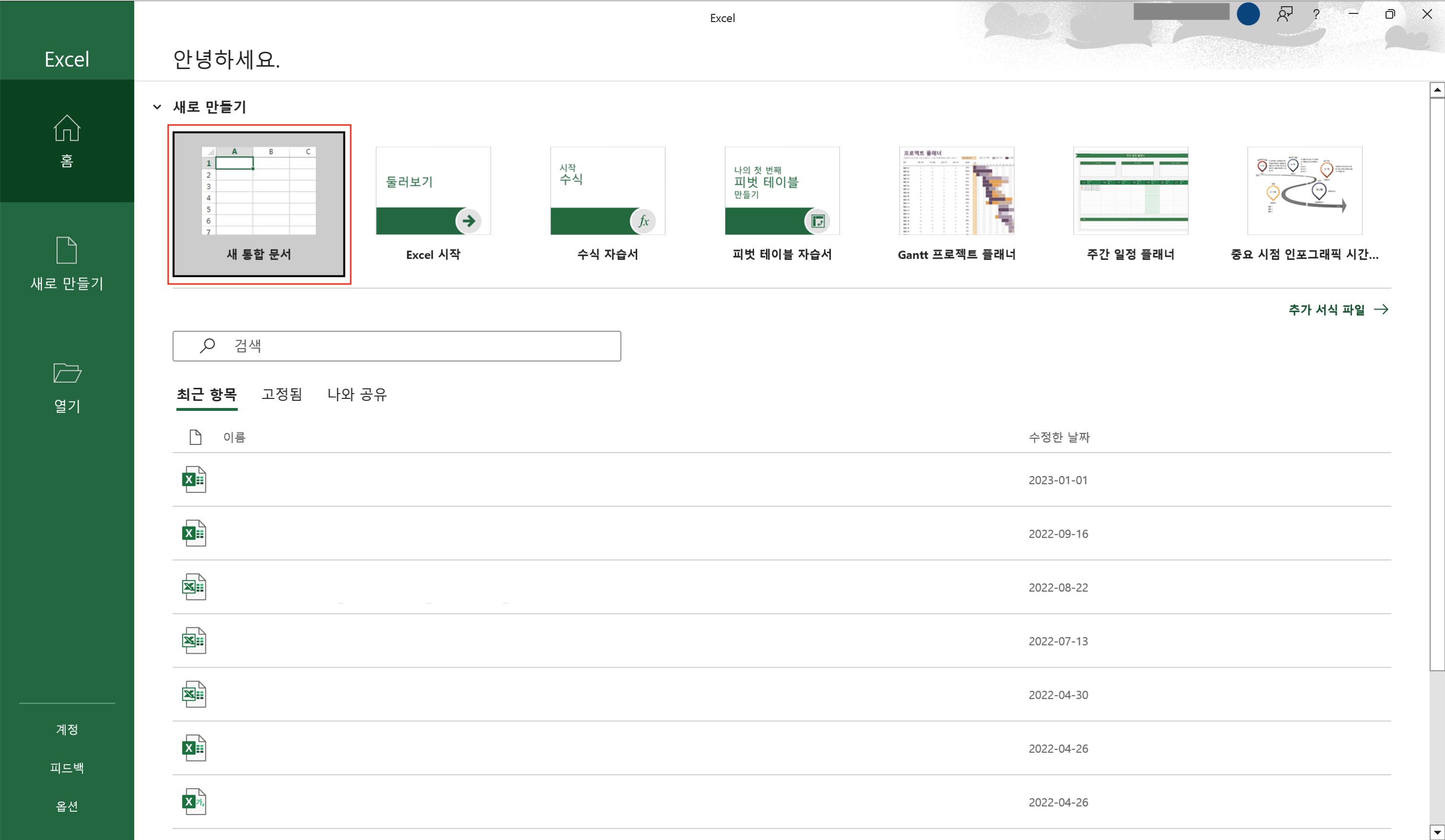
You can open and use a workbook that has already been created, or you can create a new workbook. To create a new document, click “Blank workbook”.
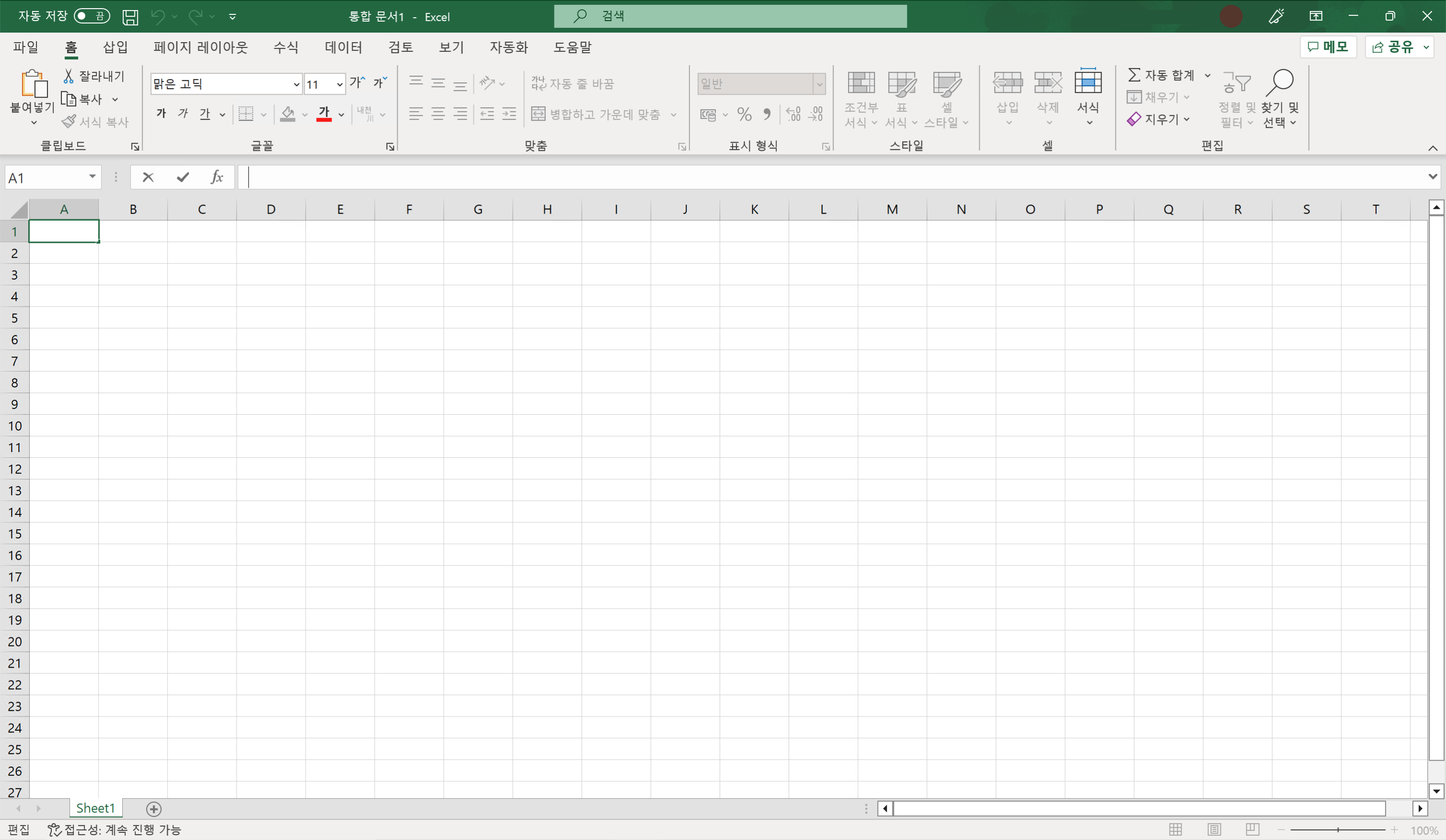
A new workbook has been created.
Closing Excel
To close Excel, click the “x” displayed in the upper-right corner of the Excel screen.
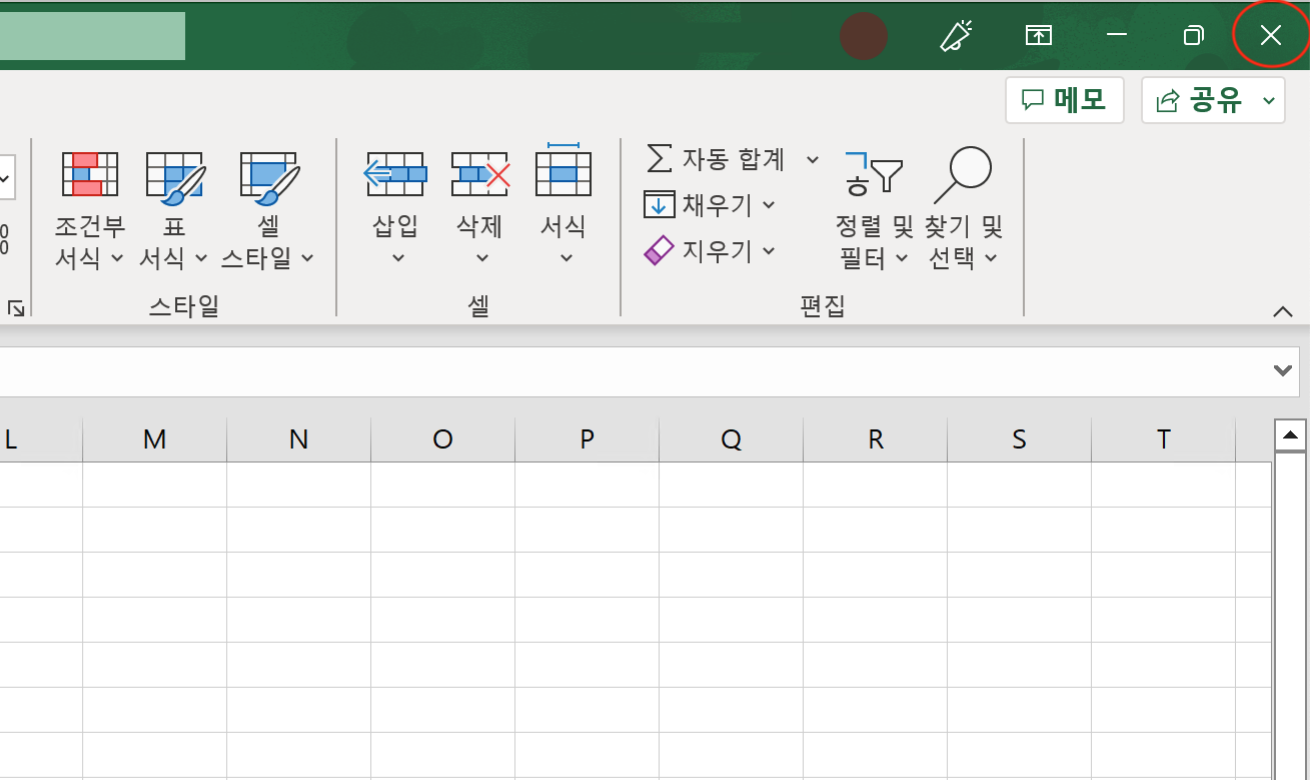
Excel has closed.
If the currently open workbook contains unsaved items when you close Excel, a dialog similar to the following is displayed.
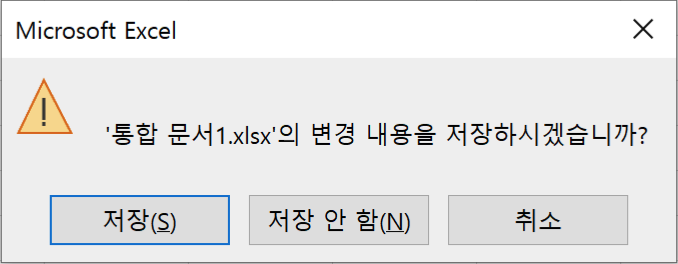
To save the workbook and then close Excel, click Save. To close Excel without saving, click Don’t Save. Saving documents is explained on another page.