Checking the Excel Version
This article explains how to check the Excel version you are currently using.
Checking the Excel Version
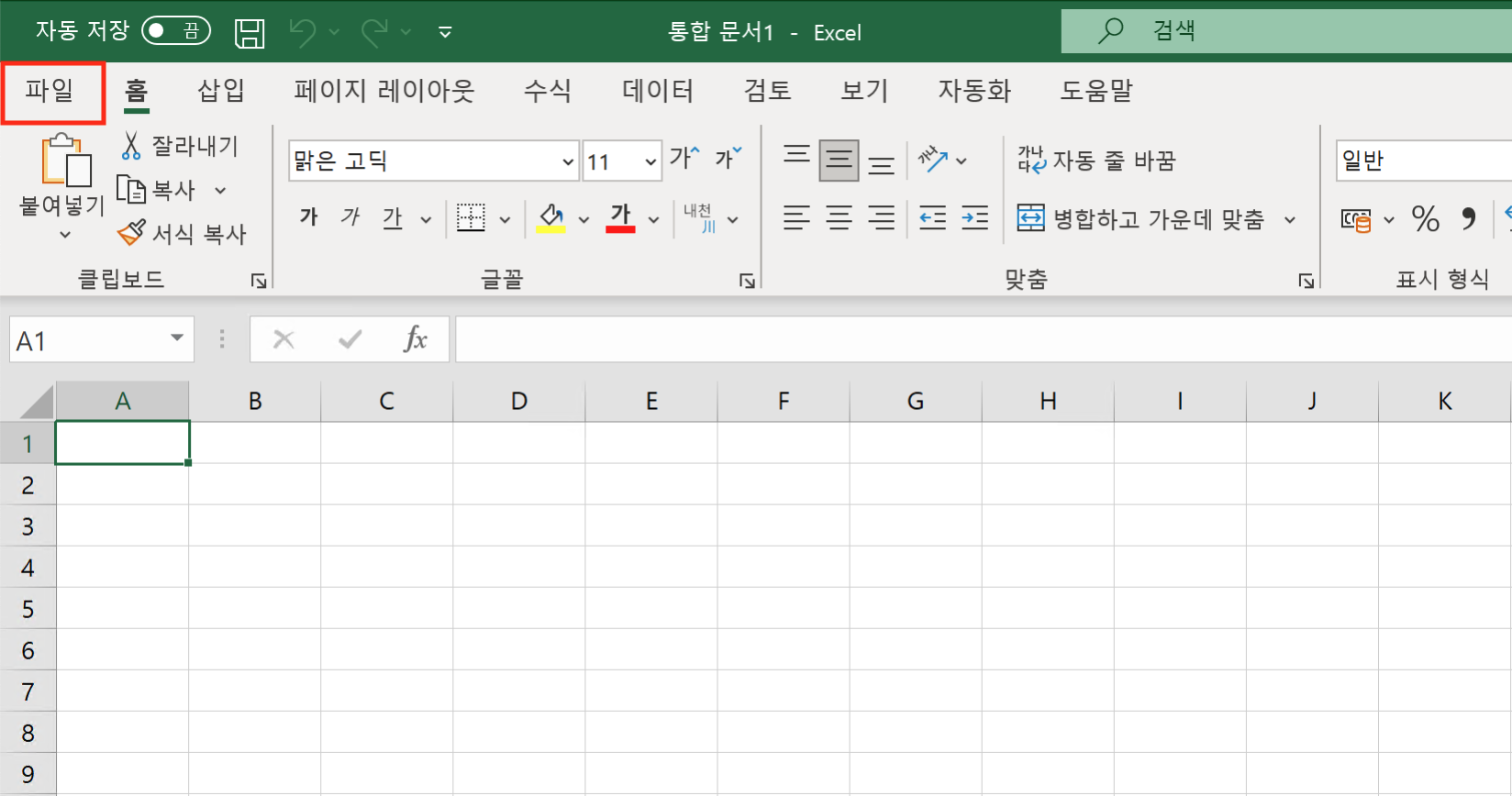
To check the Excel version, start Excel and click the File tab.
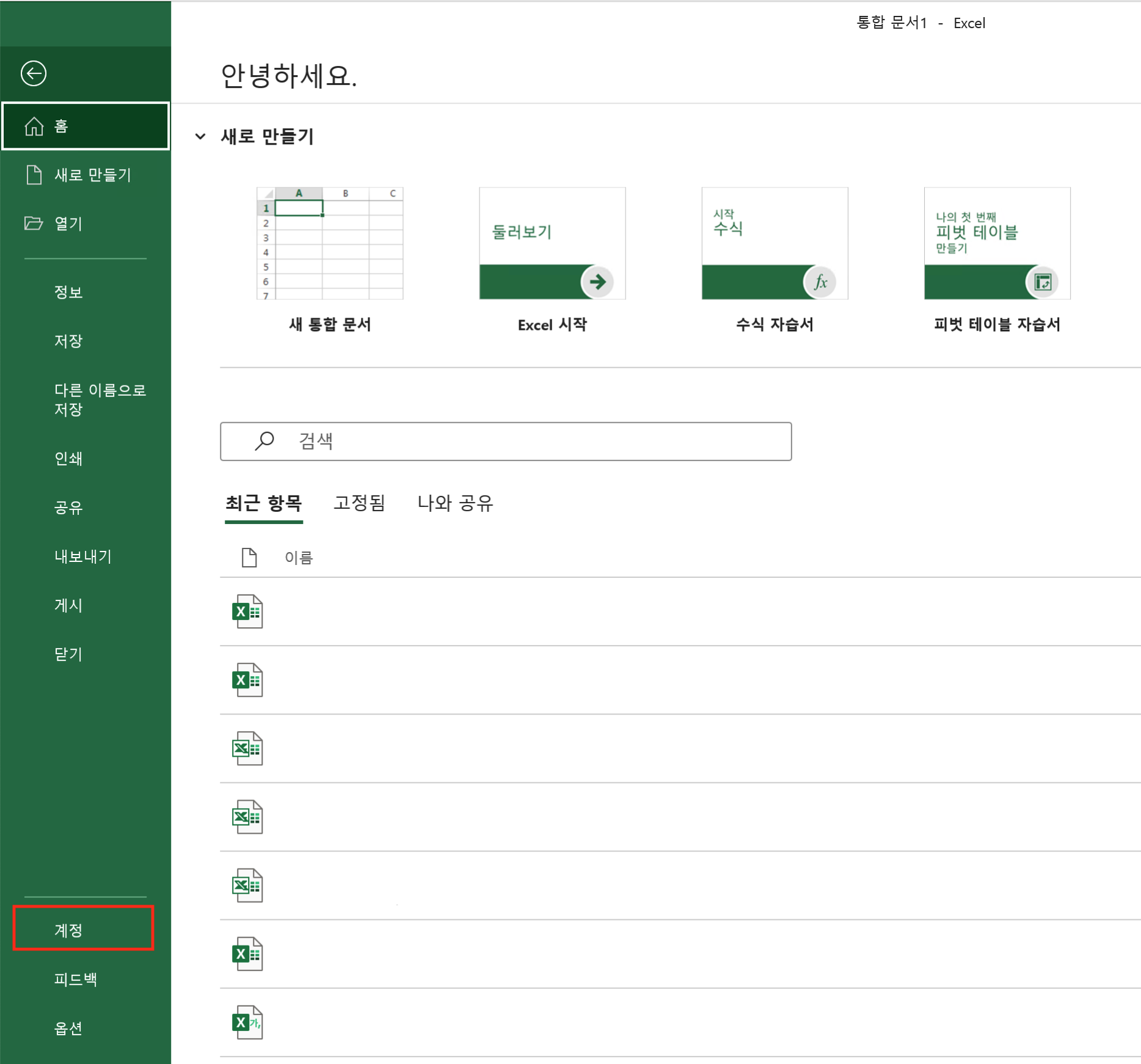
Click “Account” displayed at the bottom left of the screen.
The name of the Office product is displayed under Product Information. To see detailed version information, click “About Excel” near the bottom.
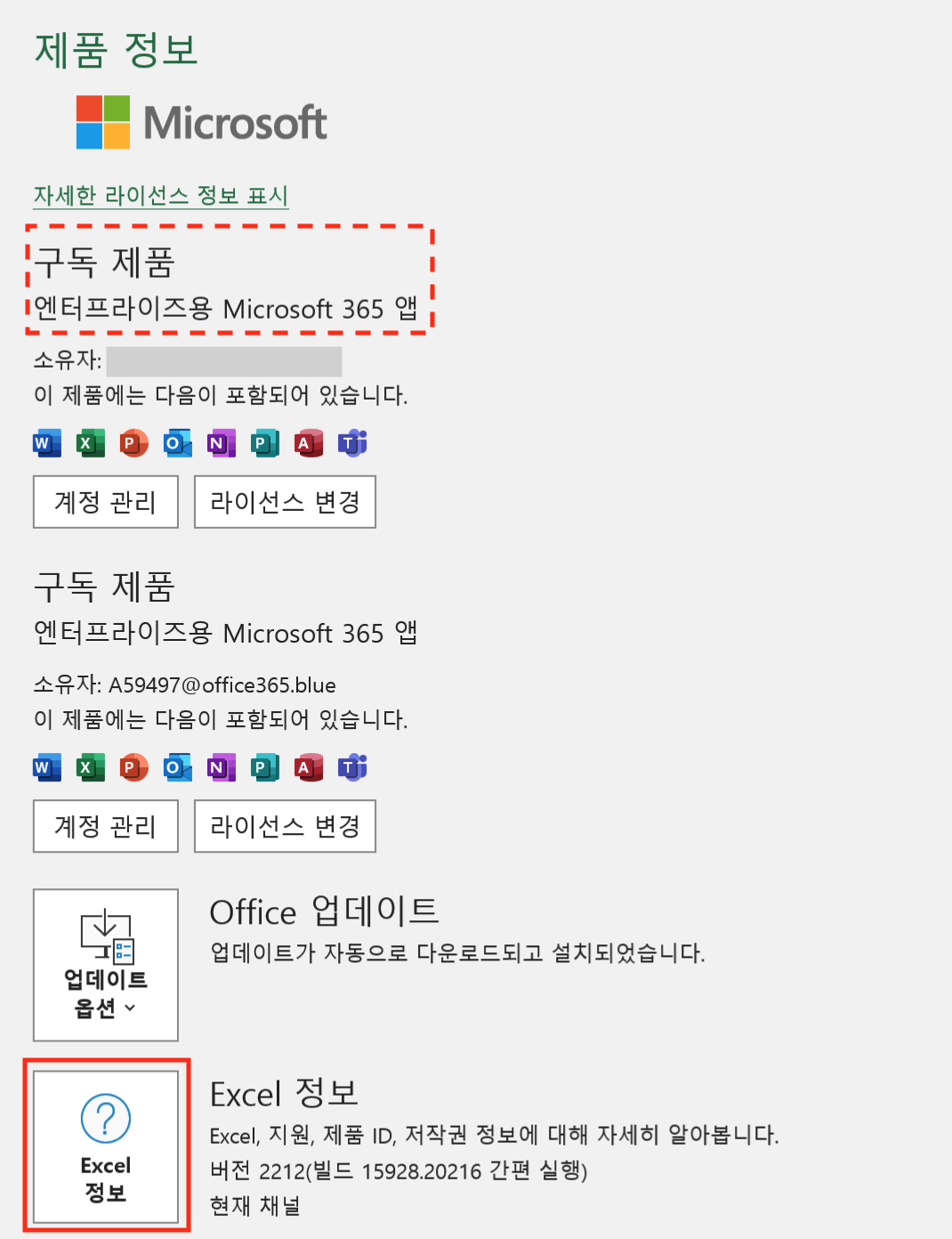
The Excel version currently in use is displayed.
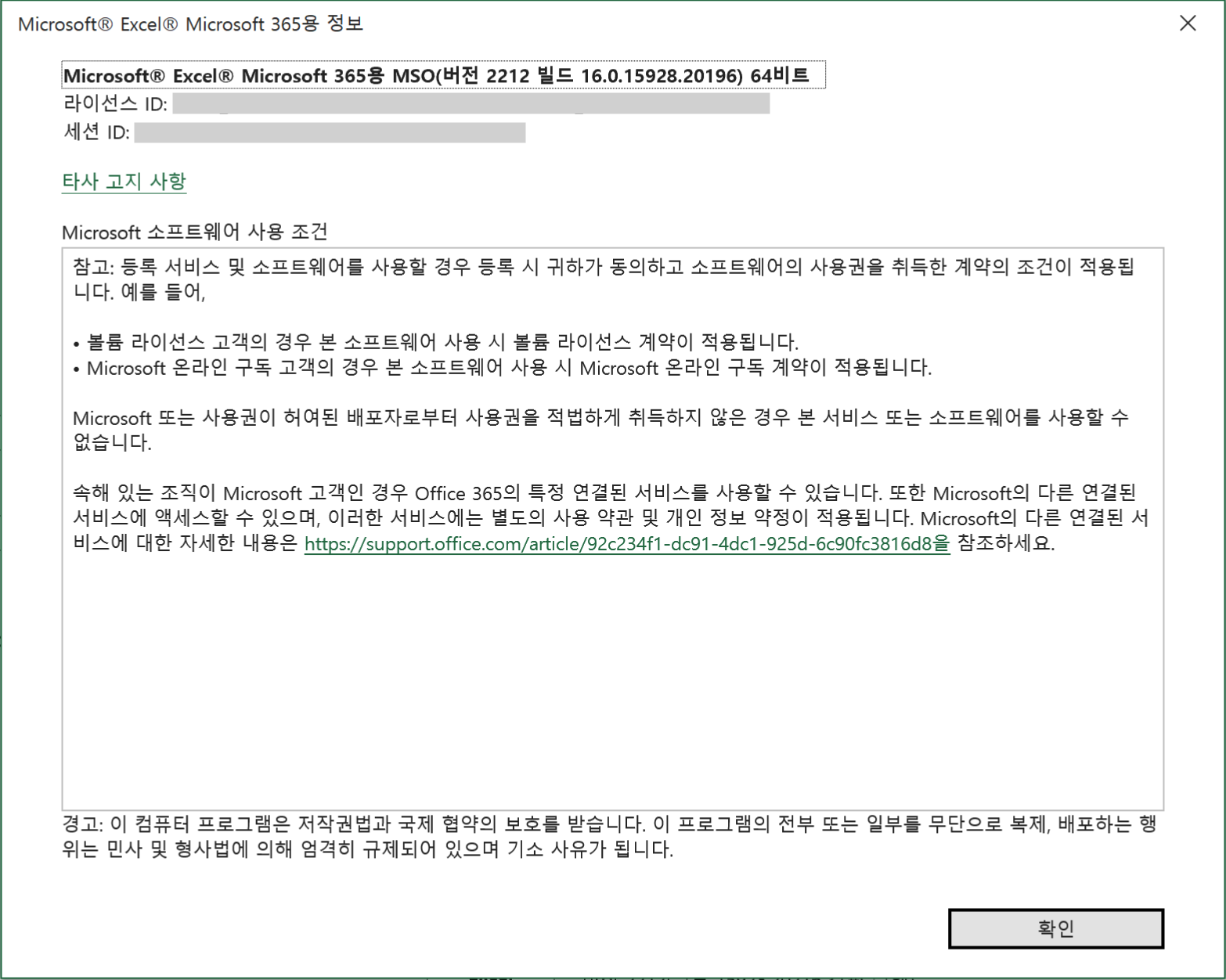
In this environment, “Microsoft® Excel® MSO for Microsoft 365 (Version 2212 Build 16.0.15928.20196) 64-bit” was displayed.