Creating an ePub File
What Is EPUB?
EPUB stands for “Electronic PUBlication.” It is an international eBook format standardized by the W3C. Originally, the specification was managed by the IDPF (International Digital Publishing Forum), one of the electronic book standardization organizations in the United States, but it was formally integrated with the W3C on February 1, 20171.
On the internet, it is also written as epub or ePub. Because of its openness and simplicity, many eBook devices and eBook applications support it.
As of April 2024, the latest version is 3.1, and it provides a wide range of features.
EPUB History
| Year | Description |
|---|---|
| 1999 | Open eBook Forum, the predecessor of IDPF, announced OeBPS |
| 2007 | IDPF announced EPUB |
| 2010 | IDPF approved EPUB2 as a recommended specification |
| 2011 | IDPF announced EPUB 3.0 |
| 2012 | eBook sales began |
| 2016 | IDPF published the EPUB 3.1 specification |
| 2017 | IDPF was integrated into W3C |
EPUB was announced in September 2007 by the IDPF (International Digital Publishing Forum), an international standardization organization for the electronic publishing industry in the United States. IDPF was originally an organization called the Open eBook Forum and had published the eBook standard Open eBook Publication Structure (OeBPS) in 1999. IDPF created EPUB by dividing OeBPS as follows.
- Open Publication Structure (OPS): Specification for content structure
- Open Packaging Format (OPF): Specification for organizing each file
- OeBPS Container Format (OCF): Specification for archiving each file
In June 2010, EPUB 2.0 was released as a draft standard, and in October 2011 IDPF adopted EPUB 3 as an official standard. With the release of EPUB 3, the spread of EPUB became more active in non-English-speaking countries. This was because EPUB 3 improved features and added new multilingual support.
After EPUB 3 was released, many overseas eBook stores adopted EPUB 3 readers, and the mainstream flow of eBook formats began to shift toward EPUB. Today, EPUB is becoming established as a common eBook format.
In February 2017, IDPF was integrated into the W3C (World Wide Web Consortium). W3C is a global standardization organization that establishes the foundation of web technologies such as HTML, CSS, SVG, and XML. Considering that EPUB uses these web technologies, this integration makes sense.
How to Create an EPUB
There are several ways to create an EPUB file. The most common process is as follows.
- Prepare the source content: First, prepare the content to convert into an EPUB file. Books or documents are usually written with a word processor or publishing software. Source files are often created with programs such as Microsoft Word or Adobe InDesign.
- Use an EPUB conversion tool: Use a tool to convert the prepared source file into an EPUB file. There are many tools, but common examples include:
- Create and edit the EPUB file: Use the selected tool to convert the source file into an EPUB file. Most tools also provide features for editing content after conversion. This allows you to create a table of contents, insert images, and perform similar tasks.
- Review and test: After the EPUB file is complete, review and test it. Use various devices or EPUB viewers to check whether the file displays correctly. Make sure the layout, images, and text flow are shown properly.
- Distribute: After the EPUB file is complete and tested, upload or distribute it through the desired platform. This can be done through Google Play Books, Amazon Kindle Direct Publishing, Apple Books, and similar services.
Follow these steps to create and distribute an EPUB file. If desired, you can modify the EPUB file for additional editing or customization.
Understanding the EPUB File Format
EPUB is a Zip archive file with a structure that follows specific rules. The EPUB file structure can be illustrated as follows. This example is based on EPUB version 3.0.
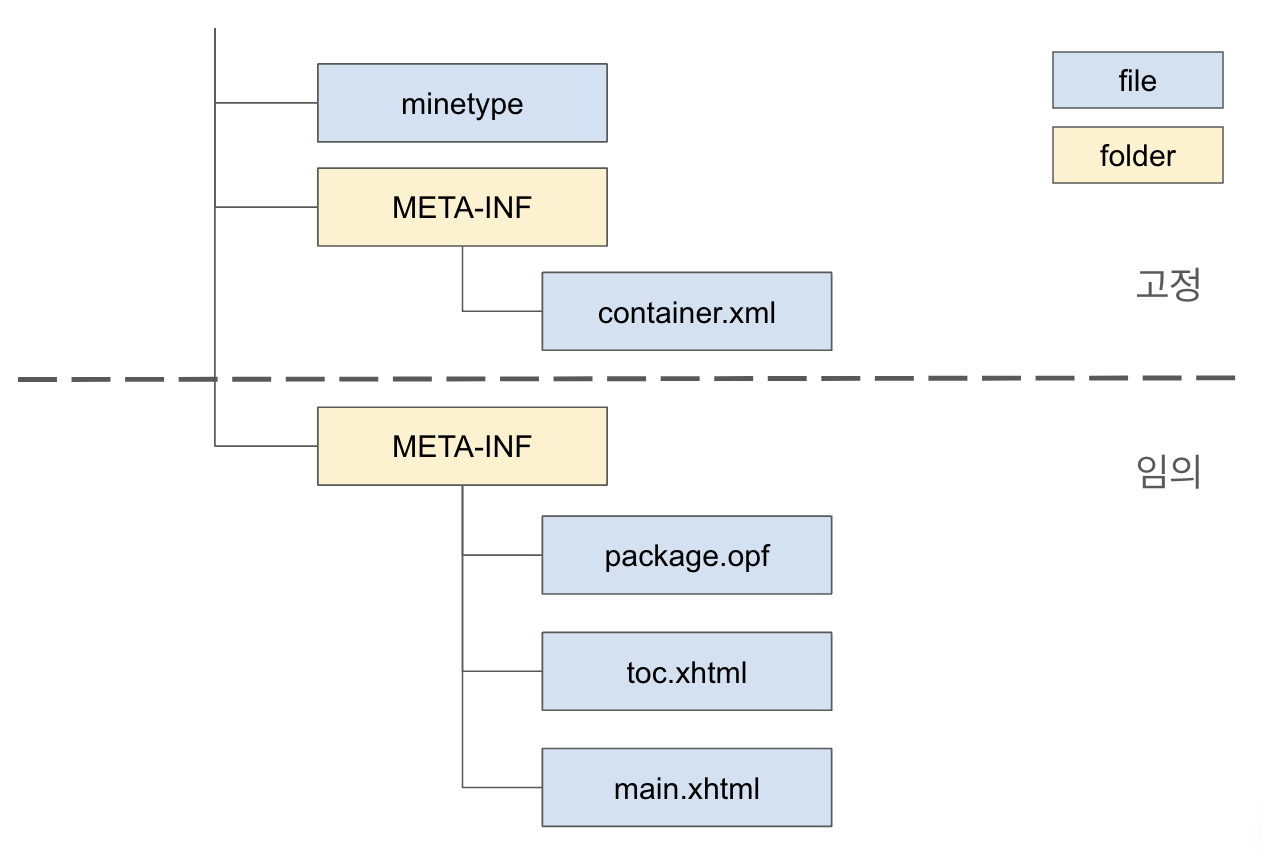
Some file locations and names are fixed by the specification, while others can be named and placed freely. Let’s look at each role.
mimetype
This file specifies the media type of the file. It is placed directly under the eBook folder. The file name is fixed. Its content is as follows.
application/epub+zip
container.xml
container.xml is a fixed-name file and must be placed under the META-INF folder.
META-INF/container.xml
<?xml version="1.0" ?>
<container version="1.0" xmlns="urn:oasis:names:tc:opendocument:xmlns:container">
  <rootfiles>
    <rootfile full-path="OEBPS/package.opf" media-type="application/oebps-package+xml" />
  </rootfiles>
</container>
The <rootfile> tag specifies the file path of the package document. Here, the package.opf file under the OEBPS folder is specified as the package document.
OEBPS
This folder contains the content itself, such as HTML and images. Creating this folder is optional, and its name can be chosen freely. It is commonly called OEBPS2. EPUB 3 recommends creating this folder. Files that define the structure of the content are also placed in this folder.
For example, toc.ncx defines the table of contents, while package.opf describes metadata such as the title and author of the publication, as well as the reading order of document files.
Package Document
This file manages information about the eBook itself. Its file location and name are arbitrary, but the path must be specified in the container.xml file above.
OEBPS/package.opf
<?xml version="1.0" encoding="utf-8"?>
<package unique-identifier="idName" version="3.0" xmlns="http://www.idpf.org/2007/opf" xml:lang="ko">
  <!-- Book information -->
  <metadata xmlns:dc="http://purl.org/dc/elements/1.1/">
    <dc:identifier id="idName">urn:uuid:9f3b7eb2-8724-4f8a-a80c-f667f4668378</dc:identifier>
    <dc:publisher>Author name</dc:publisher><!-- Author name -->
    <dc:title>First eBook</dc:title><!-- eBook title -->
    <dc:language>ko-KR</dc:language>
    <meta property="dcterms:modified">2024-04-14T09:46:40Z</meta><!-- Modified date -->
  </metadata>
  <manifest>
    <item id="nav" href="toc.xhtml" media-type="application/xhtml+xml" properties="nav" />
    <item id="main_xhtml" href="main.xhtml" media-type="application/xhtml+xml" />
  </manifest>
  <spine page-progression-direction="default">
    <itemref idref="nav" />
    <itemref idref="main_xhtml" />
  </spine>
 </package>
Navigation Document, or Table of Contents
The file name can be chosen freely. The package document above specifies which file is the navigation file.
OEBPS/toc.xhtml
<?xml version="1.0" encoding="UTF-8"?>
<!DOCTYPE html>
<html xmlns="http://www.w3.org/1999/xhtml" xmlns:epub="http://www.idpf.org/2007/ops">
<head>
  <title>Table of Contents</title>
</head>
<body>
  <nav epub:type="toc">
    <h1>Table of Contents</h1>
    <ol>
      <li><a href="main.xhtml">First page</a></li>
    </ol>
  </nav>
</body>
</html>
Book Content
This file stores the book content itself. The file name is arbitrary. It is also possible to split the content into multiple files. If the file becomes large, splitting it into multiple files is recommended. The display order of files can be defined in the package document.
OEBPS/main.xhtml
<?xml version="1.0" encoding="UTF-8"?>
<!DOCTYPE html>
<html xmlns="http://www.w3.org/1999/xhtml" xmlns:epub="http://www.idpf.org/2007/ops">
<head>
  <title>Body</title>
</head>
<body>
This is the first eBook content.
</body>
</html>
Creating an EPUB Directly
Once you understand the structure of an EPUB file, create each file according to the structure above.
% tree
.
├── META-INF
│   └── container.xml
├── OEBPS
│   ├── main.xhtml
│   ├── package.opf
│   └── toc.xhtml
└── mimetype
Now all that remains is to compress these files into a Zip archive.
However, before that, there is one more EPUB format rule to know: the first file in the Zip archive must be the uncompressed mimetype file.
Therefore, use the following procedure when creating the Zip file.
- Add
mimetypeto the Zip file with compression level 0, meaning no compression.zip -0 sample.epub mimetype - Add the other files to the Zip file with maximum compression level 9.
zip -9r sample.epub META-INF OEBPS
When the actual commands are run in order, the output looks like this.
% zip -0 sample.epub mimetype
  adding: mimetype (stored 0%)
% zip -9r sample.epub META-INF OEBPS
  adding: META-INF/ (stored 0%)
  adding: META-INF/container.xml (deflated 33%)
  adding: OEBPS/ (stored 0%)
  adding: OEBPS/main.xhtml (deflated 17%)
  adding: OEBPS/toc.xhtml (deflated 27%)
  adding: OEBPS/package.opf (deflated 45%)
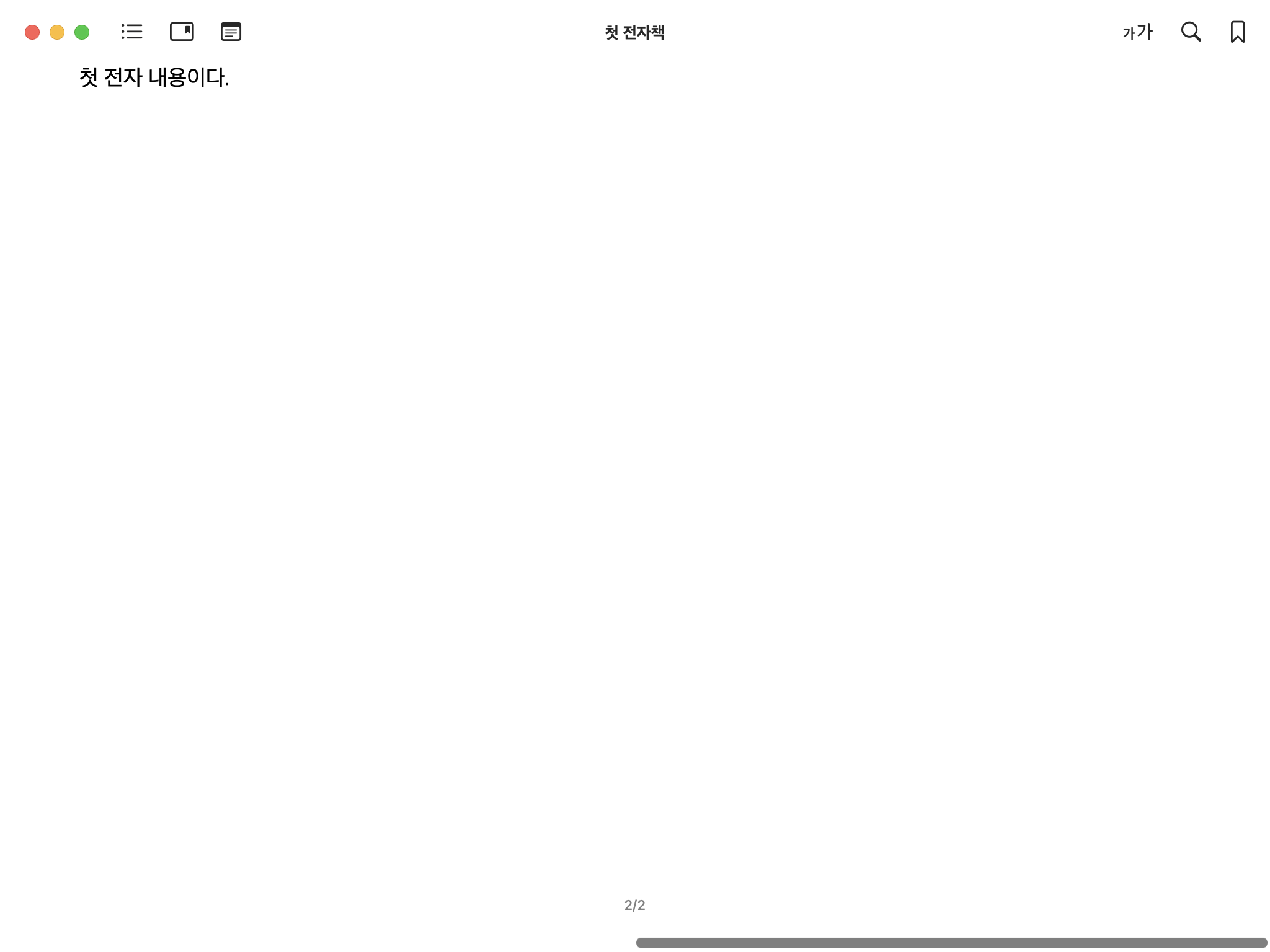
Open the completed EPUB file in an EPUB viewer to check whether it works. If the file opens as shown below, the EPUB file has been created successfully.
Closing
In this article, we explained a simple EPUB format by creating an EPUB file. I hope this helps you understand the EPUB format a little better.
-
https://www.w3.org/press-releases/2017/idpf-w3c-combination/ ↩︎
-
It seems to come from Open eBook Publication Structure, which appears in the EPUB history section. ↩︎