How to Configure Hugo Themes - Themes
Downloading a Theme
When generating a website with Hugo, you need to configure a base theme for its appearance. If you output a website with the hugo command without setting a theme, a blank white page is displayed. You can create a theme yourself, but themes already created by others are published on the Hugo Themes page, so it is best to download and use one from there first. Usage differs slightly by theme, so read each theme’s description (README.md) for details.
How to Download a Theme ZIP File
For example, if you like the theme “Beautiful Hugo” below, click the Download button.
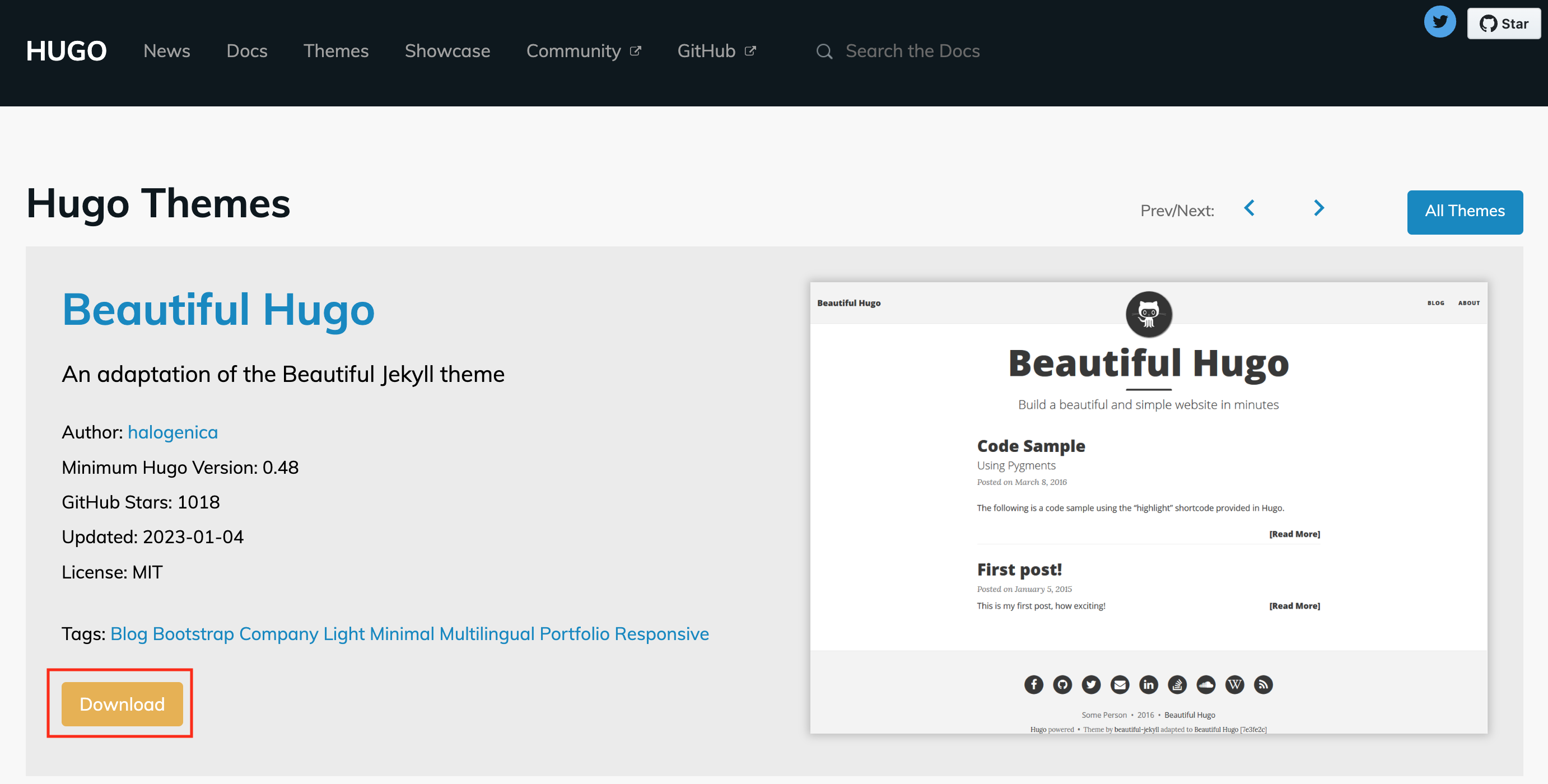
In general, you will be moved to the GitHub site. Click “Code” and then click “Download zip” to download the theme.
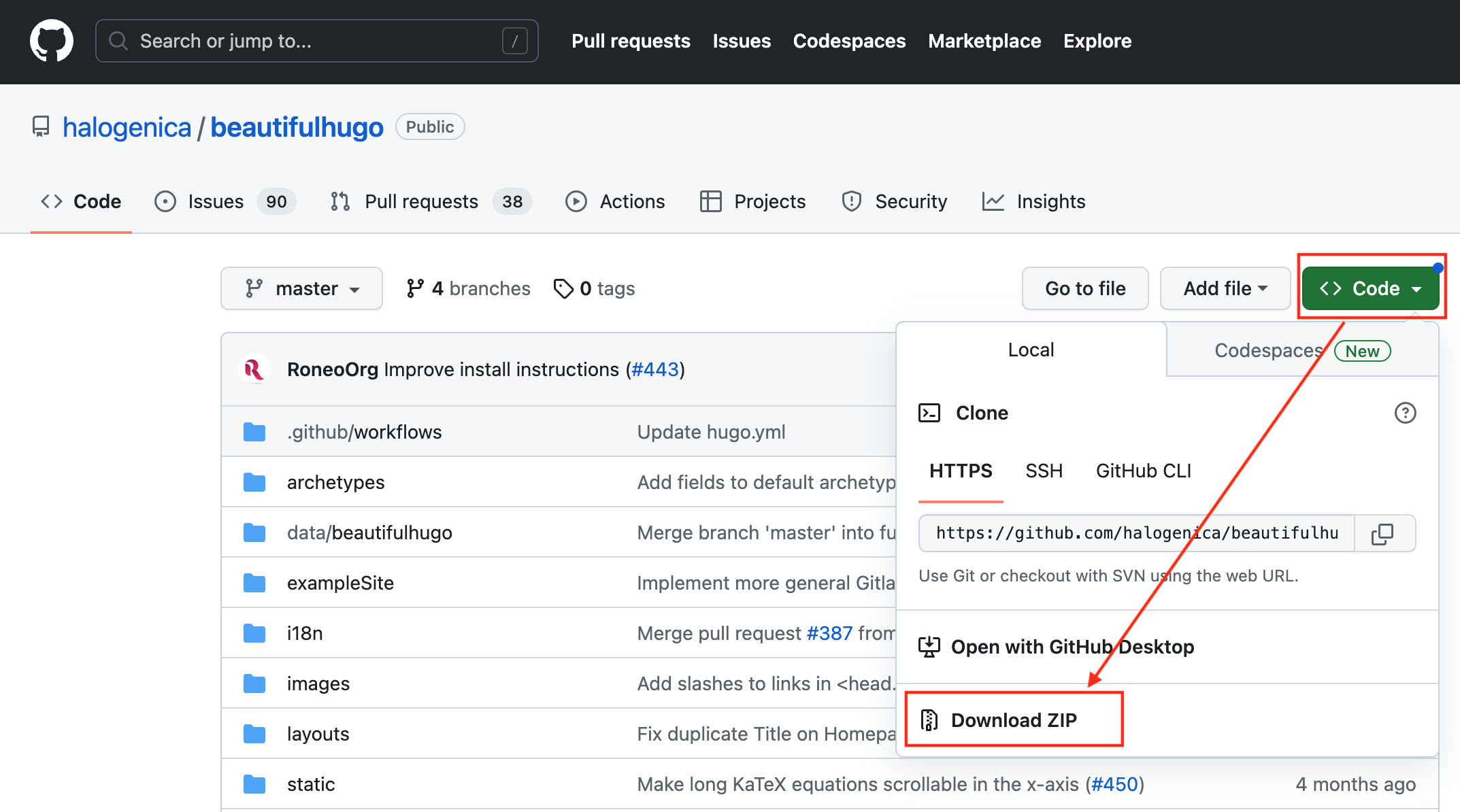
Place the downloaded theme in the project’s themes directory. In this case, place it in the themes/beautifulhugo directory.
How to Get a Theme from Git
Themes are managed on GitHub, so if you have an environment where you can use Git commands, it is simple to obtain one with git clone as shown below. Of course, you first need to know the repository URL. You can copy the URL displayed when you click the Code button on GitHub.
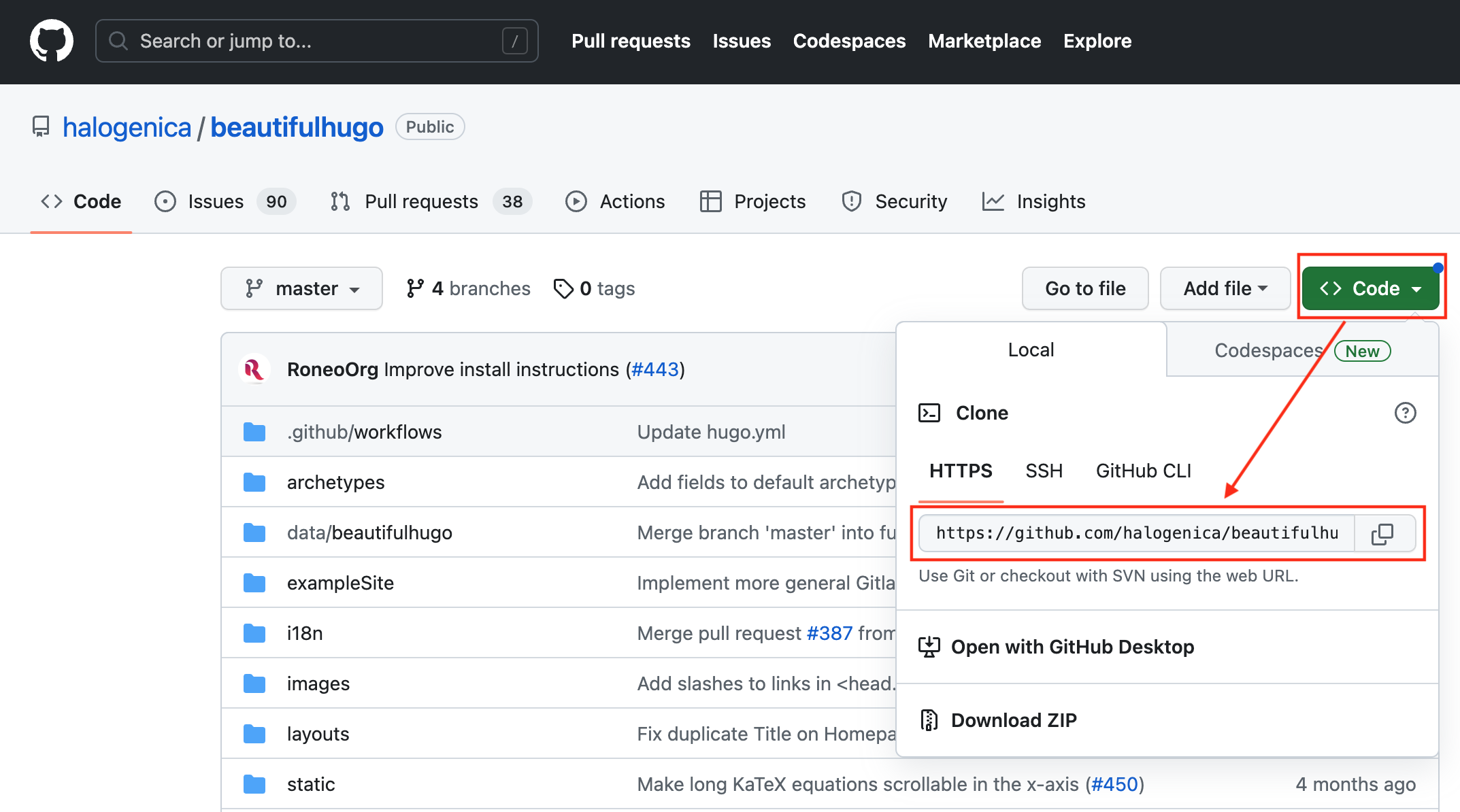
$ git clone https://github.com/halogenica/beautifulhugo.git beautifulhugo
If you manage your own site with Git, it is better to bring in the theme as a Git submodule as follows. The Git submodule command (git submodule) is a little difficult, but managing a theme as a submodule lets you apply updates from the theme side appropriately.
Get the theme as a submodule
$ git submodule add https://github.com/halogenica/beautifulhugo.git beautifulhugo
When fetching theme updates
$ git submodule update --remote --recursive
Theme-Specific Settings, If Needed
Some themes depend on external components and require initial setup. If a theme asks you to install related modules as shown below, run the commands as-is.
$ npm install
$ npm run build
For reference, npm is a package manager for Node.js and is installed together when you install Node.js.
Specify the Theme to Use
You can download several themes into the themes directory. Among them, set the theme you currently want to use in the Hugo configuration file as follows.
config.toml
theme = "beautifulhugo"
After setting the theme, generate the website with the hugo command. Based on the configured theme, files for upload such as HTML, CSS, and JS will be output to the public directory.
$ hugo
The hugo server command uses the theme configured in config.toml when starting the web server.
You can also specify the theme to use with the -t option when running the hugo command.
$ hugo -t theme_name         // When outputting the site
$ hugo server -t theme_name  // When starting the web server